 Help Center
Integrations
Integrations
Intulse Integration
Connect Intulse with LeadCenter to bring call activity and text message history into your contact records. Once connected, LeadCenter matches Intulse activity by phone number so your team can review communication history in one place.
What the Intulse Integration Does
- Syncs inbound and outbound call activity into LeadCenter
- Brings Intulse text message history into the related contact record
- Matches calls and messages to existing contacts by phone number
- Optionally creates a new contact from an unknown phone number when automatic contact creation is enabled
- Preserves synced history in LeadCenter even if you disconnect later
Where to Find It
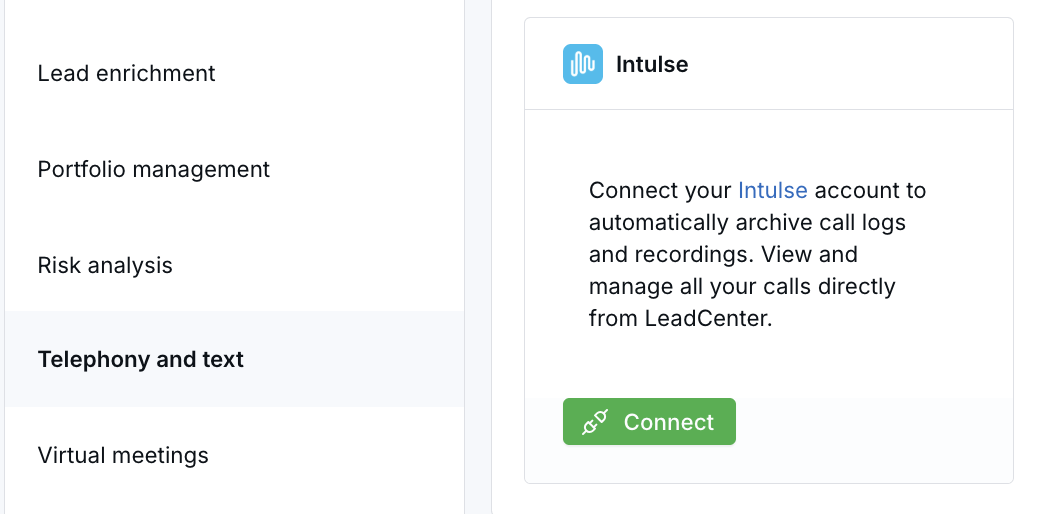
- Go to Settings > Integrations > Telephony
- Click the Intulse card
How to Connect Intulse
- Go to Settings > Integrations > Telephony.
- Open the Intulse card.
- Enter your Organization API Key.
- Click Connect.
After the connection is complete, LeadCenter begins syncing supported Intulse activity into your account.
Call Activity
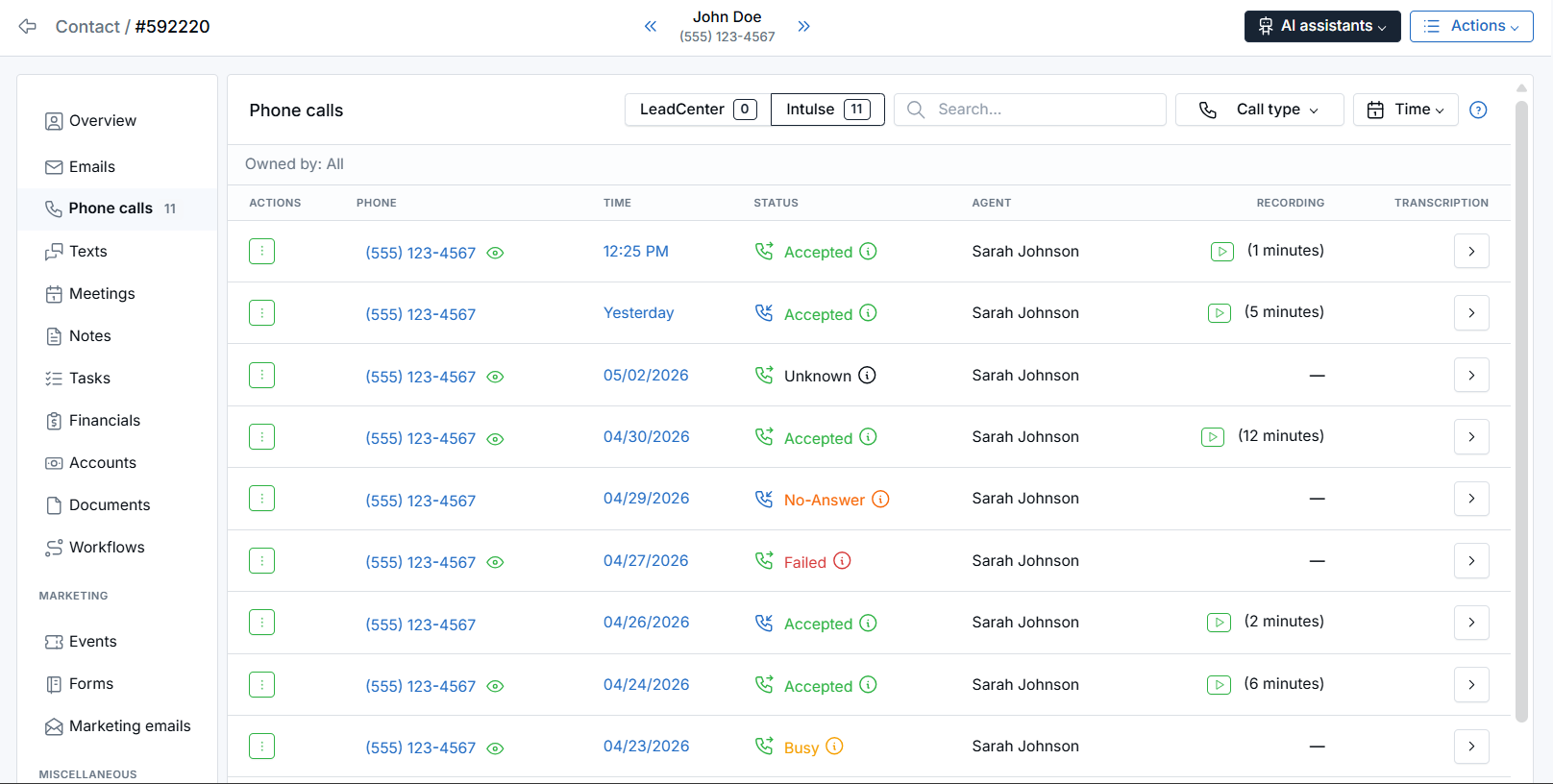
LeadCenter matches Intulse calls to existing contacts by phone number. When a match is found, the call is added to that contact’s history.
If no matching contact is found, LeadCenter creates a new contact using the phone number so the activity can still be tracked.
Call entries can include:
- Direction such as inbound or outbound
- Call result such as completed, missed, voicemail, or busy
- Duration
- Call recording playback or download when available from Intulse
You can review synced calls on the contact record under the Calls tab.
Text Messages
Intulse text message history is also matched to contacts by phone number and added to the related contact record.
- Sent and received messages appear in chronological order
- Messages are grouped into a conversation history for that contact
- LeadCenter displays the synced conversation as read-only history
On the main text message page, synced conversations are grouped by contact so you can quickly review the latest message in each conversation.
SMS conversations synced from Intulse are read-only in LeadCenter. Use Intulse when you need to reply.
Matching and Automatic Contact Creation
LeadCenter matches Intulse call and text activity to existing contacts by phone number. This matching runs even when automatic contact creation is turned off.
- If a matching contact is found, the call or text message is linked to that contact.
- If no matching contact is found and automatic contact creation is turned off, the activity is saved but stays unlinked.
- If no matching contact is found and automatic contact creation is turned on, LeadCenter creates a new contact and links the activity.
To manage this behavior, go to Settings > Integrations > Telephony, open the Intulse settings, and review Create leads automatically when fetching calls.
Leave automatic creation turned off if you do not want LeadCenter to create contacts for unknown phone numbers. Existing contacts will still be matched when their phone number matches the synced activity.
Additional Settings
After connecting Intulse, return to the Intulse card in Settings > Integrations > Telephony to review any available connection settings for your account.
How to Disconnect Intulse
- Go to Settings > Integrations > Telephony.
- Open the Intulse card.
- Click Disconnect.
Disconnecting stops future Intulse activity from syncing into LeadCenter. Previously synced calls and text messages remain on the related contact records.
Important Notes
- Matching is based on phone number.
- Calls and messages from unknown numbers can create new contact records automatically.
- Call recordings are available only when Intulse provides them for that call.
- Existing synced history stays in LeadCenter after the integration is disconnected.

Need more help?
If you can't find the answers you're looking for, our support specialists are available to answer your questions and troubleshoot if necessary.
-
Phone Call (888) 291-7116. Our main hours are Monday to Friday 7 am-5 pm Central Time.
-
Support Send your questions and inquiries via email to support@leadcenter.ai. A support ticket will be created and one of our team members will get back to you as quickly as possible.