 Help Center
Integrations
Integrations
RingCentral Integration: Calls and Text Messages
Connect RingCentral to LeadCenter to see your team's RingCentral calls and text messages alongside the rest of each client's history. Call logs and recordings appear in LeadCenter, and text conversations appear on the Texts page and on contact and household records.
Before You Start
- You need a RingCentral Admin account to connect.
- If your firm connected RingCentral before text sync was available, reconnect so your texts start syncing: on the RingCentral card, click Disconnect, then click Connect and sign in with a RingCentral Admin account.
Connect RingCentral
- Go to Integrations and open Telephony and text.
- On the RingCentral card, click Connect.
- Sign in with your RingCentral Admin account and approve the connection.
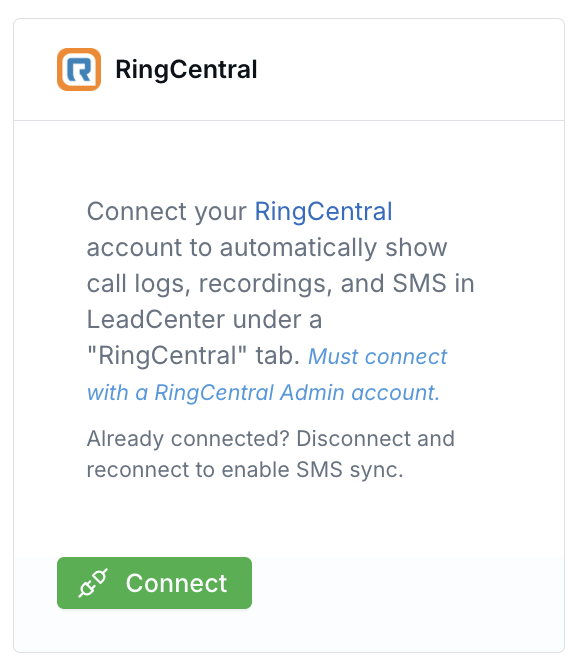
The RingCentral card under Integrations, Telephony and text.
When you first connect, LeadCenter pulls texts from the last day. After that, new texts sync as they're sent and received, and LeadCenter also checks for recent texts once a day as a backup.
See RingCentral Texts in LeadCenter
- All texts — Open Texts and click RingCentral. Texts sent from LeadCenter stay under the LeadCenter button.
- One contact or household — Open the contact or household, go to the Texts tab, and click RingCentral.
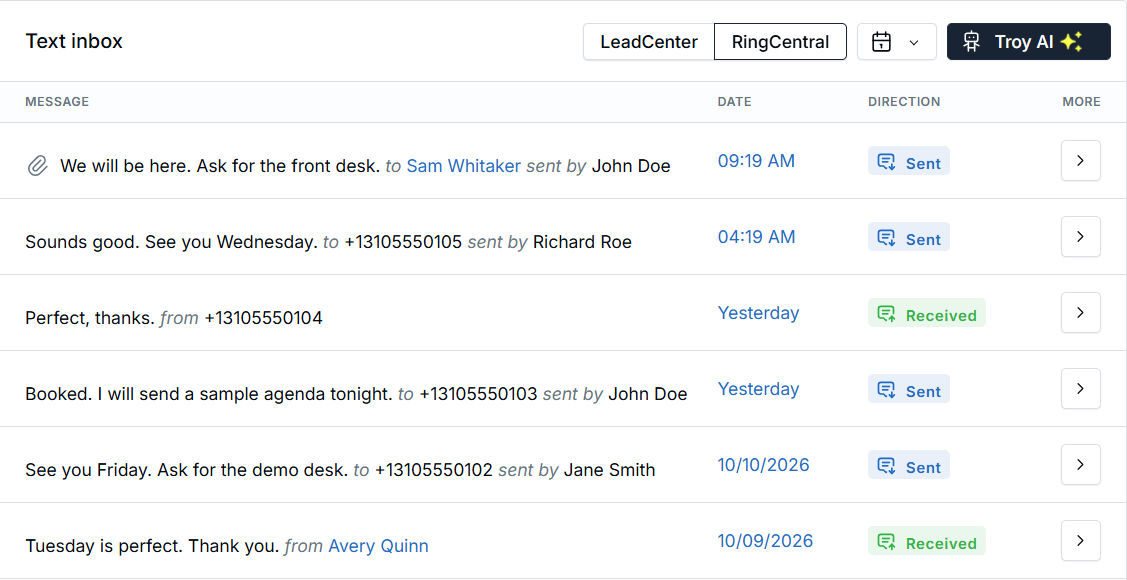
RingCentral texts on the Texts page.
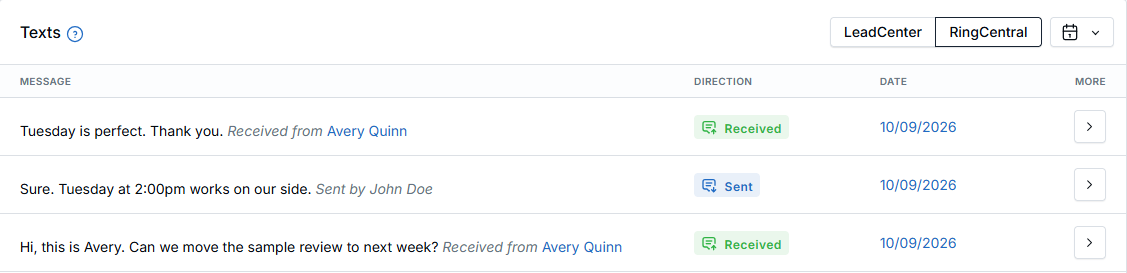
RingCentral texts on a contact's Texts tab.
Texts are grouped by conversation. Each row shows the latest message, the date, and whether it was Sent or Received. A paperclip means the message has an attachment. If the other person's number matches a contact, their name links to the contact. Otherwise, you'll see the phone number.
Note: RingCentral texts are read-only in LeadCenter. To send or reply, use RingCentral. Texts between your own RingCentral extensions aren't imported.
Create Contacts from Unknown Numbers
LeadCenter matches each outside phone number to your existing contacts. You can also let a text or call from an unknown number create a new contact:
- On the RingCentral card in Integrations, click Settings.
- Turn on Create leads automatically from calls and SMS, then click Save.
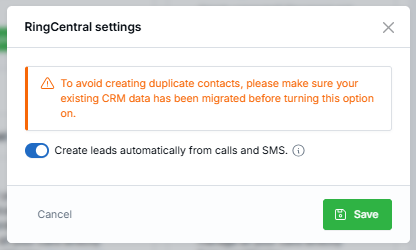
The RingCentral settings window.
Important: Turn this on only after your existing contacts have been moved into LeadCenter, so you don't create duplicates. When it's off, texts from unknown numbers are still saved, just without a contact.
Calls
Call history, recordings, and click-to-call work for every connected RingCentral account. To learn how calls are credited to the right team member, see Telephony Call User Attribution.
Disconnect RingCentral
When RingCentral is connected, the card shows Connected with Disconnect and Settings buttons.
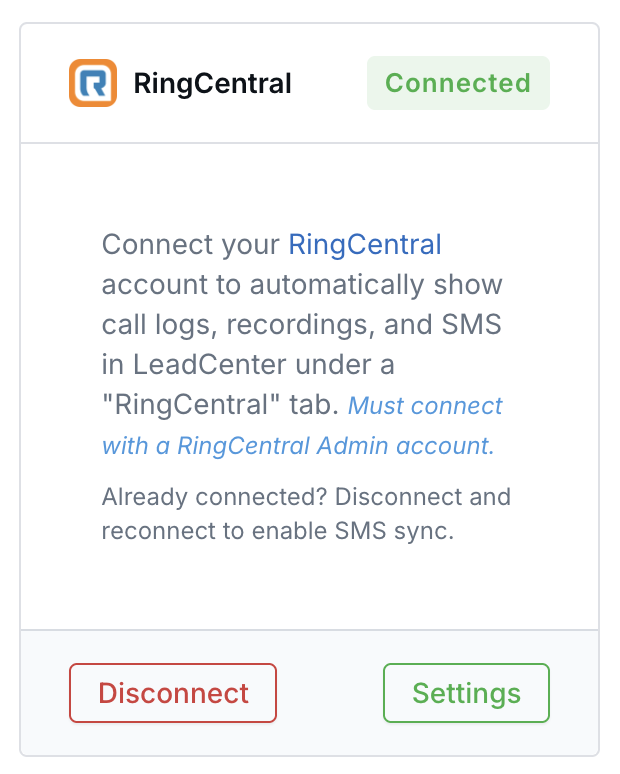
A connected RingCentral card.
Clicking Disconnect stops new calls and texts from syncing. Calls and texts already in LeadCenter stay where they are.

Need more help?
If you can't find the answers you're looking for, our support specialists are available to answer your questions and troubleshoot if necessary.
-
Phone Call (888) 291-7116. Our main hours are Monday to Friday 7 am-5 pm Central Time.
-
Support Send your questions and inquiries via email to support@leadcenter.ai. A support ticket will be created and one of our team members will get back to you as quickly as possible.