 Help Center
Integrations
Redtail Bidirectional Sync: Pull Contact and Task Updates into LeadCenter
Keep LeadCenter more up to date when your team works in Redtail. You can enable Redtail sync settings so changes made in Redtail CRM are pulled back into LeadCenter for linked contacts, tasks, and new notes.
Overview
With these settings enabled, LeadCenter can receive:
- Contact updates — Changes made to linked contacts in Redtail can sync back to LeadCenter.
- Task updates — Task updates, completions, and cancellations in Redtail can sync into LeadCenter.
- New notes — Notes added to a contact in Redtail can appear on the matching contact in LeadCenter.
Important: This is different from pulling new contacts from Redtail. New contacts created in Redtail are still controlled by the separate Pull contacts from Redtail setting.
How to Enable
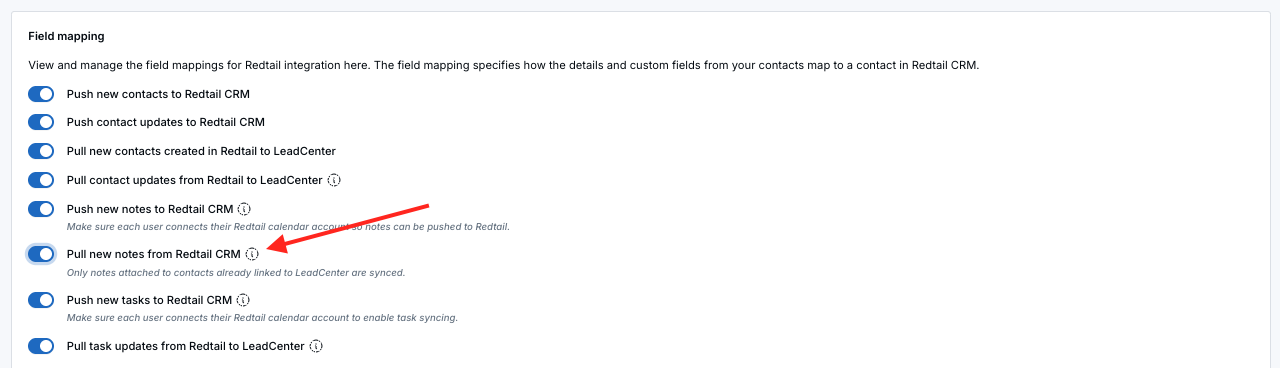
- Go to Settings > Integrations > CRM > Redtail > Configure.
- Turn on any sync options you want to use:
- Pull contact updates from Redtail to LeadCenter
- Pull task updates from Redtail to LeadCenter
- Pull new notes from Redtail CRM
- Click Save.
What Can Sync from Redtail
Contact Updates
When contact update sync is enabled, LeadCenter can update these linked contact fields from Redtail:
- Name details — first name, middle name, last name, family name, nickname, suffix, salutation
- Primary contact info — primary email, primary phone/mobile, primary phone type
- Address — street address, address line 2, city, state, postal code, country
- Professional details — company, job title, job status
- Personal details — date of birth, gender, marital status, anniversary date
- Client details — client since, termination date, date of death, referred by
- Classification — source, stage, category, notes/enquiry
- FA-specific fields — client status, writing advisor, servicing advisor, tax ID
- Relationships and other fields — spouse relationship, Head of Household flag, mapped custom fields
Note: Source and Category are updated only if LeadCenter can match the Redtail value to an existing Source or Category by name. If no match is found, the current LeadCenter value stays unchanged.
Task Updates
When task update sync is enabled, Redtail task changes can update records in LeadCenter's Tasks module.
- Title
- Notes
- Due date
- Status
- Completion status and timestamp
Additional task fields such as Priority, Category, and Private can sync when the task is created in Redtail, but they may not update for tasks that originally came from LeadCenter.
New Notes
When note sync is enabled, notes added to a contact in Redtail appear on the matching contact in LeadCenter automatically, usually within about an hour.
- The note keeps the same date and time it was created in Redtail.
- If the Redtail note category also exists in LeadCenter, the same category is used.
- If the Redtail user who added the note also has a LeadCenter account, that user appears as the author.
- If a Redtail note is linked to several contacts, it appears on every matching contact in LeadCenter.
Only new Redtail notes are pulled in. Existing Redtail note history is not copied into LeadCenter.
If a note is later edited or deleted in Redtail, those changes do not sync back to LeadCenter. Once the note is pulled into LeadCenter, it stays there so your team does not lose history.
Contacts Not Yet in LeadCenter
For Task Updates
If a Redtail task is linked to a contact that does not yet have a matching linked contact in LeadCenter, LeadCenter can still pull that task correctly after it first creates or links the contact.
This behavior works only when both of these settings are enabled:
- Pull task updates from Redtail to LeadCenter
- Pull contacts from Redtail
If pulling new contacts from Redtail is turned off, LeadCenter does not automatically import the missing contact, so tasks without a linked LeadCenter contact may be skipped.
For New Notes
If a Redtail note is added for a contact that has not yet been brought into LeadCenter, LeadCenter can add that contact automatically as long as Pull contacts from Redtail is also enabled. The note appears on the new contact shortly after.
How Task Pull Works When the Contact Is Missing
- LeadCenter receives a Redtail task or activity update.
- If the task cannot yet be matched to a linked LeadCenter contact, LeadCenter requests a contact sync for the linked Redtail contact.
- After the contact sync finishes, LeadCenter retries the task pull.
- The task is then created or updated in LeadCenter with the correct linked contact.
This helps prevent Redtail tasks from being missed just because the related Redtail contact had not been pulled into LeadCenter yet.
Important Task Notes
- No linked contact on the Redtail task: If the Redtail task is not linked to any contact, there is nothing to match, so the task may still be skipped.
- Timing: If sync processing is busy, the task may appear a little later than usual because the retry happens after the contact sync finishes.
- Deduplication: LeadCenter avoids creating unnecessary repeated sync attempts when multiple Redtail updates arrive for the same task.
How It Works
Redtail sends updates to LeadCenter when linked contacts, tasks, or notes are created or updated. LeadCenter processes those updates and applies them to the matching record.
- Contact created or updated: usually appears within about 2 minutes
- Task created, updated, or deleted: usually appears within about 30 seconds
- New note created: usually appears within about 1 hour
Where to Find Results
- Contacts — Open a linked contact record in LeadCenter to review updated contact details and new Redtail notes.
- Tasks — Open the Tasks module to review updated Redtail tasks.
- Calendar — Redtail tasks still appear in the Calendar view as well.
Important Notes
- Linked records only: Contact updates from Redtail apply only to contacts already linked to a LeadCenter record.
- Main contact only for contact field updates: Only the main Head of Household individual contact is synced for contact field updates. Family members are not included in that contact field update sync.
- New Redtail contacts: Pulling new contacts from Redtail is controlled by a separate setting.
- Deleted tasks are not removed: If a task is deleted in Redtail, it is marked as Cancelled in LeadCenter.
- Deleted Redtail notes stay in LeadCenter: Notes pulled from Redtail are not removed from LeadCenter if they are later deleted in Redtail.
- No sync loops: Updates received from Redtail do not trigger another update back to Redtail.
- Automations may still run: Because records are updated in LeadCenter, workflows, Zapier, or other automations may still be triggered.
- Notes are not duplicated: Notes originally created in LeadCenter and pushed to Redtail do not come back into LeadCenter as duplicates.
Troubleshooting
- My Redtail contact changes are not showing in LeadCenter: Confirm Pull contact updates from Redtail to LeadCenter is enabled, and confirm the contact is already linked between both systems.
- My Redtail task is not in the Tasks module: Confirm Pull task updates from Redtail to LeadCenter is enabled. Redtail tasks may still appear in the Calendar view even if task updates are not enabled for the Tasks module.
- A deleted Redtail task still exists in LeadCenter: Deleted Redtail tasks are not removed from LeadCenter. They are marked as Cancelled.
- Source or Category did not update: LeadCenter only updates those fields if it can match the Redtail value to an existing Source or Category by name.
- A Redtail task linked to a contact is still not appearing: Confirm both Pull task updates from Redtail to LeadCenter and Pull contacts from Redtail are enabled. If the contact has not been pulled into LeadCenter yet, the task may not appear until that contact sync finishes.
- A Redtail note is not appearing in LeadCenter: Confirm Pull new notes from Redtail CRM is enabled. New notes usually appear within about an hour, and only notes created after the setting is enabled are pulled in.
Frequently Asked Questions
Does this pull in brand-new contacts from Redtail?
No. New contact import is controlled by a separate Pull contacts from Redtail setting.
Will Redtail updates create a sync loop back to Redtail?
No. Updates received from Redtail do not trigger another update back to Redtail.
Are family members synced too?
For contact field updates, no. Only the main Head of Household individual contact is synced.
Do edits to Redtail notes sync into LeadCenter?
No. Only newly created Redtail notes are pulled in. Later edits do not update the note in LeadCenter.
What happens if a Redtail note is deleted later?
The note stays in LeadCenter so your team does not lose note history.
Will notes created in LeadCenter and pushed to Redtail come back as duplicates?
No. Each Redtail note is brought into LeadCenter only once.

Need more help?
If you can't find the answers you're looking for, our support specialists are available to answer your questions and troubleshoot if necessary.
-
Phone Call (888) 291-7116. Our main hours are Monday to Friday 7 am-5 pm Central Time.
-
Support Send your questions and inquiries via email to support@leadcenter.ai. A support ticket will be created and one of our team members will get back to you as quickly as possible.