 Help Center
Integrations
How do I enable the Wealthbox integration?
Syncing with Orion
Integration with BigMarker
Integrating LeadCenter with Catchlight
SmartAsset Integration
Redtail Integration
Integration with Microsoft Power BI
RingCentral Integration
GoTo Connect Integration
Leadcenter Wealthbox Contact Field Mapping
Dialpad Integration
How to Disassociate a Contact from Wealthbox or Redtail
Sync Contacts with Zapier
Sync Seminars and Attendees with Zapier
Black Diamond Integration
Connect Gmail or Google Workspace to LeadCenter
Redtail Bidirectional Sync: Pull Contact and Task Updates into LeadCenter
Wealthbox Per-User Connections
How to Connect Jump with LeadCenter
Intulse Integration
Blueleaf Integration
Archive Communications with Smarsh, Greenboard, or Email
Sync Appointments with Zapier
How to Disassociate a Contact from Wealthbox or Redtail
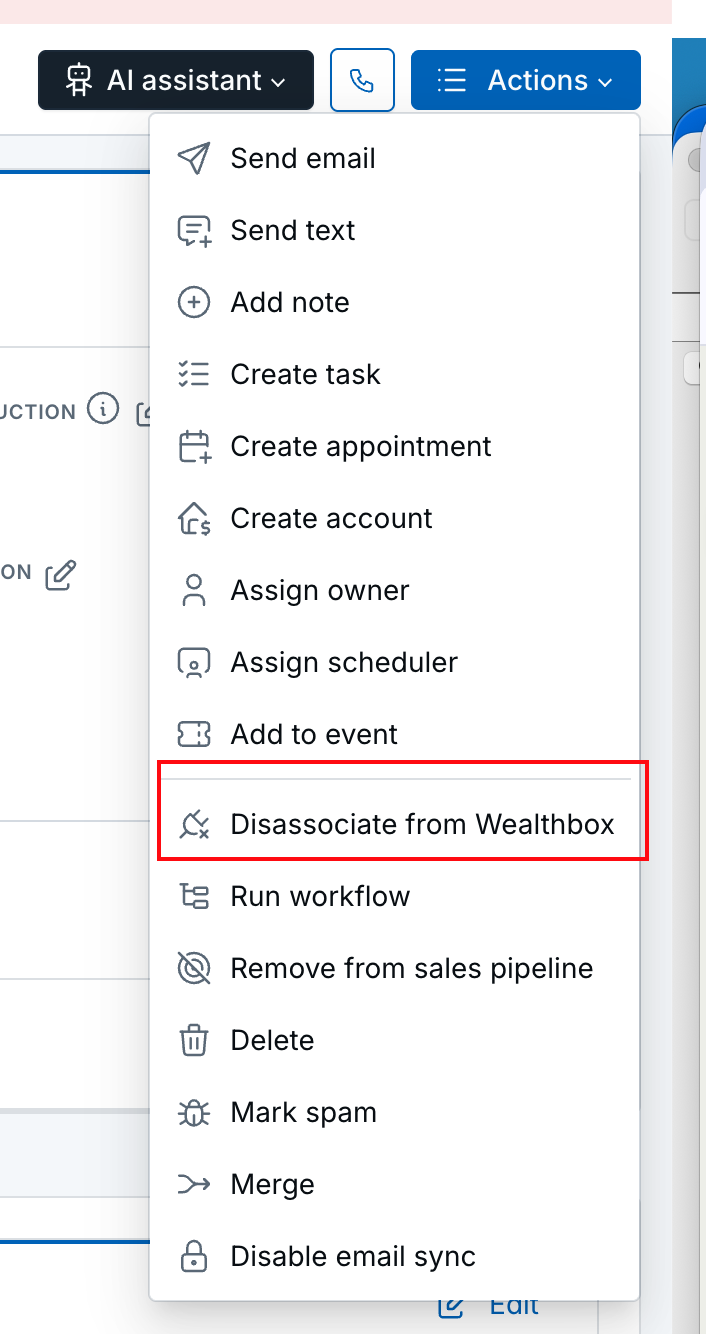
You can unlink a LeadCenter contact from its linked Wealthbox or Redtail contact using the contact action menu. This only removes the link in LeadCenter; it does not delete the contact in Wealthbox or Redtail.
When You Might Do This
- You linked the wrong CRM contact and want to clear the link so you can push to a different one.
- You no longer want this LeadCenter contact to sync with that CRM contact.
- You need to disassociate before certain actions (e.g. merging contacts, marking as spam, or deleting) when the app requires it.
What You Need
- Redtail: Your account must have Redtail connected, and the contact must already be linked to a Redtail contact (you’ll only see the option when they are linked).
- Wealthbox: Your account must have Wealthbox connected, and the contact must already be linked to a Wealthbox contact (same as above).
Steps: Disassociate from the Contact Action Menu
- Open the contact action menu
From the pipeline (table or kanban): Find the contact row/card and click the three-dots (⋮) button on that contact.
From lead/contact details: Open the contact, then open the action menu (e.g. dropdown or “Actions”) for that lead/contact. - Show more actions (pipeline only)
If you’re on the pipeline view, click “More...” in the dropdown so the CRM options are visible. - Disassociate
From Redtail: Click “Disassociate from Redtail” (plug/unplug icon).
From Wealthbox: Click “Disassociate from Wealthbox” (plug/unplug icon). - Confirm the result
Success: You’ll see a green message such as “Successfully disassociate the redtail contact from leadcenter.” or “Successfully disassociated the wealthbox contact from leadcenter.”
Nothing was linked: You’ll see a red message such as “No associated redtail contact found.” or “No associated wealthbox contact found.”
After a successful disassociation, the contact is no longer linked to that CRM record in LeadCenter. You can later use “Push to Redtail” or “Push to Wealthbox” from the same menu to link the contact to a (possibly different) CRM contact again.
Notes
- Disassociating only removes the link in LeadCenter. The contact in Wealthbox or Redtail is not deleted or changed.
- The “Disassociate from Redtail” and “Disassociate from Wealthbox” options appear only when the integration is connected and that contact is already linked; if you don’t see them, either the integration isn’t connected or the contact isn’t linked.

Need more help?
If you can't find the answers you're looking for, our support specialists are available to answer your questions and troubleshoot if necessary.
-
Phone Call (888) 291-7116. Our main hours are Monday to Friday 7 am-5 pm Central Time.
-
Support Send your questions and inquiries via email to support@leadcenter.ai. A support ticket will be created and one of our team members will get back to you as quickly as possible.