 Help Center
Integrations
Integrations
Connect Your Own Tools with a General API Token
A General API token lets your own scripts and internal tools connect to LeadCenter, for example to read or update contacts, tasks, notes, and calendar events. Integration tokens, such as your Zapier token, work only with the integration they were created for.
Which Token to Use
- Integration tokens are created on an integration's card under Integrations, such as Zapier, Financial Seminar Services, LeadJig, Leading Response, SmartAsset, Intulse, Silloet, and Schenck Marketing. Each one works only with that integration.
- A General API token is for scripts and tools that you or your IT provider maintain. It can use the LeadCenter API and the integration APIs on your account.
If your zaps and other integrations each use their own token, you don't need to change anything.
Requirements
- General API turned on for your account. If the General API card shows Contact support to enable this, email support@leadcenter.ai and we'll turn it on.
- The Create API tokens permission. It's in the API Tokens group of your role, along with View API tokens and Revoke API tokens. See Roles & Permissions (Role-Based Access Control).
Create a General API Token
- In LeadCenter, click your name in the top right, then Integrations.
- Open the Zapier and API tab.
- On the General API card, click Access tokens.
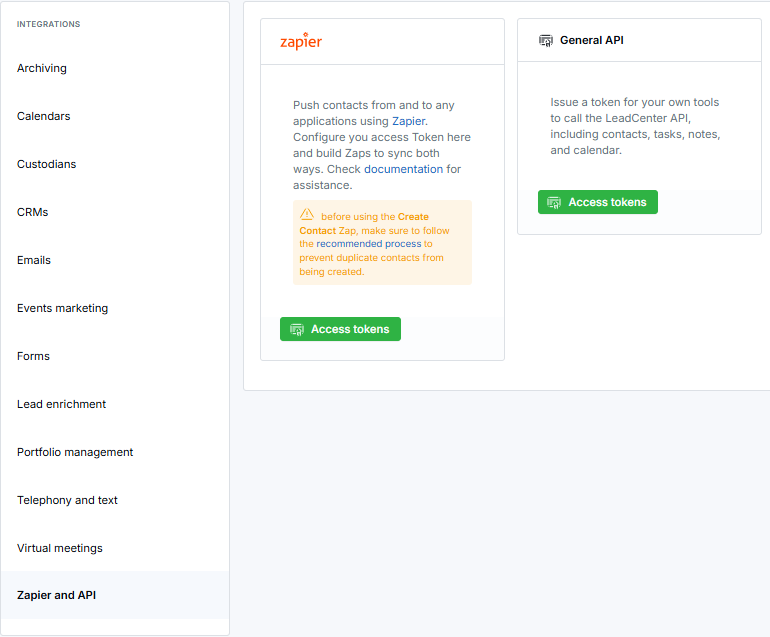
The General API card under Integrations → Zapier and API.
- On the General Tokens page, click Generate new token.

The General Tokens page.
- Add a short note so you'll recognize the token later, such as the name of the tool that uses it, and generate the token.
- Copy the token right away and store it somewhere safe. LeadCenter shows it only once.
The token appears in the list with its note, who created it, and when it was last used.
Switch Your Tool to the New Token
- Open the script, tool, or service that connects to LeadCenter.
- Replace the old integration token (for example, your Zapier token) with the General API token.
- Run the tool once to confirm it works.
Only the token changes. The web addresses and data your tool sends stay the same.
Keep your Zapier token, and any other integration token, if your zaps or integrations still use it. Removing it would stop those connections.
Key Dates
- Integration tokens created before October 15, 2026 can still call the LeadCenter API through October 31, 2026 (Central Time). Starting November 1, they work only with their own integration.
- Integration tokens created on or after October 15, 2026 work only with their own integration.
For Developers
Send the General API token with each request:
Authorization: Bearer {token}
Accept: application/json
Base URL: https://api.leadcenter.ai. The LeadCenter API uses paths such as /v1/leads, /v1/tasks, /v1/notes, and /v1/calendars.
A request made with a token that isn't allowed to use the LeadCenter API returns a 403 status with the message This token is not permitted to use this API.
Revoke a Token
On the General Tokens page, click Revoke next to a token, or Revoke all to remove every general token. This doesn't remove the tokens on integration cards. Any tool still using a revoked token stops working.
Keep Your Token Private
Treat a token like a password. A General API token can use the LeadCenter API and the integration APIs on your account. If a token may have been shared somewhere it shouldn't be, revoke it and create a new one.
Troubleshooting
My tool shows "This token is not permitted to use this API."
The tool is using an integration token, such as a Zapier token, to call the LeadCenter API. Create a General API token and replace the old token in your tool.
The General API card says "Contact support to enable this."
General API isn't turned on for your account yet. Email support@leadcenter.ai and we'll turn it on.
I don't see Generate new token.
Your role may not include Create API tokens. Ask your account owner or admin to create the token or update your role.
I created a new Zapier token, but my tool still doesn't work.
Zapier tokens created on or after October 15, 2026 work only with Zapier. Use a General API token for your own tools.
FAQs
Do I need to reconnect Zapier?
No. Your zaps keep using your Zapier token as they do today.
Does this change what my users can do?
No. Only what each token can access has changed. Users, roles, and permissions stay the same.
Related Articles
Need help? Contact us at support@leadcenter.ai.

Need more help?
If you can't find the answers you're looking for, our support specialists are available to answer your questions and troubleshoot if necessary.
-
Phone Call (888) 291-7116. Our main hours are Monday to Friday 7 am-5 pm Central Time.
-
Support Send your questions and inquiries via email to support@leadcenter.ai. A support ticket will be created and one of our team members will get back to you as quickly as possible.