 Help Center
Integrations
Integrations
Zoom Phone Integration: Calls and Text Messages
Connect Zoom Phone to LeadCenter to see your team's Zoom Phone calls and text messages alongside the rest of each client's history. Calls, recordings, and texts are matched to your contacts automatically, with no manual logging.
Before You Start
- A Zoom account owner or admin must connect. LeadCenter needs access to all of your account's phone and text records, and Zoom only grants that to owners and admins. If someone else tries, LeadCenter asks you to connect with an owner or admin account.
- A Zoom account can connect to only one LeadCenter account at a time. If it's already connected to another LeadCenter account, you'll see a message saying so.
Connect Zoom Phone
- Go to Integrations and open Telephony and text.
- On the Zoom Phone card, click Connect.
- Sign in to Zoom with an owner or admin account and approve the access.
- You're returned to LeadCenter, and the card shows Connected.
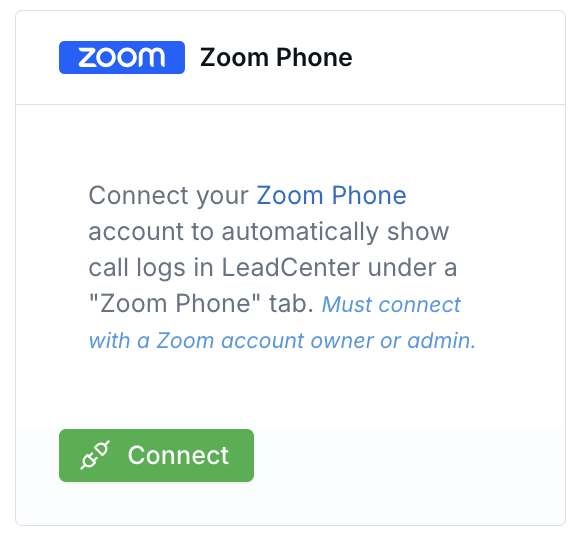
The Zoom Phone card under Integrations, Telephony and text.
When you first connect, LeadCenter imports the last day of calls and texts. After that, new calls, texts, and recordings arrive in near real time, and a daily check makes sure nothing is missed.
Calls
Calls are matched to your contacts by phone number. You can find them:
- On the Calls page, under the Zoom Phone tab.
- On a contact's Phone calls tab.
- In household call views.
Each call shows:
- Direction: inbound or outbound.
- Result: completed, no answer, voicemail, busy, or failed.
- Duration and team member: how long the call lasted and the LeadCenter user who handled it, matched by email or name.
- Recording: play or download it, when the call was recorded.
Note: Calls between your own team members (extension to extension, or to your own Zoom numbers) are internal and aren't imported.
Recordings and Transcription
When Zoom reports that a call was recorded, LeadCenter attaches the recording a few minutes after the call ends. With a Call Transcription subscription, recorded calls are transcribed automatically, and the transcript and AI summaries appear with the call. See Call Recording and Transcriptions.
Text Messages
Zoom Phone texts are matched to your contacts by phone number and shown as read-only conversations:
- On the Texts page, under the Zoom Phone tab.
- On a contact's Texts tab.
- In household views.
Sent and received messages appear in order, and attachments are noted on the message.
Note: Zoom Phone texts are read-only in LeadCenter. To reply, use the Zoom app.
Create Contacts from Unknown Numbers
Click Settings on the Zoom Phone card to choose what happens when a call or text comes from a number that doesn't match a contact.
- Create Leads Automatically on: LeadCenter creates a new lead with that phone number. The lead source is Zoom Phone.
- Create Leads Automatically off (default): calls and texts are still saved and shown, but no new leads are created. If a later call or text from that number matches a contact, the earlier ones are linked to that contact too.
Important: Turn this on only after your existing contacts are in LeadCenter, so you don't create duplicates.
Disconnect Zoom Phone
Go to Integrations → Telephony and text, click Disconnect on the Zoom Phone card, and confirm. LeadCenter removes its access in Zoom and stops syncing. Calls, texts, recordings, and transcripts already in LeadCenter are kept.
If the connection stops working (for example, access was removed in Zoom), LeadCenter disconnects it and emails the person who connected it so they can reconnect.
Related Articles

Need more help?
If you can't find the answers you're looking for, our support specialists are available to answer your questions and troubleshoot if necessary.
-
Phone Call (888) 291-7116. Our main hours are Monday to Friday 7 am-5 pm Central Time.
-
Support Send your questions and inquiries via email to support@leadcenter.ai. A support ticket will be created and one of our team members will get back to you as quickly as possible.