 Help Center
Calendars & Appointments
Calendars & Appointments
How Appointment Notifications Work
LeadCenter gives you control over whether appointment notifications are sent when you create, edit, reschedule, or cancel an appointment. This guide explains how those options work, when notifications are sent or skipped, and how behavior differs between Calendar Invite and Email Confirmation.
Overview
Whenever you create, update, or cancel an appointment, LeadCenter shows a popup where you choose whether to send a notification. The button labels change depending on the action, but the idea is the same:
| Action | Send Notification | Skip Notification |
|---|---|---|
| Create | Save & Send — saves the appointment and sends a confirmation | Save Only — saves the appointment without sending a confirmation |
| Edit / Update | Update & Send — saves changes and sends an update notification | Update Only — saves changes without sending a notification |
| Cancel | Cancel & Notify — cancels the appointment and sends a cancellation notification | Cancel Only — cancels the appointment without sending a notification |
Important: This notification popup applies to appointments with contacts. Time blocks, internal meetings, and external calendar events do not use the same notification flow.
What Each Option Does
Options that send notifications
Options such as Save & Send, Update & Send, and Cancel & Notify will:
- Send the relevant notification to the contact
- Notify any guests and spouse if they are included
- Notify the host and any internal attendees
- Sync the change to connected calendars when applicable
Options that do not send notifications
Options such as Save Only, Update Only, and Cancel Only save the action in LeadCenter without sending a system notification.
In some cases, sync behavior depends on whether the appointment uses Calendar Invite or Email Confirmation, which is explained below.
Double-Booking Warning
When you create or update an appointment from the calendar, LeadCenter checks whether any selected attendee already has a busy appointment during that time. If it finds a conflict, a Possible Double Booking warning appears before the confirmation step.
- Go to Calendars and create or edit an appointment.
- Select the attendees, date, time, and timezone.
- Select Save.
- If conflicts are listed, select OK, continue to keep saving or Change the time to return to the form.
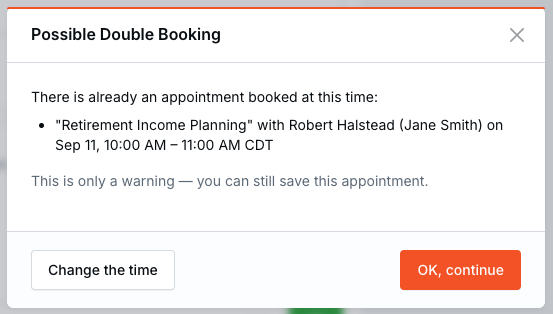
Each listed conflict includes its title, visible contact, host calendar, and time range in the timezone selected on the appointment form. Appointments belonging to another user may appear as Private appointment without a contact name.
Appointments Included in the Check
- Busy appointments on every selected attendee’s calendar
- Later occurrences of recurring busy appointments
- All-day appointments, using the full day in the selected timezone
Items Not Included in the Check
- Appointments marked Free
- Cancelled or no-show appointments
- Time blocks, internal meetings, and client review reminders
- Events synced from Google Calendar or Microsoft Outlook
- Changes made by dragging or resizing an appointment on the calendar
Creating an Appointment
- Go to the Calendars page and create a new appointment.
- Fill in the appointment details.
- Click Save.
- Choose:
- Save & Send to send the confirmation
- Save Only to save the appointment without sending a confirmation
Choose Save Only if you need to create the appointment without notifying the contact yet.
Tip: You can click Back to editing from the popup if you want to return to the form before finishing the action.
Editing an Appointment
Editing includes changes such as time, date, location, meeting type, guests, spouse inclusion, attendees, and notes.
- Open the appointment from the Calendars page, a contact record, or a company record.
- Make your changes.
- Click Save.
- Choose:
- Update & Send to send the update
- Update Only to save changes without sending a notification
What happens when guests or spouse change
- Newly added guests receive a confirmation when notifications are enabled.
- Removed guests receive a cancellation when notifications are enabled.
- Turning Include spouse on or off can also trigger a confirmation or cancellation for the spouse.
What happens when internal attendees change
If you remove an internal attendee from the appointment, they can receive a cancellation notification if notifications are enabled. Their calendar event is also removed from connected calendars when applicable.
Rescheduling an Appointment
Rescheduling means changing the appointment’s date and/or time.
Method 1: Edit the appointment form
- Open the appointment.
- Change the date or time.
- Click Save.
- Choose:
- Update & Send to reschedule and notify
- Update Only to reschedule without notifying
This is the recommended method if you want control over whether a notification is sent.
Method 2: Drag and drop on the calendar
- On the Calendars page, drag the appointment to a new time slot or resize it.
- The appointment is immediately rescheduled.
Important: Drag-and-drop rescheduling always sends a reschedule notification. If you need to reschedule without notifying the contact, open the appointment form and use Update Only instead.
Note: Recurring appointments cannot be rescheduled by drag and drop. Open the appointment and edit it through the form instead.
Cancelling an Appointment
How to cancel
- Open the appointment.
- Click Cancel.
- Enter a cancellation reason.
- Choose:
- Cancel & Notify to cancel and send a cancellation notification
- Cancel Only to cancel without sending a system notification
Important: If you cancel an appointment from the Contact or Company page, a cancellation reason is required before you can continue. If you cancel from the Calendars page, no cancellation reason form is shown.
When to use Cancel Only
- The appointment was created by mistake
- You already informed the contact another way
- You are cleaning up records
- You do not want to confuse the contact with an unnecessary cancellation message
When to use Cancel & Notify
- A real appointment needs to be cancelled and the contact should be informed
- You want a clear communication trail
- You want the cancellation reflected properly in connected calendars
Calendar Invite vs Email Confirmation
Notification behavior depends on whether the appointment uses Calendar Invite or Email Confirmation. For a full explanation of these two communication modes, see Calendar Invite vs Email Confirmation for Appointments.
| Aspect | Calendar Invite | Email Confirmation |
|---|---|---|
| Who notifies the contact | Google Calendar or Microsoft Outlook | LeadCenter |
| Confirmation emails | The connected calendar handles them | LeadCenter sends them |
| Update emails | The connected calendar handles them | LeadCenter sends them |
| Cancellation emails | The connected calendar handles them when the calendar event is deleted | LeadCenter sends them |
| Update Only | Changes are not pushed to the connected calendar, so it does not notify attendees | LeadCenter skips its own notification, but calendar syncing can still happen because attendees are not managed there |
| Cancel Only | If the appointment was originally sent using Calendar Invite, the appointment is still removed from the connected calendar and Google or Microsoft may send their own cancellation notice to attendees. LeadCenter does not send a duplicate cancellation email. | LeadCenter skips its own cancellation email. |
| Template usage | The template becomes the event description in Google or Outlook | The template becomes the email body |
How Externally Synced Cancellations Work
When a meeting is cancelled or deleted in Microsoft Outlook or Google Calendar, LeadCenter keeps its synced record and marks it as Cancelled.
- The external calendar or scheduling service handles attendee cancellation notices.
- LeadCenter does not send an additional cancellation email or text message.
- The cancelled meeting remains hidden on the LeadCenter calendar until Cancelled is enabled in the status filter.
- If the meeting is linked to a contact, it remains in that contact’s appointment history.
- Cancelled meetings no longer block availability or trigger LeadCenter reminders.
Removed Attendees
When an attendee is removed from a calendar event sent as a Calendar Invite, Google or Outlook handles the attendee notification. LeadCenter does not send a duplicate message.
Audit Trail
When a connected calendar cancellation updates the appointment in LeadCenter, the change is also recorded in the appointment's audit history and activity history.
With Calendar Invite, Google or Microsoft is the main source of attendee communication. With Email Confirmation, LeadCenter handles the contact-facing emails directly.
Important: Calendar Invite is only available when the calendar is connected to Google or Microsoft. If you use Redtail only, LeadCenter uses Email Confirmation.
Special case: switching from Calendar Invite to Email Confirmation
If an appointment was created while the host had Calendar Invite enabled, then later the host switches to Email Confirmation, the original appointment still keeps its calendar-attendee setup. This can lead to warning messages in the popup, and in some cases the contact may receive both a provider email and a LeadCenter email.
Recurring Appointment Behavior
Updating a recurring appointment
When you edit a recurring appointment and click Save, LeadCenter first asks which events you want to update:
| Option | What It Does |
|---|---|
| Update only this event | Creates an exception for this single occurrence |
| Update this event and all future events | Splits the series from this point forward and applies changes to future occurrences |
| Update all events | Applies changes to the full series |
After selecting which events to update, a popup appears asking whether you want to send the update.
Cancelling a recurring appointment
Recurring appointments can only be cancelled from the Calendars page. When you cancel one, LeadCenter first asks which events you want to cancel:
| Option | What It Does |
|---|---|
| Cancel only this event | Cancels just that occurrence |
| Cancel this event and all future events | Ends the series before this occurrence and cancels the rest |
| Cancel all events | Cancels the full recurring series |
After selecting which events to cancel, a popup appears asking whether you want to send the cancellation.
Recurring appointment limitations
- Recurring appointments cannot be cancelled from the Contact or Company page.
- Recurring appointments cannot be moved by drag and drop.
- For Zoom appointments, some future-series options may be hidden.
- If the recurrence rule has been changed, the Update only this event option is not available.
- If the appointment start date has been changed, the Update all events option is not available.
Client Self-Service Links (Reschedule, Cancel, Confirm)
Contacts receive links in their appointment confirmation and reminder emails that let them reschedule, cancel, or confirm their appointment directly.
Reschedule Link
When a contact clicks the reschedule link in their email:
- They see a date and time picker with your available time slots
- They choose a new date and time
- The appointment is rescheduled immediately, connected calendars are updated, and reschedule notifications are sent
Important: Rescheduling from the email link takes effect immediately. It does not require host approval.
Cancel Link
When a contact clicks the cancel link in their email:
- They see the appointment details and a Cancel Appointment button
- A confirmation modal asks them to confirm the cancellation
- A cancellation request is created and the host receives an email notification
Important: The appointment is not cancelled automatically. The host must review the cancellation request and decide what to do next.
Confirm Link
When a contact clicks the confirm link in their email:
- They see the appointment details and a Confirm Appointment button
- A confirmation is recorded on the appointment
- The host receives a notification that the appointment was confirmed
How This Differs from Text Reply Options
Contacts can also respond to text reminders by replying 1, 2, or 3. The behavior is similar, but not identical. See Appointment Reminders for more details.
| Action | Email Link | Text Reply |
|---|---|---|
| Confirm | Confirm button on web page | Reply 1 |
| Reschedule | Select a new date and time, then reschedule immediately | Reply 2 — creates a request only |
| Cancel | Creates a cancellation request | Reply 3 — creates a cancellation request |
Text reply reschedule requests do not automatically reschedule the appointment. They create a request that a team member must handle manually. Email link reschedules take effect immediately because the contact chooses the new time directly.
Best Practices
- Use Save & Send, Update & Send, or Cancel & Notify for normal contact-facing appointment changes.
- Use Save Only, Update Only, or Cancel Only when the contact has already been informed another way or when you are cleaning up records.
- If you need a silent reschedule, use the appointment form, not drag and drop.
- For recurring appointments, always make the change from the Calendars page.
- When cancelling, keep Add as a note to contact enabled if you want a visible internal record of the reason.
- If you use Calendar Invite, remember that skipping calendar sync on updates also means the connected calendar will not reflect the change.
Frequently Asked Questions
Can I create an appointment without sending a confirmation?
Yes. Choose Save Only when creating the appointment.
Can I edit or reschedule an appointment without notifying the contact?
Yes. Open the appointment form, make the change, click Save, and choose Update Only.
Can I cancel an appointment without notifying the contact?
Yes. Click Cancel, provide a reason if prompted, and choose Cancel Only.
Why did the contact still receive a cancellation from Google or Outlook?
If the appointment uses Calendar Invite, Google or Outlook may handle attendee notifications when the calendar event is deleted. LeadCenter does not control those provider-generated messages.
Why did drag-and-drop rescheduling send a notification automatically?
Because drag-and-drop rescheduling always sends a notification. Use the appointment form instead if you need to reschedule without notifying the contact.
Can I cancel a recurring appointment from the contact page?
No. Recurring appointments must be cancelled from the Calendars page so you can choose which events to cancel.
Can I use Calendar Invite without Google or Microsoft?
No. Calendar Invite requires Google or Microsoft as the calendar connection.
Can I undo a cancellation?
No. Once an appointment is cancelled, it cannot be restored automatically. You would need to create a new appointment.
Related Articles
Need help? Contact support@leadcenter.ai.

Need more help?
If you can't find the answers you're looking for, our support specialists are available to answer your questions and troubleshoot if necessary.
-
Phone Call (888) 291-7116. Our main hours are Monday to Friday 7 am-5 pm Central Time.
-
Support Send your questions and inquiries via email to support@leadcenter.ai. A support ticket will be created and one of our team members will get back to you as quickly as possible.