 Help Center
Calendars & Appointments
Calendars & Appointments
Start a Meeting Recording from the Reminder
In simple terms: When a meeting on your Claudia-enabled calendar is about to start, LeadCenter shows a reminder at the top of the page so you can send Claudia to a video call or record in person without hunting for the appointment.
This reminder is only available when your workspace has Claudia AI. The host calendar must have the AI meeting assistant turned on, and only meetings on your own Claudia-enabled calendars appear.
The Reminder Strip
A green reminder appears across the top of LeadCenter when a qualifying meeting starts within the next 15 minutes (or is already in progress). It shows:
- The meeting subject and location type (for example Zoom, Microsoft Teams, Google Meet, or In person)
- A status badge such as Ready to record, Claudia will join, Joining, Recording, Completed, or Failed
- The start time, a countdown (or In progress), and the linked contact name when available

A meeting at Ready to record, with the in-person action available.
Actions on the Strip
When Claudia is not yet scheduled (or a previous attempt failed), you can:
- Record in-person — Opens the in-person recording page for that appointment in a new tab. Use this when you are in the same room and will capture audio with your computer microphone.
- Send Claudia to meeting — Appears only when the appointment already has a Zoom, Teams, or Google Meet join link. Sends Claudia into that video meeting without leaving the page you are on.
- More — Opens the Claudia AI launcher, where you can see other upcoming meetings or start a capture for a meeting that was never scheduled.
- Dismiss (X) — Hides the reminder for this meeting until it ends. If another qualifying meeting is coming up, that next reminder can still appear.
Once Claudia is scheduled, joining, recording, or completed, the send and record buttons are hidden so you do not start a second capture by mistake.

Once Claudia is on the way, the start buttons no longer appear.
Start from an Internal Appointment Reminder Email
LeadCenter sends subscribed internal attendees a reminder about 15 minutes before an internal appointment starts. When Claudia AI is available for the workspace and host calendar, the email includes a green Start Claudia AI button below the appointment details.

What Happens When You Select the Button
- In-person meeting: LeadCenter opens the appointment recording page so you can capture the meeting with your computer microphone.
- Online meeting with a supported join link: LeadCenter opens the live meeting page with the appointment selected and its Zoom, Microsoft Teams, or Google Meet link filled in. Confirm the details, then send Claudia into the meeting.
- No supported online meeting link: LeadCenter opens the in-person recording page instead.
When the Button Appears
The button appears when all of the following are true:
- The calendar item is an internal appointment.
- The workspace can use Claudia AI.
- The appointment’s host calendar has Enable AI note taker turned on.
If the Button Is Missing
- Confirm that the calendar item is an internal appointment.
- Confirm that Claudia AI is available for the workspace.
- Open the host calendar settings and confirm that Enable AI note taker is turned on.
- Confirm that the attendee has enabled appointment reminder emails in their personal notification settings.
Open the Claudia AI Launcher
Select More on the reminder to open the Claudia AI launcher. It lists upcoming meetings on your Claudia-enabled calendars that start within about the next hour (including meetings that began a few minutes ago).
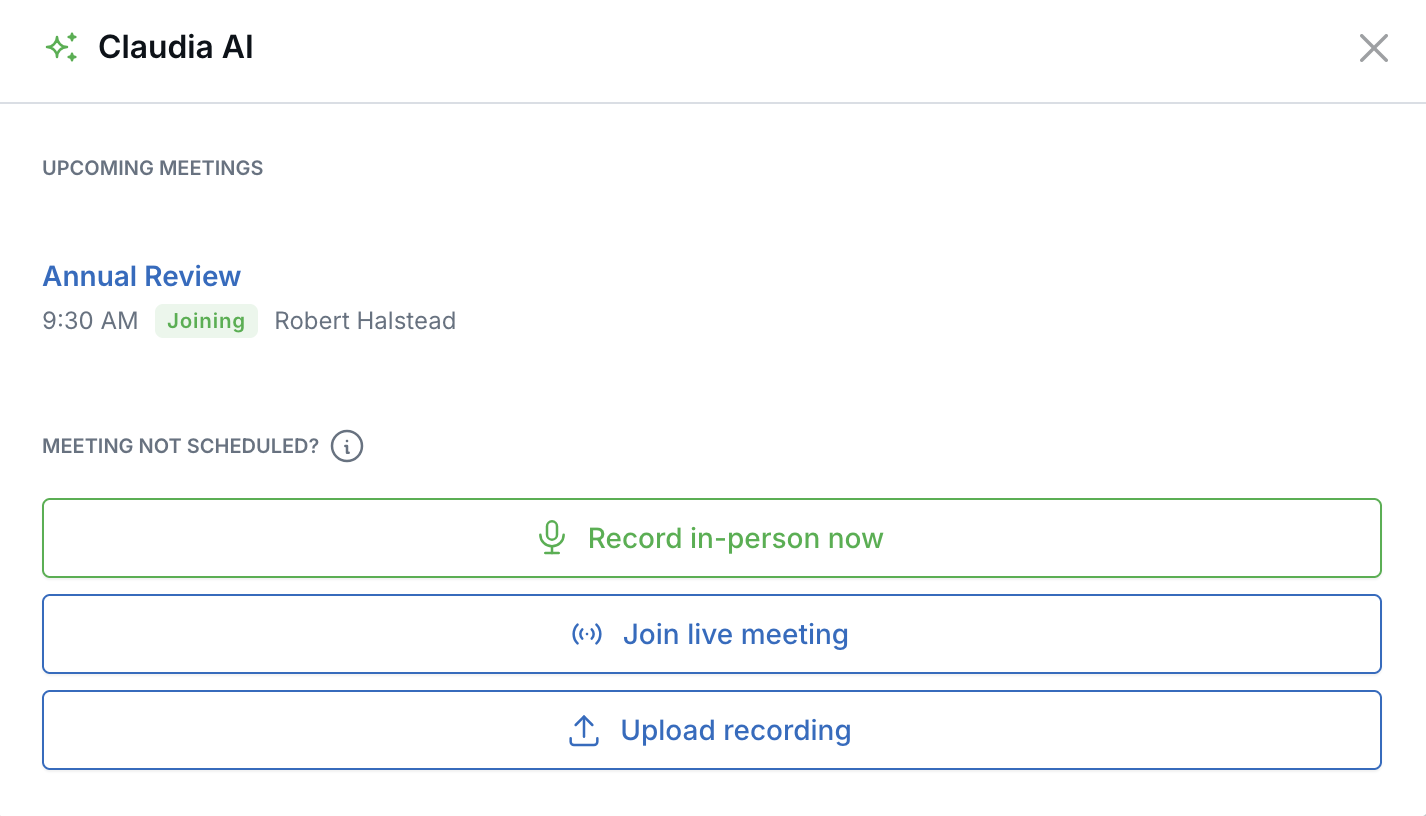
The launcher lists upcoming meetings and the tools for meetings that were never scheduled.
Upcoming Meetings in the Launcher
Each row shows the subject (linked to the appointment), time, status, and contact. For meetings that are still ready to record (or that failed), you can:
- Record in-person — Same as the strip; opens the appointment’s in-person recording page.
- Send Claudia — Same as the strip; only shown when a video join link is already on the appointment.
If nothing is listed, you will see No meetings starting soon on a Claudia-enabled calendar.
Meeting Not Scheduled?
At the bottom of the launcher, use these options for a meeting that is not already scheduled in LeadCenter:
- Record in-person now — Record a face-to-face meeting with your laptop microphone. You can also record from the LeadCenter mobile app.
- Join live meeting — Send Claudia to a Zoom, Google Meet, or Microsoft Teams meeting by choosing (or creating) an appointment and pasting the join link.
- Upload recording — Upload a recording you made on a phone or computer outside LeadCenter.
The first two are also available at any time from the Create menu at the top of LeadCenter, as In person meeting (Claudia AI) and Join live meeting (Claudia AI).
What the Status Badges Mean
- Ready to record — Claudia is not scheduled yet. You can send Claudia or start an in-person recording.
- Claudia will join — Claudia is scheduled to join the video meeting automatically.
- Joining — Claudia is entering the meeting (including waiting room).
- Recording — Capture is in progress (video bot or in-person recording).
- Completed — A transcript is available, or Claudia has finished the call.
- Failed — The previous attempt did not succeed. You can try sending Claudia or recording in person again.
If Sending Claudia Fails
The launcher shows an error at the top of the window. Common causes:
- The appointment does not have a valid Zoom, Teams, or Google Meet join link.
- The host calendar does not have the AI meeting assistant enabled.
- A temporary network error — wait a moment and try again.
After a successful send, the list refreshes so the status updates to Claudia will join or Joining.
Google Meet appears as a location option when your Google calendar is connected to LeadCenter.
Related Articles

Need more help?
If you can't find the answers you're looking for, our support specialists are available to answer your questions and troubleshoot if necessary.
-
Phone Call (888) 291-7116. Our main hours are Monday to Friday 7 am-5 pm Central Time.
-
Support Send your questions and inquiries via email to support@leadcenter.ai. A support ticket will be created and one of our team members will get back to you as quickly as possible.