 Help Center
Calendars & Appointments
Calendars & Appointments
Join Live Meeting (Claudia AI)
Use Join live meeting (Claudia AI) for meetings on Zoom, Microsoft Teams, or Google Meet. Select or create the appointment, add the video meeting link, and send Claudia AI into the online meeting.
When everyone is in the same room, use In person meeting (Claudia AI) instead.
Where to Open Join Live Meeting
- Open the + menu in the top navigation, then select Join live meeting (Claudia AI).
- Select Join live meeting (Claudia AI) from the shortcuts on your Home dashboard.
- Open an appointment, then select Start Claudia AI.
- Open a contact, open Meet or AI assistant, then select Join live meeting (Claudia AI).
When you start from a contact, that contact is selected automatically when possible. You can change the selected contact before sending Claudia.
Before You Send Claudia
- Turn on the AI meeting assistant in calendar settings if LeadCenter prompts you to enable it.
- Copy the actual Zoom, Microsoft Teams, or Google Meet join link.
- Confirm that you are working with the correct appointment.
Select or Create the Appointment
- Open Join live meeting (Claudia AI).
- Select the meeting from the list of today's appointments.
- If the meeting is not listed, click Create a new meeting, enter the subject, contact, guests, and team members, then click Create appointment.
- Review the selected meeting details and linked notes.
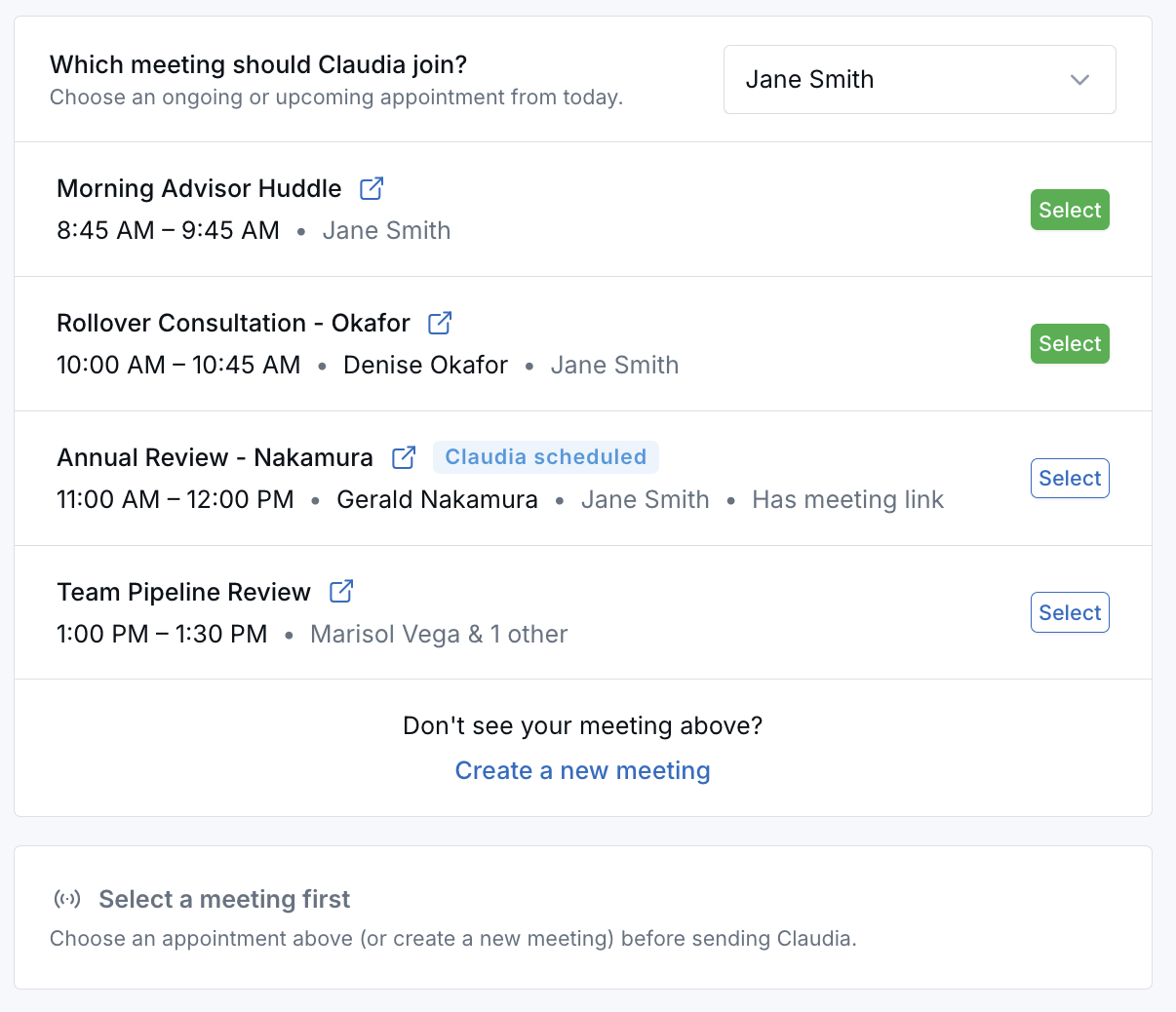
The appointment remains selected while you add the meeting link and send Claudia. Notes linked to the appointment remain visible for reference.
Send Claudia to the Meeting
- Confirm the correct appointment is selected.
- Paste the video meeting link.
- Review the meeting participants.
- Click Send Claudia to meeting.
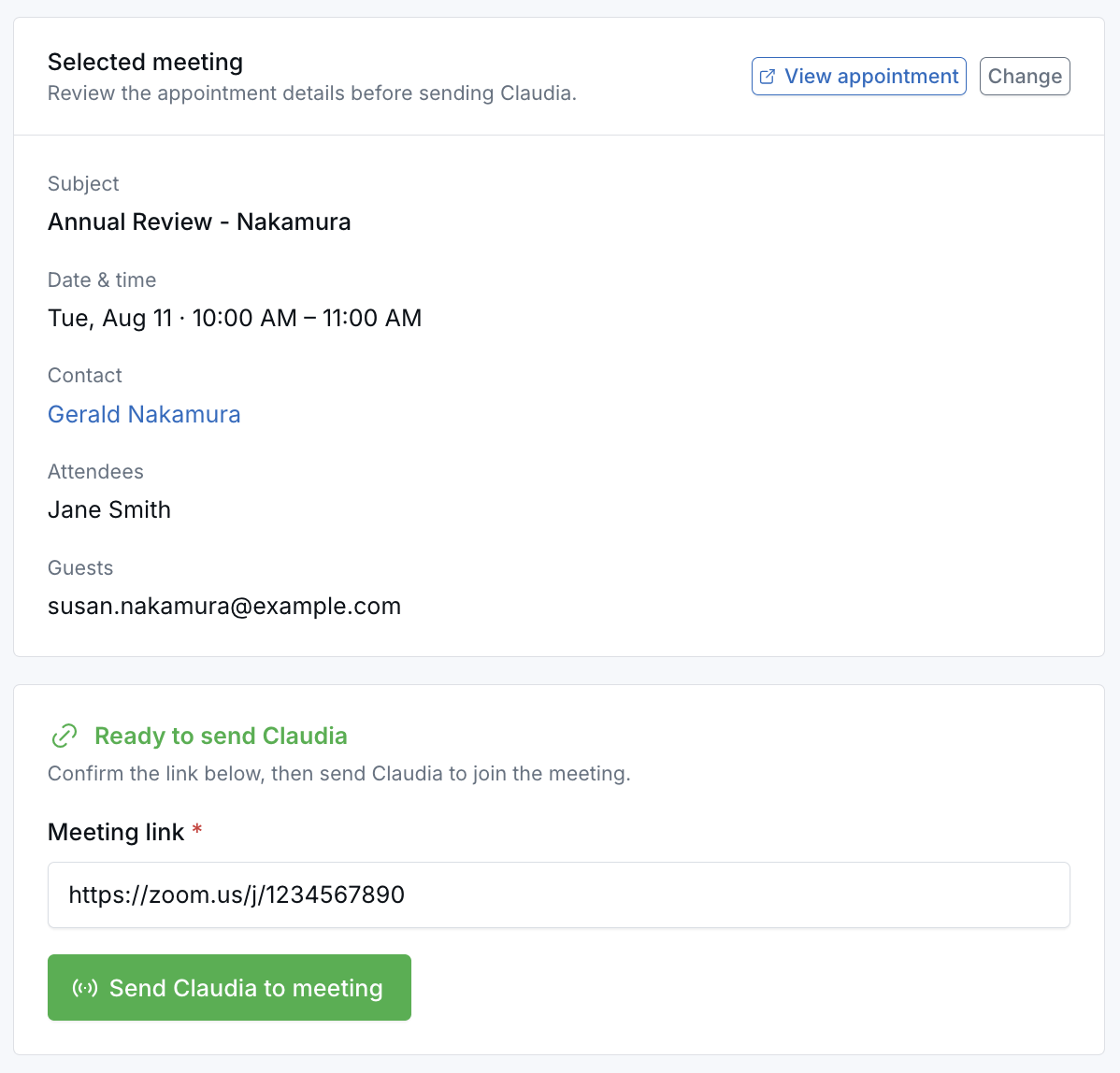
If Claudia was already scheduled automatically, a Send Claudia now option may appear when timing allows, such as when the planned join time has passed or the meeting is not starting in the next few minutes.
What Happens Next
After you send Claudia, LeadCenter works in the background using your team’s Claudia AI settings. You do not need to stay on that page to watch the meeting assistant join.
Note: When Claudia joins the live meeting, the meeting assistant name is based on the calendar being used for the meeting. If you are sending Claudia to a meeting on another user's calendar, Claudia uses that calendar owner's name.
When processing is finished, LeadCenter can provide the same types of Claudia outputs your team already uses for supported meetings, such as transcriptions and other enabled meeting results. For a broader overview, see Claudia AI Overview.
Common Questions
Is this the same as In Person Meeting Recording?
No. In Person Meeting Recording is for meetings happening in the same room as you. Join live meeting is for meetings happening on Zoom, Microsoft Teams, or Google Meet.
What if the button says Claudia is not available?
Your calendar may not have the required Claudia AI settings turned on yet. Your administrator can review the calendar setup and transcription settings.
Do I need to keep this page open while the meeting is happening?
No. Once you send Claudia to the meeting, LeadCenter continues the process in the background.
What if something goes wrong?
If the page shows an error message, read it carefully. It is often caused by an invalid meeting link or missing calendar settings. Fix the issue and try again.
Best Practices
- Copy the full meeting link directly from the calendar invite or host message.
- Check your Claudia AI calendar settings before important meetings.
- Make sure the meeting title and time match the appointment you expect.
- Use Join live meeting only for online meetings, not face-to-face meetings.
Related Help
If you need help using Join live meeting (Claudia AI), contact support@leadcenter.ai.

Need more help?
If you can't find the answers you're looking for, our support specialists are available to answer your questions and troubleshoot if necessary.
-
Phone Call (888) 291-7116. Our main hours are Monday to Friday 7 am-5 pm Central Time.
-
Support Send your questions and inquiries via email to support@leadcenter.ai. A support ticket will be created and one of our team members will get back to you as quickly as possible.