 Help Center
Calendars & Appointments
Calendars & Appointments
Play or Download Meeting Recordings
LeadCenter can save a meeting’s video and audio recording so your team can play it back later or download a copy. This article explains two related things:
- how to control whether recordings are saved on a calendar
- how to open, play, or download a saved meeting recording after the meeting is complete
Simple idea: First, your calendar controls whether recordings are kept. Then, once a meeting recording is ready, you can use Play meeting recording to open it and optionally download it.
Before You Expect Playback
A meeting recording is only available if the calendar allowed Video/audio recording when that meeting was processed. This setting is separate from Meeting transcription.
- Meeting transcription = written text of what was said
- Video/audio recording = the actual recording you can play or download later
This means your team can keep transcripts without keeping playable recordings, depending on your calendar settings and firm policies.
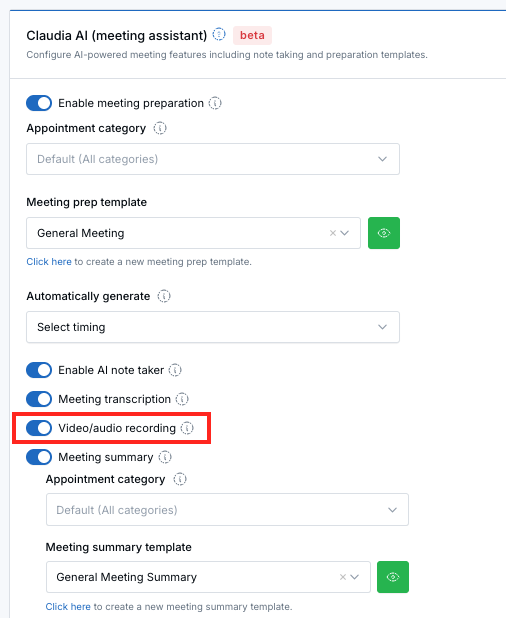
Where to Turn Video/Audio Recording On or Off
- Go to Calendars.
- Open the calendar you want to configure.
- Find the Claudia AI (meeting assistant) section.
- Turn Video/audio recording on or off.
- Click Save.
What the Setting Means
When Video/audio recording is ON: eligible meetings can keep a playable recording that your team can open later.
When Video/audio recording is OFF: LeadCenter does not keep the saved recording for playback in the app. Your team may still receive a transcript if transcription is enabled.
Important: Timing matters. Turning this on today does not always create recordings for meetings that were already completed earlier. If a recording is missing, check what the calendar setting was when that meeting finished processing.
“Play Meeting Recording” Is Not the Same as “Start Claudia AI”
- Play meeting recording appears after a meeting was captured and the file is ready. Use it when you want to replay or download what was already saved.
- Start Claudia AI (meeting assistant) is what you use before or during a live in-person meeting when you want to begin capturing it.
Where You’ll Find “Play Meeting Recording”
You only see Play meeting recording when a saved recording is available for that appointment.
On a Contact’s Page
- Open Contacts and click the person you met with.
- Go to the Appointments section.
- Open the appointment menu or actions.
- Click Play meeting recording when it appears.
On the Calendar
- Open your Calendar.
- Click the appointment.
- Open the appointment actions or menu.
- Click Play meeting recording when it appears.
Other Appointment Views
If your team uses companies, households, or sales pipelines, the same idea applies: open the appointment, use the menu or actions, and look for Play meeting recording when the recording is ready.
Open the Full Videos List
You can open a standalone Videos list from the communication pages to review meeting recordings you are allowed to see.
- Open Emails, Phone calls, or Texts.
- In the left sidebar, look under Forms.
- Select Videos.
- Use the Recording column play button to open a meeting recording.
- Long meeting subjects may show the first few words with show more and show less.
- The host filter is labeled Host.
The full Videos page shows recordings that are visible to all users, plus private recordings when you are the meeting host.
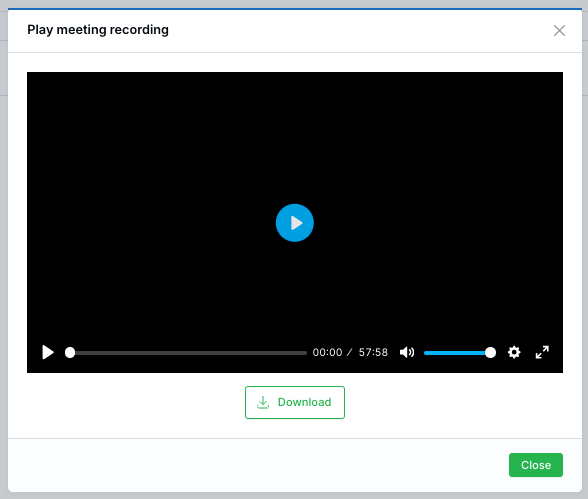
What You’ll See in the Player
- Video or audio only — some meetings show a video player, while others may provide audio only depending on how the meeting was captured
- Download — saves a copy of the recording to your computer
- Close — exits the player when you are done
How to Download a Recording
- Open Play meeting recording.
- Wait for the player window to load.
- Click Download.
Use your firm’s policies when saving or sharing meeting recordings.
Remove a Meeting Recording
You can remove a meeting recording from your LeadCenter account without deleting AI-generated notes that were already saved separately.
- Open the appointment and select Play meeting recording, or open the recording actions menu.
- Choose Remove recording and confirm.
Important: Removed recordings are hidden from your account. Your firm may retain copies for support, backup, or regulatory purposes. Contact support if you need a recording restored.
If the Option Is Missing or Playback Does Not Work
- Still processing — right after a meeting, LeadCenter may still be finishing the recording. Wait a few minutes, refresh, and try again.
- Recording was not enabled — the calendar may have had Video/audio recording turned off when the meeting was processed.
- Wrong appointment — make sure you opened the appointment that actually used Claudia AI / the meeting assistant.
- Transcript exists but no playable recording — this usually means transcription was enabled, but saved video/audio recording was not.
Best Practices
- Turn on Video/audio recording only for calendars where your team wants saved playback.
- Keep Meeting transcription and Video/audio recording decisions separate, since they serve different purposes.
- Check the calendar setting before important meetings if your team expects playback later.
- Wait until meeting processing finishes before assuming a recording is missing.
Related Help
- AI Meeting Transcriptions — for written conversation records instead of playback
- Start a Live In-Person Meeting (Claudia AI) — for beginning a new live in-person capture
If playback fails repeatedly or a recording you expected is missing, contact support@leadcenter.ai and include the appointment title and date.

Need more help?
If you can't find the answers you're looking for, our support specialists are available to answer your questions and troubleshoot if necessary.
-
Phone Call (888) 291-7116. Our main hours are Monday to Friday 7 am-5 pm Central Time.
-
Support Send your questions and inquiries via email to support@leadcenter.ai. A support ticket will be created and one of our team members will get back to you as quickly as possible.