 Help Center
Calendars & Appointments
Calendars & Appointments
Print Your Calendar as a Large-Print Agenda
* Page referenced in this article: your calendar.
Print a day or a whole week of your calendar as an easy-to-read agenda, with the details you need for each meeting. It prints on Letter paper, one page per day, in large black-on-white text.
Open the Agenda
- Go to your calendar and pick the day or week you want, and the users you want to print.
- Click the Print agenda button (the printer icon) in the calendar toolbar. The agenda opens in a new tab.
- Click Print. To keep a copy, choose Save as PDF in the print window.

The Print agenda button in the calendar toolbar.
From the week view, the agenda covers the whole week (Sunday to Saturday). From any other view, it covers one day. You can print up to 10 users at once; each user gets their own section on every day.
What Is on the Agenda
- Appointments in time order, all-day items first. Each one shows the time and length, category, meeting type, status, the client with spouse, phone and email, where to meet or the join link, guests, the agenda, open tasks, the latest note, and two blank lines for handwritten notes.
- Time blocks and Redtail entries, in a lighter dashed box.
- Tasks: tasks due at a set time appear in the timeline. All-day tasks are listed under Tasks due today with a checkbox.
- Events: every scheduled or completed event that day, with the venue, organizers, agenda and how many people registered. Draft events are not printed.
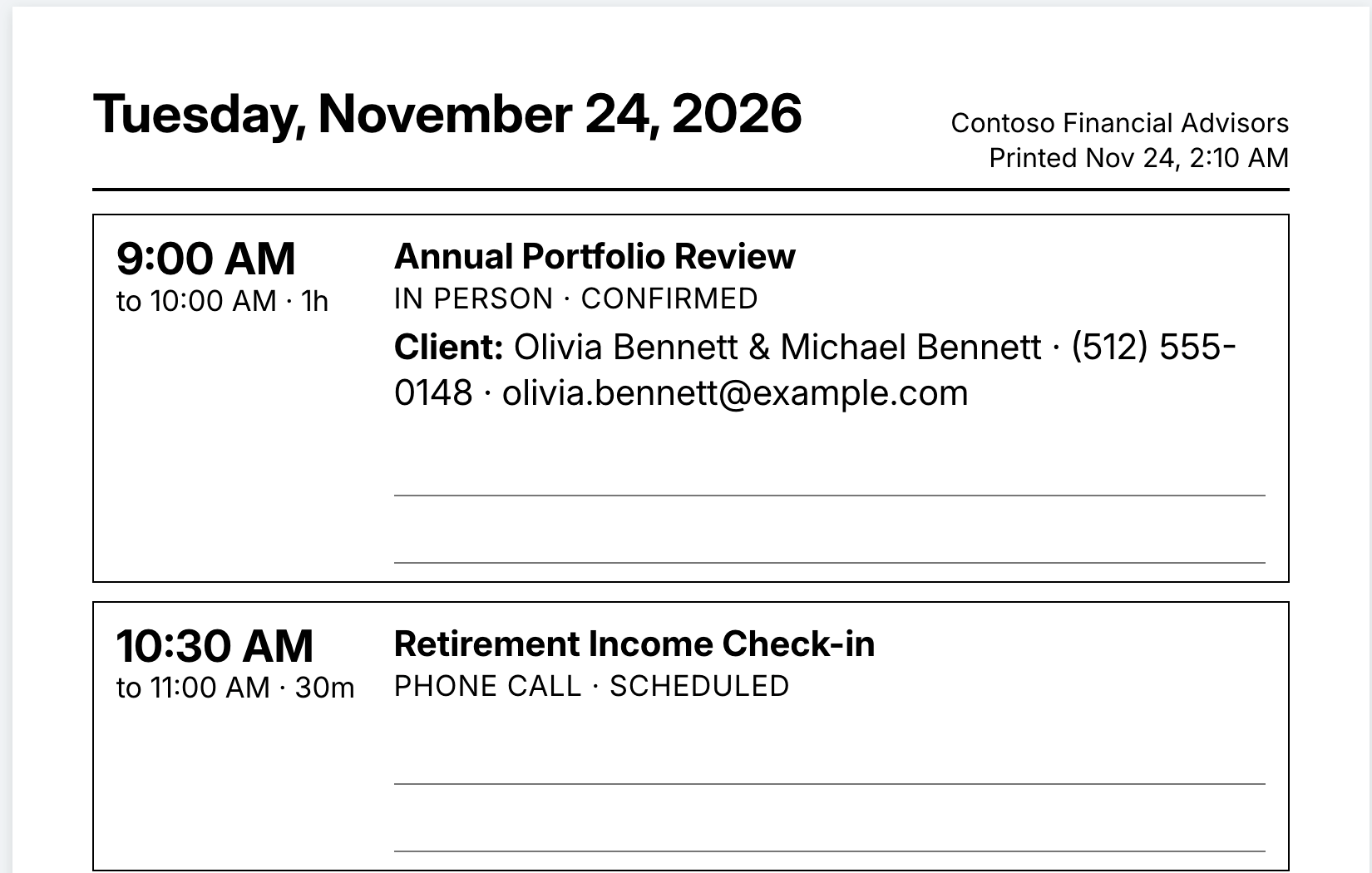
Each meeting shows the client details and space for notes.
Private appointments you are not attending print as "Private" with no details, the same as on the calendar.
Options
Changes apply right away; there is no Update button.
- Date and Print: choose another day, or switch between One day and Whole week.
- Text size: Small, Normal, Large (the default) or Extra large.
- Include: turn Tasks, Events, or Latest note & open tasks on or off.

The options bar at the top of the agenda. It is not printed.
Good to Know
- Only the first 5 open tasks are listed for an appointment; if there are more, the agenda says how many (for example, "+3 more").
- Long notes and agendas are shortened. Open the appointment in LeadCenter to see everything.
- The options bar at the top of the page is not printed.
- The agenda shows what the calendar shows: if your calendar settings hide tasks, events or completed meetings, the agenda hides them too.
Related Articles

Need more help?
If you can't find the answers you're looking for, our support specialists are available to answer your questions and troubleshoot if necessary.
-
Phone Call (888) 291-7116. Our main hours are Monday to Friday 7 am-5 pm Central Time.
-
Support Send your questions and inquiries via email to support@leadcenter.ai. A support ticket will be created and one of our team members will get back to you as quickly as possible.