 Help Center
Integrations
Integrations
Panoramix Integration: Connect and Link Accounts
Connect Panoramix to bring your clients' account values, holdings, and transactions into LeadCenter. Linked accounts stay up to date every night.
Before You Start
- Your firm needs a paid or trial plan.
- To connect, you need permission to connect integrations.
- To view, link, and unlink Panoramix accounts, you need the Manage Panoramix account links permission. Owner, Admin, and Editor have it by default. If your firm changed its own Admin or Editor role, add this permission in the role editor.
- You can connect Panoramix even if your firm already uses another custodian, such as Black Diamond.
Connect Panoramix
- Go to Integrations and open Custodians.
- On the Panoramix card, click Connect.
- Sign in with the Panoramix advisor account that can see the accounts you want in LeadCenter, then click Connect.
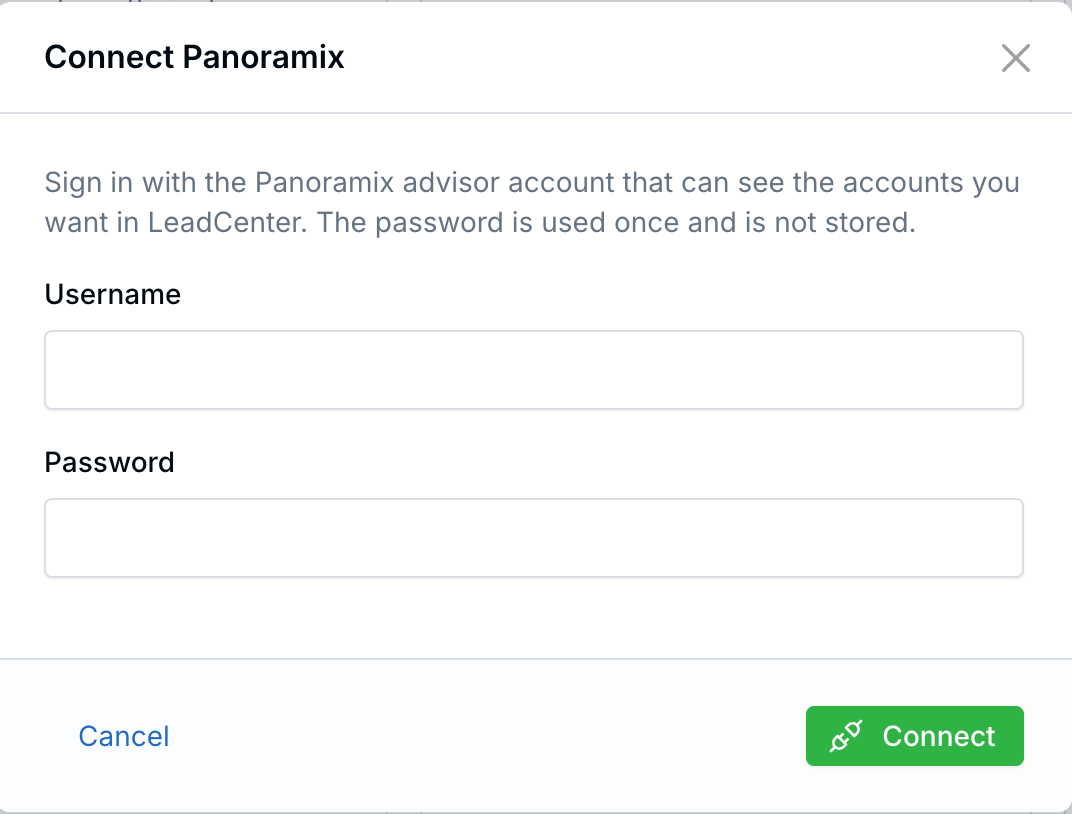
Sign in with your Panoramix advisor account.
Your password is sent to Panoramix once and is not stored. The first sync runs in the background and pulls every account, its holdings, and up to 5 years of transactions. Large firms may take a while.
What Syncs
- Accounts: account number, client, custodian, registration type, current value, household, and inception date.
- Holdings: symbol, name, shares, price, and market value for each position.
- Transactions: buys, sells, distributions, fees, and other activity, with amounts.
Once a Panoramix account is linked, its current value, holdings, and transactions are copied to the LeadCenter account. The current amount, holdings, and account number of a linked account can't be edited by hand.
Link Panoramix Accounts
- Go to Financial Accounts, click Unlinked accounts, then Panoramix.
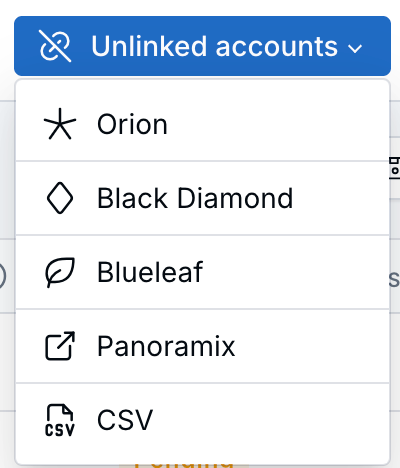
Open Unlinked accounts, then Panoramix.
- Accounts are grouped by Panoramix household. Click the arrow on a household row to show or hide its accounts. Use the search box, the custodian and account type filters, and the sort menu to find accounts.
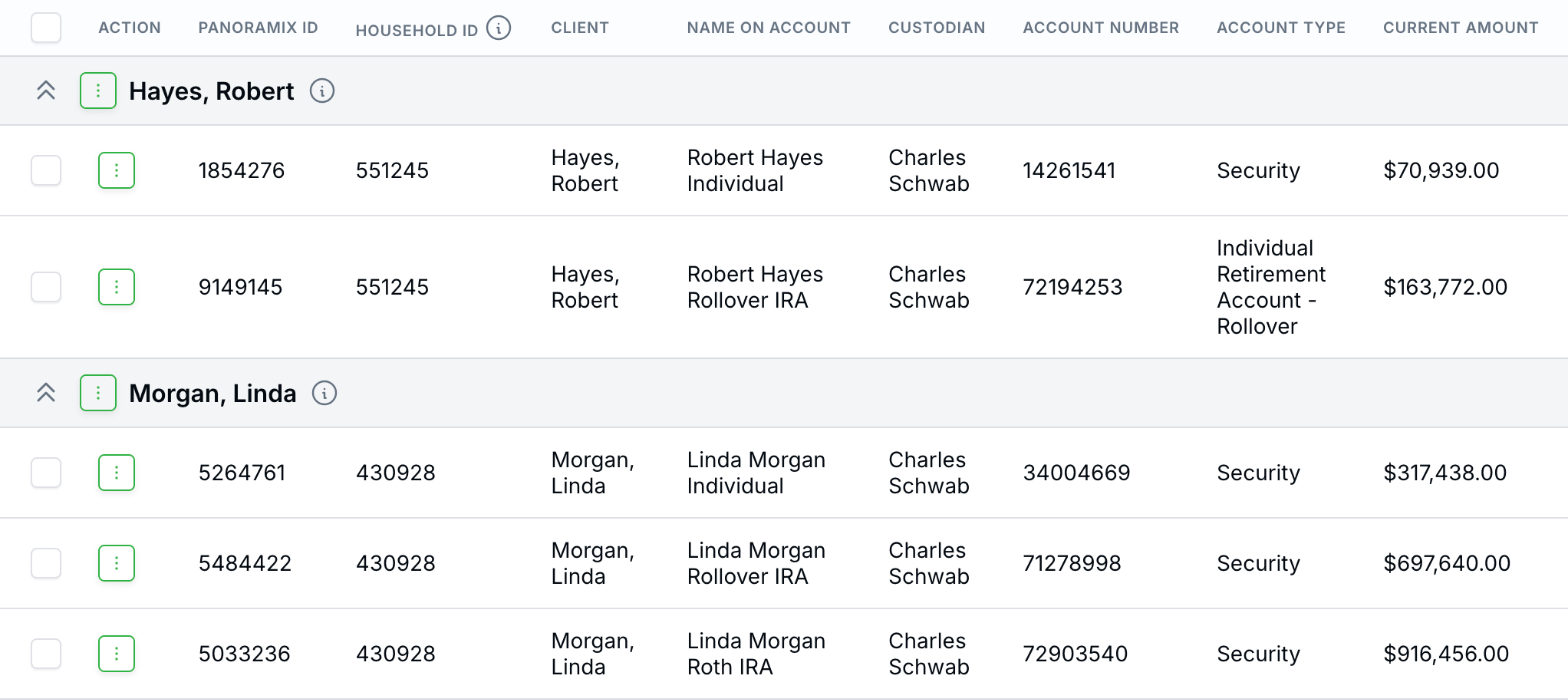
Unlinked Panoramix accounts, grouped by household (sample data).
- Click the ⋮ menu on an account and choose Find & Link. Then pick one option:
- Link to an existing issued account: connects it to a LeadCenter account that already exists. The issued amount and issue date stay as they are.
- Create a new account for a contact: creates a LeadCenter account from the Panoramix data. For several accounts, tick Create as main + related accounts to make the first one the main account.
- Add as related accounts under an existing account: each selected account becomes a related account under the main account you pick.
- Replace Panoramix linked account: points an already linked account at a different Panoramix account.
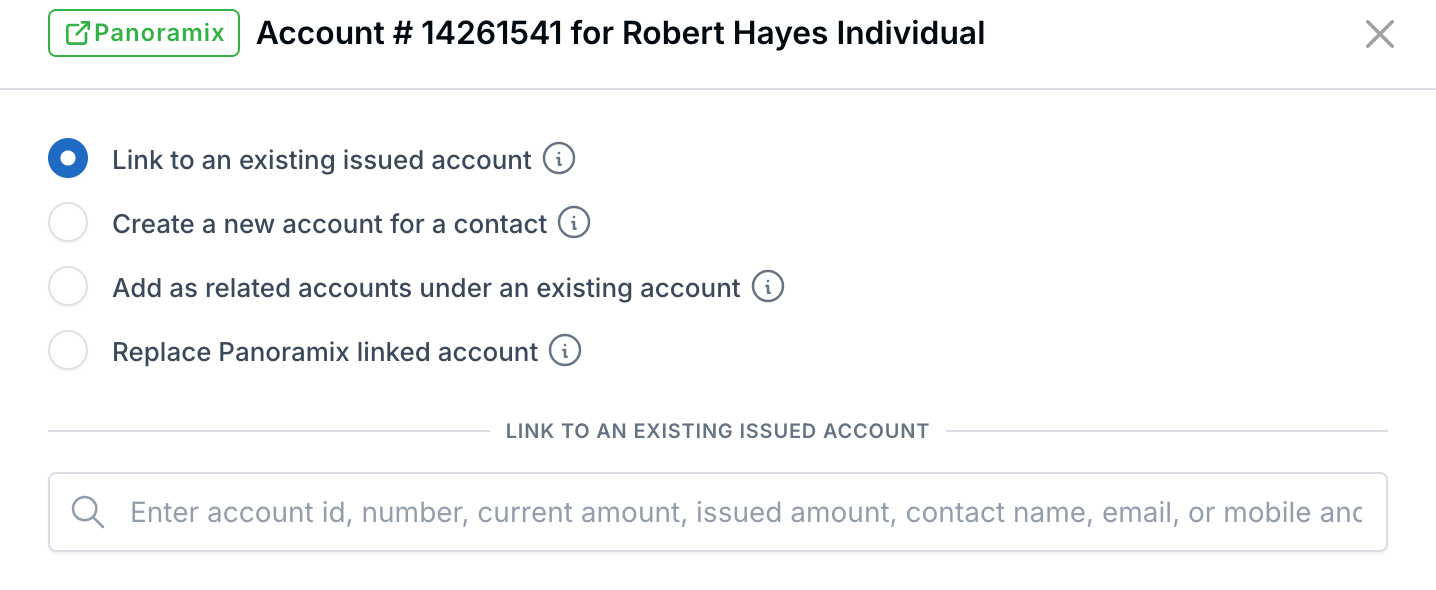
Choose how to link the Panoramix account (sample data).
- When LeadCenter finds a likely match, the account's menu also shows Auto link to possible match.
- To link every account in a household at once, use the household row's ⋮ menu and choose Link all household accounts.
- To hide an account you don't need, choose Delete from unlinked list. It won't come back with the nightly sync.
Auto Link
Click Auto Link to link matching accounts in one step. It only links when:
- The account number matches exactly one LeadCenter account (dashes and spaces ignored), or one number fully contains the other (at least 6 characters) for exactly one account.
- Otherwise, exactly one contact's first and last name match the Panoramix client. A new account is created only if that contact has no accounts that aren't already linked to a custodian.
Anything Auto Link can't match stays on the page for you to link yourself. The nightly sync never links accounts on its own.
What New and Linked Accounts Get
- New accounts get the Panoramix inception date as the issue date, the tax-qualified flag, a tax type (for example Roth IRA, Rollover IRA, or Individual), and the AUM product whose name matches the Panoramix model, when there is one.
- Existing accounts you link keep their issued amount and issue date. The tax-qualified flag updates from Panoramix; tax type and AUM product are filled in only if empty.
- Writing advisor: Panoramix doesn't send one. A linked account keeps its writing advisors. Otherwise a related account copies its main account's advisors, and other accounts get the contact's writing advisor.
See and Unlink Linked Accounts
- On the Panoramix unlinked accounts page, click Linked accounts to see every linked account with its contact, issued amount, and current value. It has the same search, filters, and sort.
- To unlink, click Unlink there, or use Unlink from Panoramix in the account's actions menu. The LeadCenter account is kept; it just stops updating. Every link and unlink is saved in the account's history.
- If you delete a linked LeadCenter account, the Panoramix account goes back to the unlinked list.
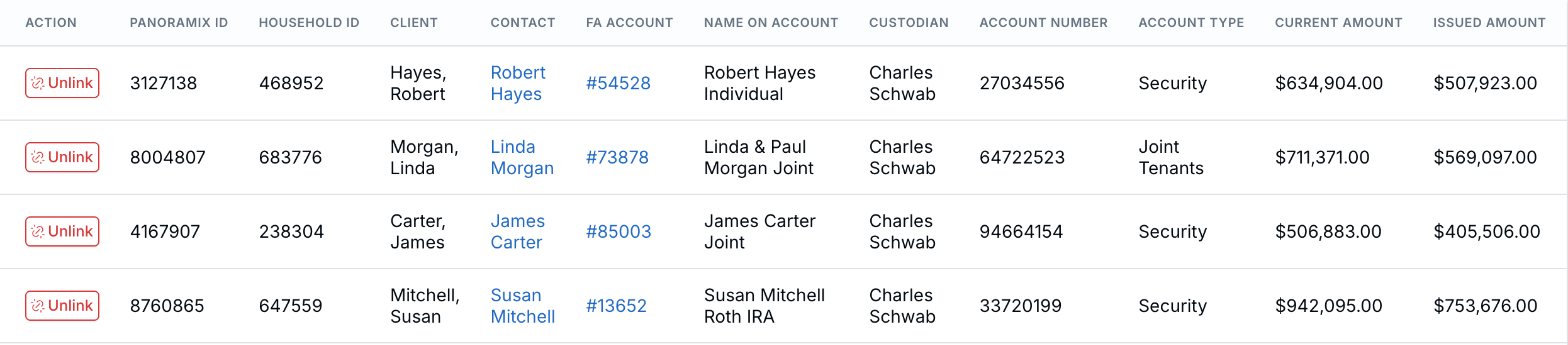
Linked accounts show the contact and LeadCenter account each Panoramix account updates (sample data).
Panoramix Details on Your Accounts
- Panoramix ID column: on the Accounts page, open Customize columns and turn on Panoramix ID. Click an ID to open the client in Panoramix.
- Account page: a linked account shows its Panoramix Account ID, a Panoramix badge on its assets, and a Panoramix Account column on the Transactions tab.
Nightly Sync
Every night LeadCenter updates each account's current value, pulls the last 7 days of transactions, and refreshes holdings so every account is refreshed at least once a week. When an account closes in Panoramix, it's marked inactive and its linked LeadCenter account's current amount is set to 0.
Related Articles

Need more help?
If you can't find the answers you're looking for, our support specialists are available to answer your questions and troubleshoot if necessary.
-
Phone Call (888) 291-7116. Our main hours are Monday to Friday 7 am-5 pm Central Time.
-
Support Send your questions and inquiries via email to support@leadcenter.ai. A support ticket will be created and one of our team members will get back to you as quickly as possible.