 Help Center
Contact Management
Contact Management
Employer Search in Contact Details
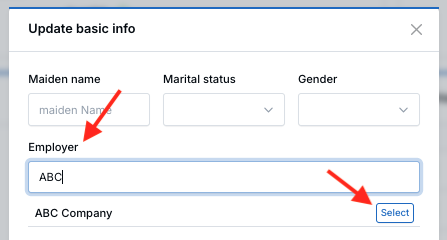
The Employer field in the Update basic info pop-up now lets you search for an existing company in your database or create a new one directly from the same field. This makes it easier to keep employer information accurate and consistent.
What This Feature Does
- Search existing companies as you type
- Create a new company without leaving the contact page
- Link the contact to a company record automatically
- Keep Employer in sync between the Update basic info pop-up and the Basic Info section
How to Use Employer Search
- Open the contact’s details page.
- Click Edit to open the Update basic info pop-up.
- In the Employer field, start typing the company name.
- Select an existing company from the dropdown, or choose the option to create a new company.
- Complete any other changes you want to make.
- Click Save.
How It Works
Select an Existing Company
When you select a company from the search results, LeadCenter links the contact to that existing company record. This helps keep company information consistent across your database.
Create a New Company
If the company does not exist yet, you can create it directly from the Employer field. LeadCenter then creates the company record and links it to the contact automatically.
Keep Employer in Sync
Employer updates made in the Update basic info pop-up are automatically reflected in the Basic Info section, and updates from the Basic Info section are reflected back in the pop-up. This helps prevent mismatched employer information on the same contact.
What Changed
The previous plain-text Employer field has been replaced with this searchable company field. Existing employer data is preserved and appears when you open the pop-up. If the contact is already linked to a company, that company appears as the default selected value.
Why This Is Helpful
- reduces duplicate company names caused by manual typing
- makes it faster to link contacts to existing companies
- lets users create a company record without leaving the contact page
- keeps employer information consistent across related views
Best Practices
- Search first before creating a new company, so you do not create duplicates.
- Select the existing company whenever possible instead of typing a variation manually.
- After saving, confirm that the correct employer appears in both the Update basic info pop-up and the Basic Info section.
Frequently Asked Questions
Can I still type a company name manually?
You can type in the Employer field, but it now works as a searchable company selector. If a matching company exists, it is better to select it from the dropdown.
What happens if the company does not exist yet?
You can create a new company directly from the Employer field, and LeadCenter links it to the contact automatically.
Will this update the Basic Info section too?
Yes. Employer changes stay synchronized between the Update basic info pop-up and the Basic Info section.
What happens if the contact was already linked to a company?
That company is shown as the current selection when you open the pop-up.
If you need help updating contact details or linking companies, contact support@leadcenter.ai.

Need more help?
If you can't find the answers you're looking for, our support specialists are available to answer your questions and troubleshoot if necessary.
-
Phone Call (888) 291-7116. Our main hours are Monday to Friday 7 am-5 pm Central Time.
-
Support Send your questions and inquiries via email to support@leadcenter.ai. A support ticket will be created and one of our team members will get back to you as quickly as possible.