 Help Center
Contact Management
Contact Management
Download Notes as PDF
Download your notes as professionally formatted PDFs — either a single note or all notes for a contact. This makes it easy to save, print, or share client documentation without reformatting.
Overview
The Download PDF option lets you generate a PDF directly from your notes in LeadCenter.
Each PDF includes:
- Your business logo (or business name if no logo is set)
- Contact information (name, email, phone, company) when available
- Full note content with metadata (author, category, date updated)
- Related module details (appointment, task, account) when the note is linked
How to Use
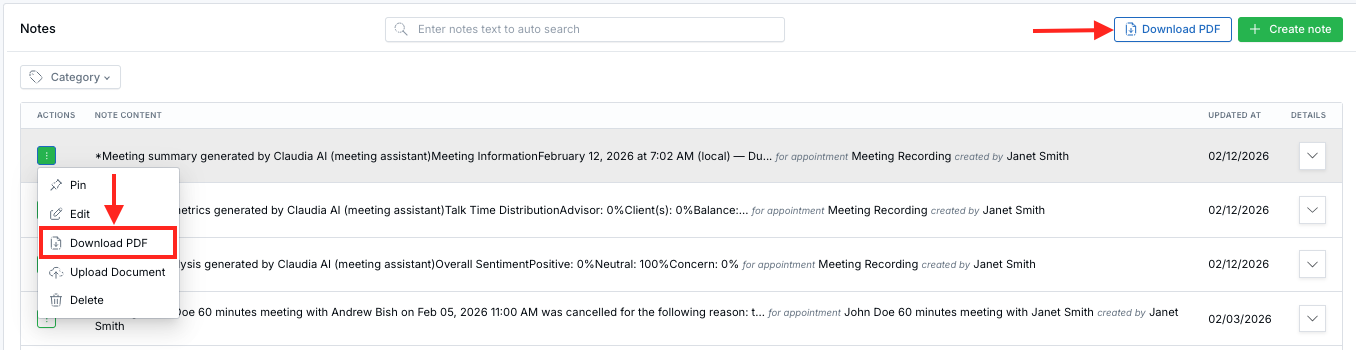
Export a single note (actions menu) or all notes for a contact (header button).
Download a single note as PDF
- Navigate to any page that displays notes (for example: Contact Details, Notes listing, or Households).
- Find the note you want to export.
- Click the three-dot menu (⋮) in the note’s actions column.
- Click Download PDF.
- The PDF opens in a new browser tab, ready to view, print, or save.
Download all notes for a contact as PDF
- Open the Contact Details page.
- Click the Notes tab.
- In the notes header, click Download PDF (next to Create note).
- A PDF containing all notes for that contact opens in a new tab.
Tip: The Download PDF button for exporting all notes only appears when you are viewing a specific contact’s notes.
Where to Find It
- Contact Details → Notes tab — download a single note (three-dot menu) or all notes (header button)
- Notes listing page — download a single note (three-dot menu)
- Households → Notes tab — download a single note (three-dot menu)
Troubleshooting
- The PDF didn’t open: Make sure pop-ups are allowed for LeadCenter in your browser, then try Download PDF again.
- The PDF is missing recent changes: Refresh the page, confirm the note is saved, then download again.
- I don’t see “Download PDF” for all notes: This option only appears on a specific contact’s Notes tab (not on the general notes listing).
FAQs
Can I download multiple notes at once?
Yes — from Contact Details → Notes, use Download PDF in the header to export all notes for that contact into one PDF.
Does the PDF include linked appointment, task, or account details?
Yes. If a note is linked to an appointment, task, or account, the PDF includes those related details.
Are private notes excluded?
Private notes can appear in the PDF, and they are clearly marked with a lock icon.
Need help? Contact support@leadcenter.ai

Need more help?
If you can't find the answers you're looking for, our support specialists are available to answer your questions and troubleshoot if necessary.
-
Phone Call (888) 291-7116. Our main hours are Monday to Friday 7 am-5 pm Central Time.
-
Support Send your questions and inquiries via email to support@leadcenter.ai. A support ticket will be created and one of our team members will get back to you as quickly as possible.