 Help Center
Contact Management
Contact Management
Bulk Actions on Contacts
Bulk actions let you update many contacts at once from the Contacts page or the Sales Pipeline. This is the fastest way to change stages, reassign ownership, assign advisors, update office locations, apply tags, run workflows, or delete contacts in groups.
How to Select Contacts
- Open the Contacts page or the Sales Pipeline.
- Apply any search, filter, or sort you need. Selections respect your current filters.
- Use the checkbox at the start of each row to select individual contacts.
- Use the checkbox in the column header to select every contact on the current page.
- To include contacts on other pages, click Select all X leads in the confirmation banner above the table.
The count of selected contacts is shown in the bulk action bar. Review it before taking a destructive action such as Delete.
Available Bulk Actions
- Change stage moves selected contacts to a new pipeline stage.
- Assign owner reassigns selected contacts to a different user.
- Assign servicing advisor updates the servicing advisor for selected contacts. This action is available for Financial Advisor subscriptions.
- Assign writing advisor updates the writing advisor for selected contacts. This action is available for Financial Advisor subscriptions.
- Assign office location updates the office or branch location for selected contacts.
- Change source updates the source on selected contacts.
- Add or remove tags applies or removes tags from selected contacts.
- Change category updates the contact category.
- Run workflow triggers a published workflow for each selected contact.
- Add to or remove from Sales Pipeline updates the In Pipeline? setting in bulk.
- Mark as spam blocks future calls and emails from selected contacts.
- Delete moves selected contacts to the Trash folder.
- Export exports the current selection or filtered list to CSV.
Available actions depend on your role, subscription, and the page you are on. For example, Change stage is not available for contacts that are not in the pipeline, and advisor bulk actions are available only for Financial Advisor subscriptions.
Assign Advisors or Office Location in Bulk
- Open the Contacts page.
- Select one or more contacts using the checkboxes.
- Use filters first if you only want to update a specific group.
- Click More in the bulk action bar.
- Choose Assign servicing advisor, Assign writing advisor, or Assign office location.
- Select the advisor, team, or office location you want to apply.
- Save the change.
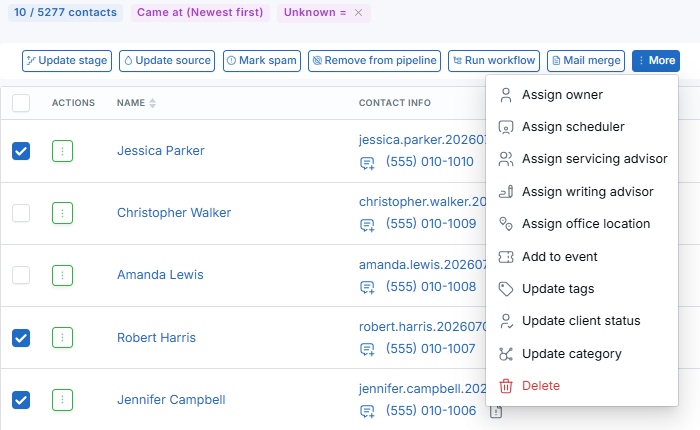
Advisor assignments: Writing advisor and servicing advisor can be assigned to an individual advisor or a team. Office location is your company's office or branch location, not the contact's home address.
Processing Time for Bulk Updates
- One contact: The update is usually applied immediately.
- Two or more contacts: The update may take a short time to finish. Refresh the Contacts page after a moment to review the changes.
- Large selections: Large updates may take several minutes to finish.
- Workflows and integrations: Lead Updated workflows and connected integrations can still run for each updated contact.
How Bulk Actions Work with Filters
- Bulk actions apply only to the contacts you select unless you click Select all X leads.
- When you click Select all X leads, the action applies to every contact matching your current filters, including contacts on other pages.
- Changing a filter after selecting rows clears the selection.
Run an Email or SMS Workflow in Bulk
A manual-trigger workflow that sends email or SMS can run on up to 500 contacts at a time from Contacts or the Sales Pipeline.
- Apply filters to narrow the contact list.
- Check the table header box to select the contacts on the current page.
- Click Select all to extend the selection to the entire filtered list.
- Open Actions and select Run workflow, then choose the manual-trigger workflow.
- 500 or fewer contacts: The email or SMS workflow can run.
- 501 or more contacts: LeadCenter shows a Workflow restriction message and the Run workflow button stays disabled. Reduce the selection, or select Choose another workflow to pick one without email or SMS steps.
- Task-only workflows: Workflows without email or SMS steps can run on the full selected list.
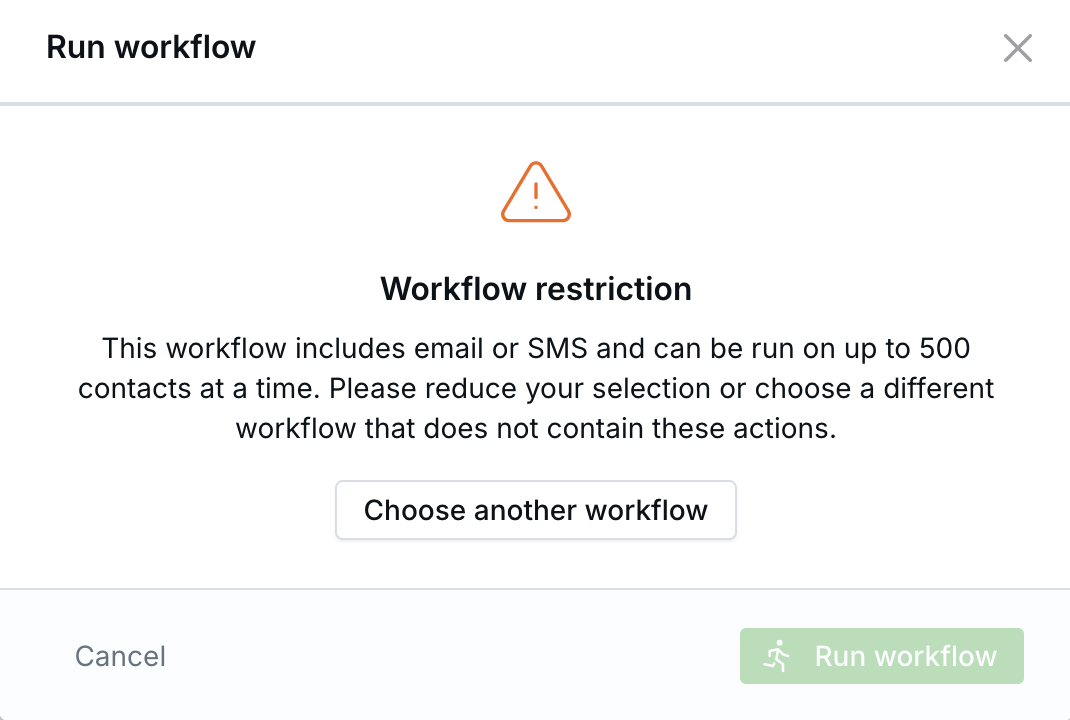
The 500-contact limit applies only to manual-trigger workflows that send email or SMS. Assign owner, assign advisor, update stage, and other bulk actions are unchanged.
To email or text more than 500 contacts, run the workflow in filtered batches of 500 or fewer, or use a scheduled campaign under Marketing → Email marketing → Campaigns.
Best Practices
- Filter first, then select. Narrow the list before clicking Select all X leads.
- Start with a small batch. For destructive actions, test the action on a smaller group first.
- Use workflows for more complex updates. This can be helpful when you need more than a simple bulk edit.
- Save filters you reuse. This makes repeated bulk updates faster and more consistent.
- Prefer merge over delete for duplicates. Merging keeps more history attached to the surviving contact.
FAQs
Can I undo a bulk action?
Bulk deletes can be reversed by restoring contacts from the Trash folder. Other bulk updates such as stage, owner, source, and tags cannot be undone in one click, but you can run another bulk action to reverse the change.
Do bulk actions apply to all filtered contacts automatically?
No. They apply only to the contacts you select. To act on all filtered contacts across pages, click Select all X leads.
Can I bulk delete contacts?
Yes. Select the contacts you want to remove, click Delete in the bulk action bar, and confirm the pop-up. Deleted contacts move to the Trash folder.
Can I bulk change pipeline stage for contacts not in the pipeline?
No. Contacts must already be in the Sales Pipeline before they can be moved to a different stage.
Will bulk actions affect contacts on other pages?
Only if you click Select all X leads. Otherwise, only the selected rows on the current page are included.
Related Articles

Need more help?
If you can't find the answers you're looking for, our support specialists are available to answer your questions and troubleshoot if necessary.
-
Phone Call (888) 291-7116. Our main hours are Monday to Friday 7 am-5 pm Central Time.
-
Support Send your questions and inquiries via email to support@leadcenter.ai. A support ticket will be created and one of our team members will get back to you as quickly as possible.