 Help Center
Calendars & Appointments
Calendars & Appointments
Book Meeting Rooms and Equipment
* Pages referenced in this article: Rooms & resources settings and your calendar.
Reserve meeting rooms and shared equipment, such as a projector or a conference phone, when you book an appointment, an internal meeting, or a time block. LeadCenter stops two people from booking the same room at the same time, and the calendar shows which rooms are free.
Set Up Your Rooms and Equipment
Owners and admins can manage rooms and resources. Other roles can be given access in Roles & Permissions, under Calendars.
- Go to Settings, then Calendars, then Rooms & resources.
- Click Add room or resource.
- Enter a name and choose a type: Room or Equipment.
- Optional: add a capacity (number of people), an office location, a description, and a color.
- Choose whether to allow overlapping bookings (see below).
- Click Save.
Use the arrows on the list to change the order. Each piece of equipment is one unit, so if you have two projectors, add Projector 1 and Projector 2.
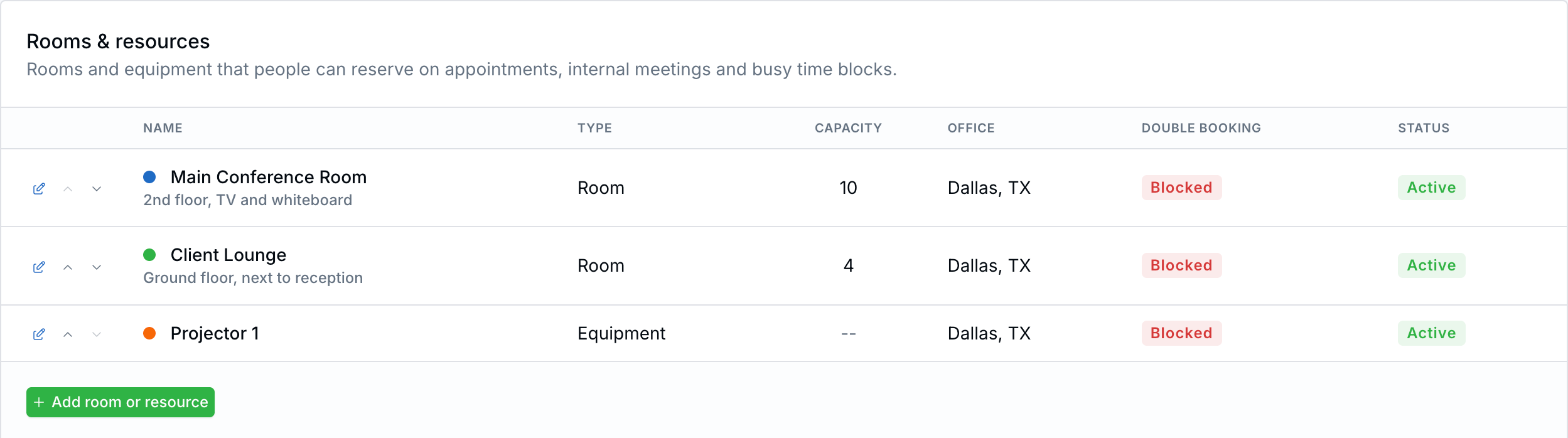
Your rooms and equipment in Settings, then Calendars, then Rooms & resources.
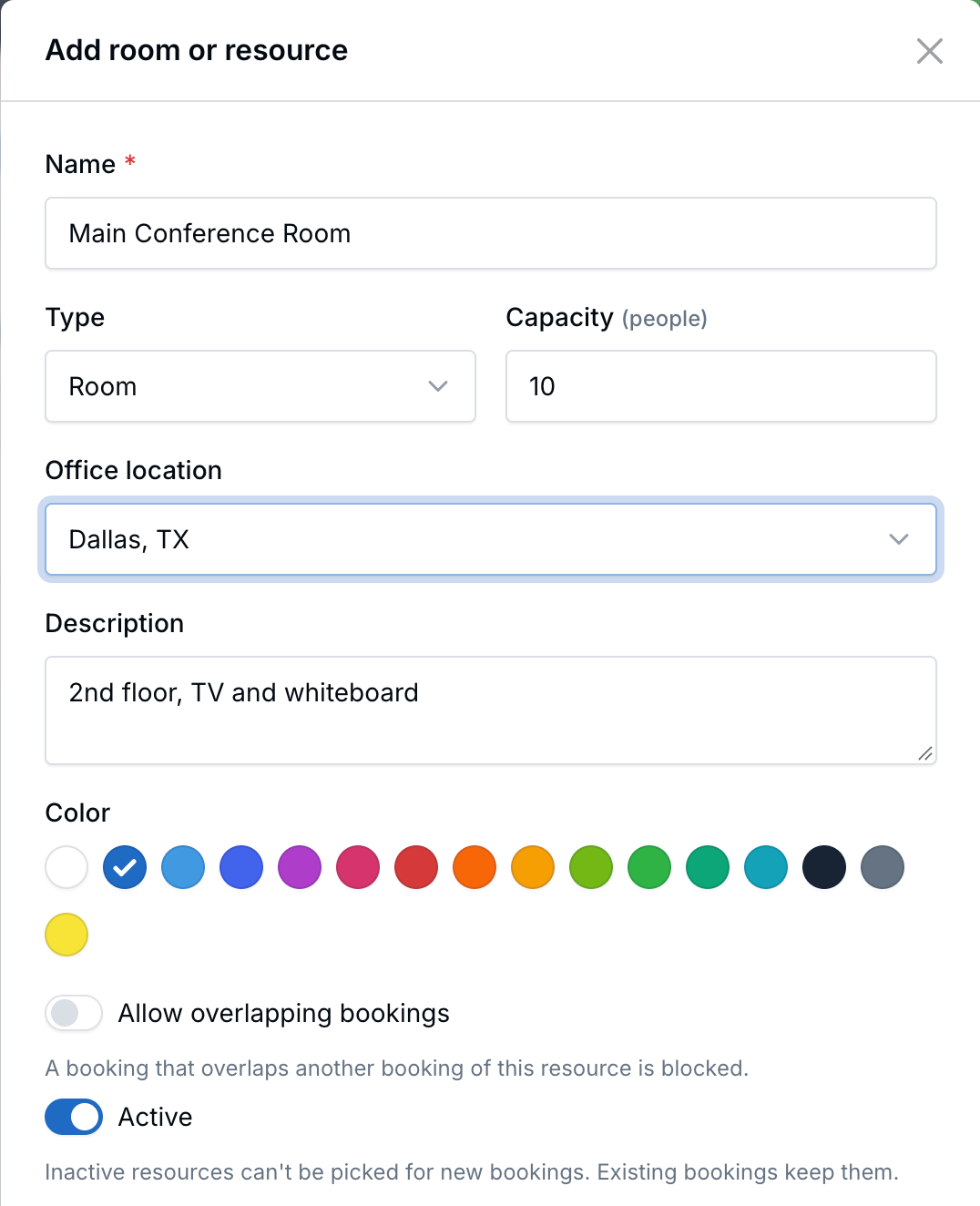
Add a room or a piece of equipment.
Allow Overlapping Bookings
- Off (the default): the room can be booked only once at a time. If it's taken, LeadCenter shows who has it, and you can't save until you pick another time or room.
- On: the resource can be shared. LeadCenter warns you that it's already booked but lets you save.
Back-to-back bookings, such as 10:00 to 11:00 and 11:00 to 12:00, don't clash.
Book a Room
- Create or edit an appointment, an internal meeting, or a busy time block.
- In Rooms & resources, right below Meeting location, pick one or more rooms or resources.
- LeadCenter checks availability as you change the date, the time, or the rooms. A red alert means a room is taken, and the booking can't be saved until you change the time or the room. A yellow alert means a shared resource is already in use.
- Click Save.
Free time blocks can't hold rooms. If you switch a time block to free, its rooms are released.
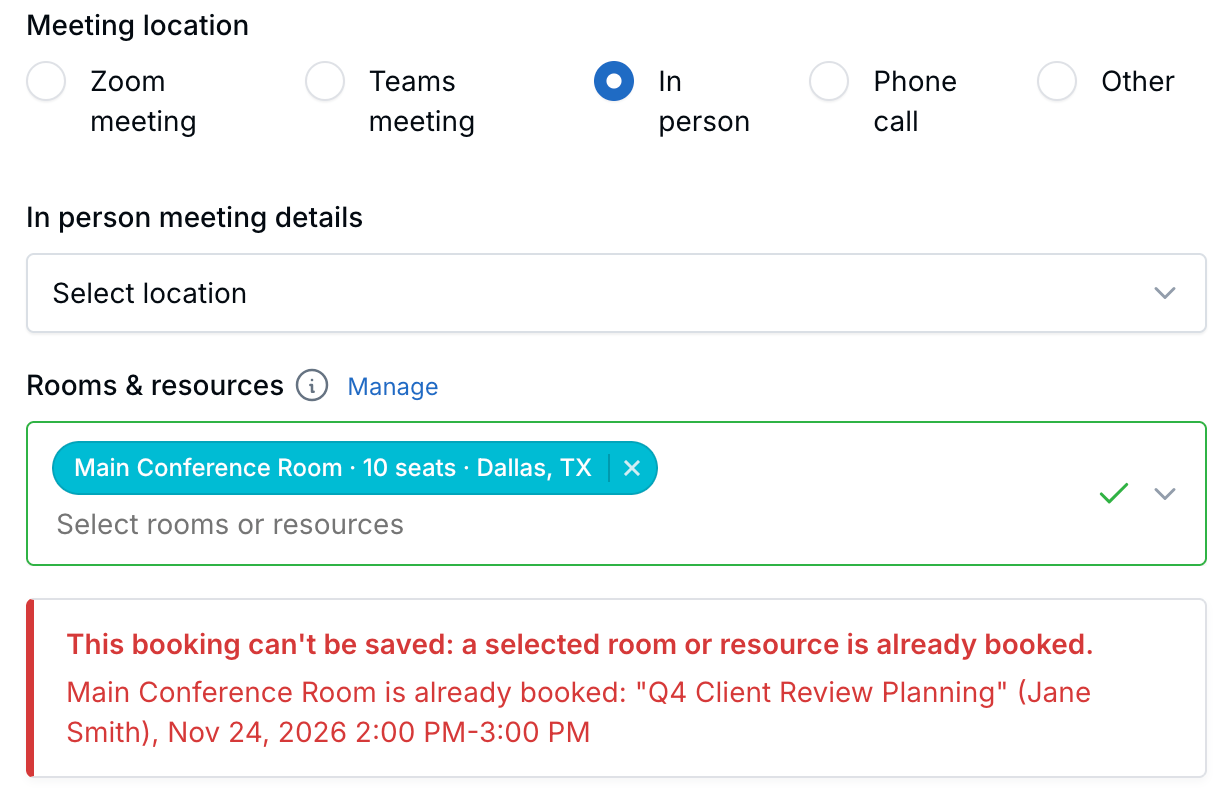
If the room is taken, LeadCenter shows who has it.
Recurring Meetings
- LeadCenter checks every date in the next 12 months and lists any that clash.
- Each date keeps the series' rooms, even dates you edit on their own.
- Cancelling one date frees the room for that day.
Moving a Meeting
Dragging or resizing a meeting on the calendar is checked too. If the new time clashes with a room that can't be shared, the meeting goes back to its original time.
See Which Rooms Are Free
- Open your calendar.
- Click the door icon next to the Calendar and List buttons.
The Rooms view has one row per room or resource, grouped under Room and Equipment, with each capacity shown. Switch between the Schedule, Columns, and Week views.
- Hover over a booking for details, or click it to open the appointment.
- Private appointments show only as Booked.
- Select an empty slot to book that room, then choose what to create. The form opens with the room already picked.
- A red outline marks clashing bookings on a room that can't be shared.
Booked rooms also show on the appointment's hover card and details panel, and on the Appointments tab of a contact.
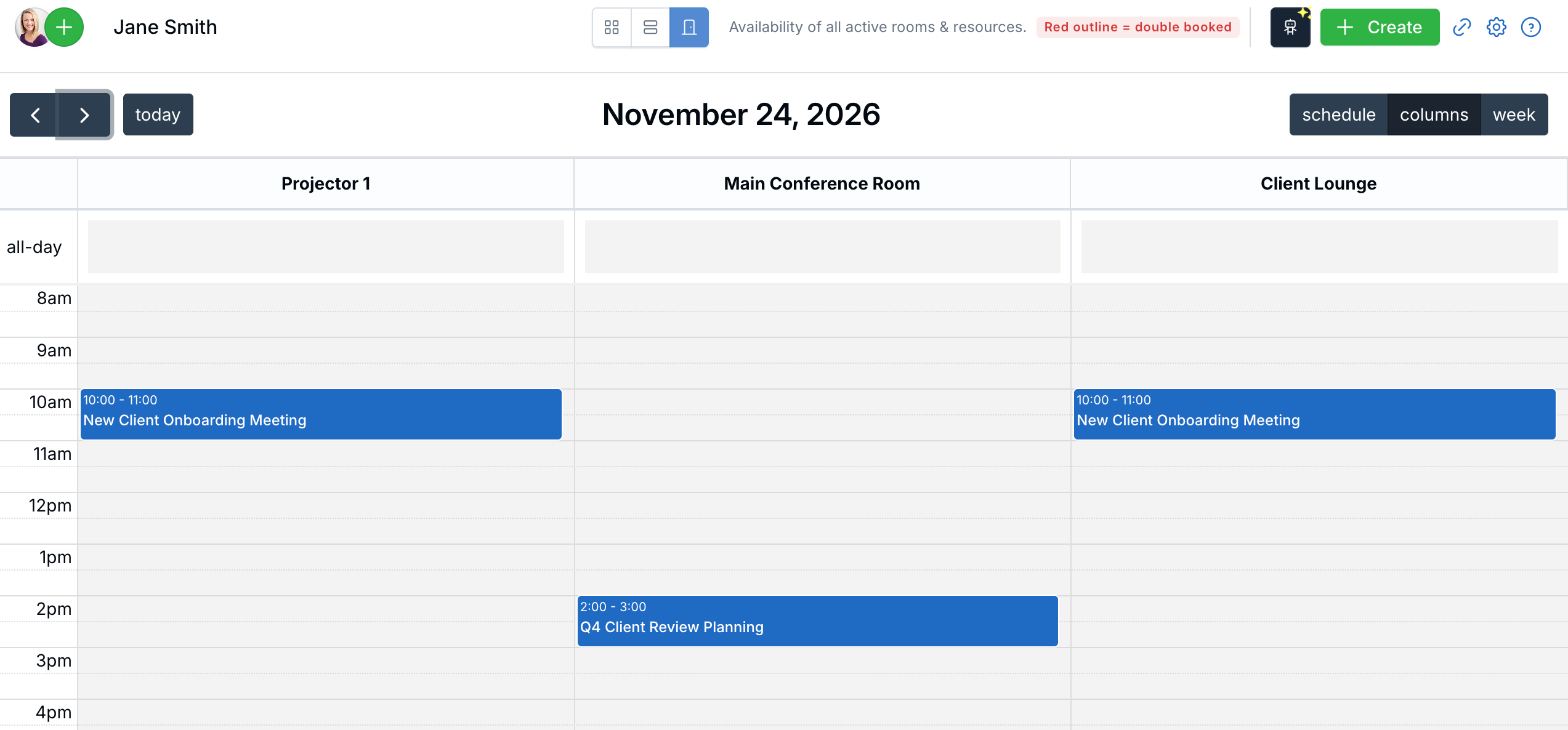
The Rooms view on your calendar shows what's booked in each room.
Good to Know
- You can't delete a room that has upcoming bookings. Mark it inactive instead: it stays on existing bookings but can't be picked for new ones.
- When a client reschedules through your booking link, or a meeting is moved in Google or Microsoft calendar, LeadCenter accepts the change even if it creates a clash. These show with a red outline in the Rooms view so you can sort them out.
- If you turn off Allow overlapping bookings while overlaps exist, the change is saved and LeadCenter tells you how many overlaps are left.
Frequently Asked Questions
Can two people book the same room at the same time?
Not unless the room allows overlapping bookings. By default, LeadCenter shows who already has the room and asks you to pick another time or room.
Can I book more than one room for a meeting?
Yes. Pick as many rooms and pieces of equipment as you need under Meeting location.
Who can add rooms?
Owners and admins, plus any role you give Rooms & Resources access in Roles & Permissions.
Related Articles

Need more help?
If you can't find the answers you're looking for, our support specialists are available to answer your questions and troubleshoot if necessary.
-
Phone Call (888) 291-7116. Our main hours are Monday to Friday 7 am-5 pm Central Time.
-
Support Send your questions and inquiries via email to support@leadcenter.ai. A support ticket will be created and one of our team members will get back to you as quickly as possible.