 Help Center
What's New
Automate Follow-Up from Website Forms with Form Submission–Triggered Workflows
12/08/2025
We’ve expanded LeadCenter Workflows to support the new Form Submission Created trigger. Workflows can now start automatically whenever someone submits a form on your website or embedded forms — enabling instant follow-up, lead nurturing, qualification, and more.
What’s New
- Form Submission Created Trigger – Start workflows the moment a form is submitted, whether it creates a new contact or updates an existing one.
- Form Submission Filters – Filter workflows by form title, URL, UTM parameters, or form field values.
- Contact Filters with Form Submissions – Further target automation based on contact data (stage, source, custom fields, etc.).
- Works for Both New & Existing Contacts – Form-based workflows run whether a contact is newly created or already exists in your CRM.
- Designed to Work Alongside All Other Triggers – Form Submission Created joins Contact Created, Contact Updated, and Appointment Created as available workflow triggers.
How It Works
- Create a new workflow or open an existing one in Workflows.
- Select Form Submission Created as the trigger.
- (Optional) Add a Form Submission Filter to run the workflow only for certain forms, URLs, campaigns, or answers.
- (Optional) Add a Contact Filter to target specific types of contacts.
- Add your actions — such as sending an email or text, updating the contact, assigning an owner, calling the contact, or creating tasks/steps.
- Activate the workflow. It will run automatically whenever a qualifying form submission occurs.
Example Workflow
Here’s a simple example of how you can use the Form Submission Created trigger to automate follow-up when someone submits your website’s contact form:
- Trigger: Form Submission Created
- Form Submission Filter: Only run when the form title is “Contact Us”
- Contact Filter: Exclude contacts already in a later stage (for example, Stage is not Client)
- Action: Automatically call the contact to follow up on their inquiry
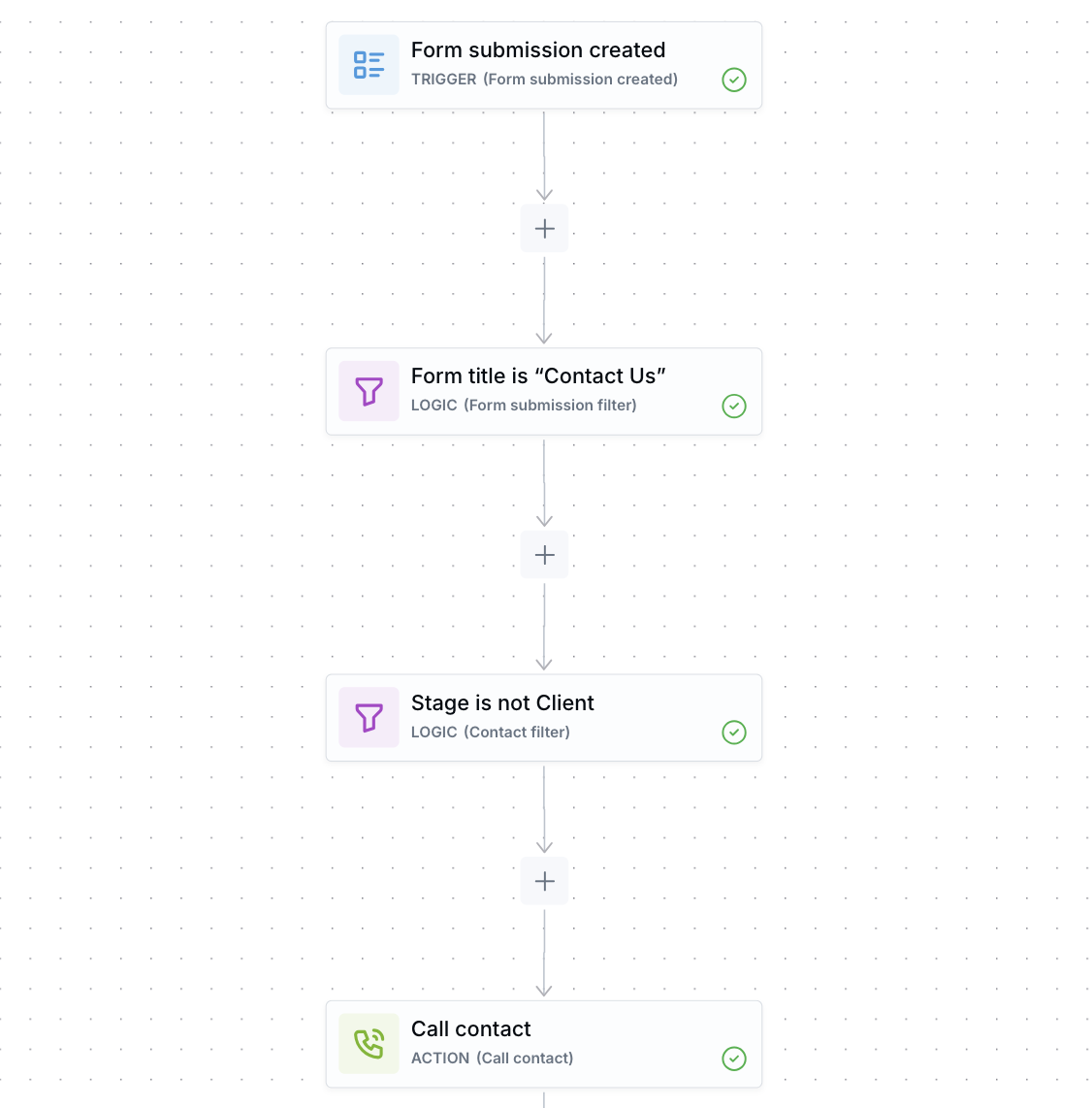
Example workflow: trigger when the “Contact Us” form is submitted, filter by form title and contact details, then automatically call the contact.
Key Behaviors to Know
- Runs for New & Existing Contacts – When a form submission matches a duplicate, the existing contact is updated and the workflow still triggers. When no duplicate exists, a new contact is created and the workflow triggers.
- Email or Phone Required – Form submissions must include at least an email or phone number. If both are missing, the submission is rejected and no workflow is triggered.
- Appointment Booking Forms Do Not Trigger Form Submission Workflows – Submissions created during appointment booking only trigger the Appointment Created workflow to avoid duplicated automation.
- Form Submission Created + Lead Created May Both Trigger – When a form creates a new contact, both triggers can fire. Use filters (or disable unneeded workflows) to avoid duplicate automation.
- Filter Compatibility:
- Form Submission Filters work only with the Form Submission Created trigger.
- Appointment Filters are not available for form submission triggers.
- Contact Filters work with both Form Submission Created and Appointment Created triggers.
Why It Matters
- Instant, automated follow-up when someone submits a form on your website.
- Route leads, assign owners, and take actions based on specific forms or campaign data.
- Personalize automation using contact details or form answers.
- Avoid duplicate communication by using filters when combining form-triggered and lead-created workflows.
- Consistent behavior across both new and existing contacts.
Questions or feedback? Reach out anytime at support@leadcenter.ai.

Need more help?
If you can't find the answers you're looking for, our support specialists are available to answer your questions and troubleshoot if necessary.
-
Phone Call (888) 291-7116. Our main hours are Monday to Friday 7 am-5 pm Central Time.
-
Support Send your questions and inquiries via email to support@leadcenter.ai. A support ticket will be created and one of our team members will get back to you as quickly as possible.