 Help Center
What's New
New: Automate Appointment Workflows with a New Trigger and Wait Node
12/05/2026
We’ve expanded LeadCenter Workflows with a major update to automation around appointments. You can now trigger workflows when an appointment is created and use the new Wait node to schedule actions before or after the appointment time.
What’s New
- Appointment Created Trigger – Automatically start a workflow the moment an appointment is created in LeadCenter or booked via BookMyTime.
- New Wait Node – Replaces the previous delay node and now supports appointment-based timing.
- Before / After Appointment Delays – Use the Wait node to schedule actions relative to the appointment (for example: “1 day before appointment” or “3 hours after appointment”).
- Appointment Filters – Target only certain appointments based on category, meeting type, time, location, and associated contact information.
- Reschedule-Aware – If an appointment is rescheduled, appointment-based waits automatically recalculate based on the new time.
- Cancellation Handling – If an appointment is canceled, appointment-based waits are stopped so no reminders or follow-ups go out.
- Contact Filters for Multiple Triggers – Contact Filters work with both Appointment Created and Form Submission Created triggers.
1. Start Your Workflow with “Appointment Created”
When you choose the Appointment Created trigger, the workflow starts automatically whenever a new appointment is scheduled (excluding recurring appointments, exceptions, and past appointments). The appointment and its associated contact are available to all subsequent nodes.
2. Add Logic with Appointment Filters
Use an Appointment Filter node to only run the workflow for specific types of appointments, such as:
- Appointment category (for example: “First Visit – Not a Client”, “Review”, “Consultation”)
- Meeting type (In-person, Virtual, Phone)
- Start / end time windows
- Location
- Associated contact information
Important: Appointment Filters can only be used with the Appointment Created trigger. Form Submission Filters can only be used with the Form Submission Created trigger. Contact Filters work with both triggers because both appointments and form submissions are always linked to a contact.
3. Use the Wait Node Before or After the Appointment
The new Wait node replaces the old delay node and adds support for appointment-based timing when the workflow is triggered by Appointment Created. You can configure the Wait node to:
- Wait before appointment – Ideal for reminders and preparation messages (for example: “Wait 1 day before appointment”).
- Wait after appointment – Ideal for follow-ups, task creation, or pipeline updates (for example: “Wait 3 hours after appointment”).
With appointment-based waits, the timing is calculated from the appointment’s scheduled start time. For example, if the appointment is at 3:00 PM and the Wait node is set to “1 day before appointment,” the workflow will resume at 3:00 PM the day before.
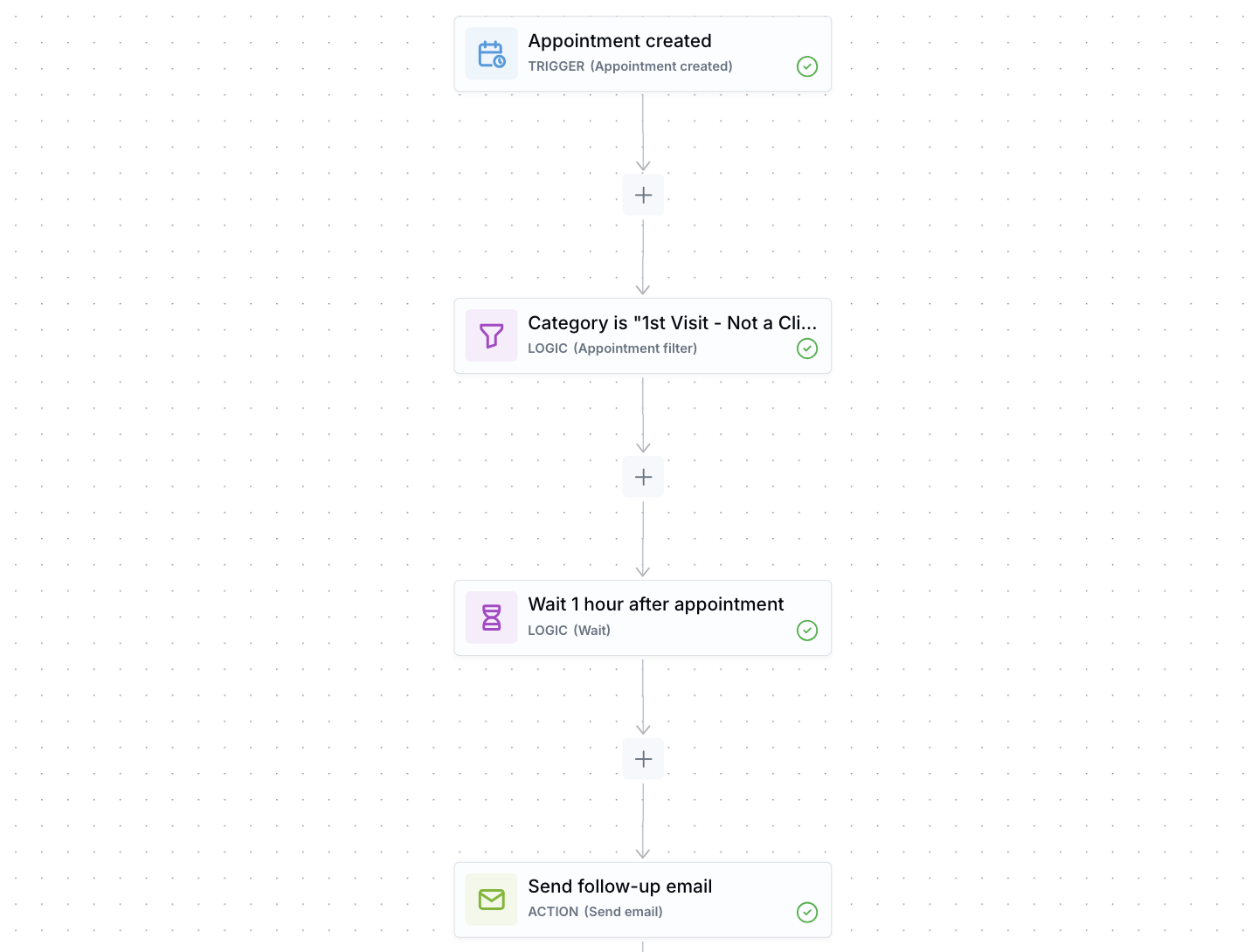
Example workflow: an appointment is created, the workflow waits 1 hour after the appointment, then sends a follow-up email to the contact.
4. Add Workflow Actions
After the Wait node, you can use any of the standard workflow actions, including:
- Send email
- Send text message
- Update contact
- Assign owner
- Create task
- Create step
- Call contact
- Request Catchlight data
How Delays Behave with Different Triggers
The Wait node behaves differently depending on which trigger starts the workflow:
- Appointment Created: When you configure the Wait node as “before appointment” or “after appointment,” timing is calculated using the appointment’s start time.
- Other triggers (Contact Created, Contact Updated, Form Submission Created, etc.): Wait times are calculated from the moment the workflow reaches the Wait node (a standard time-based delay).
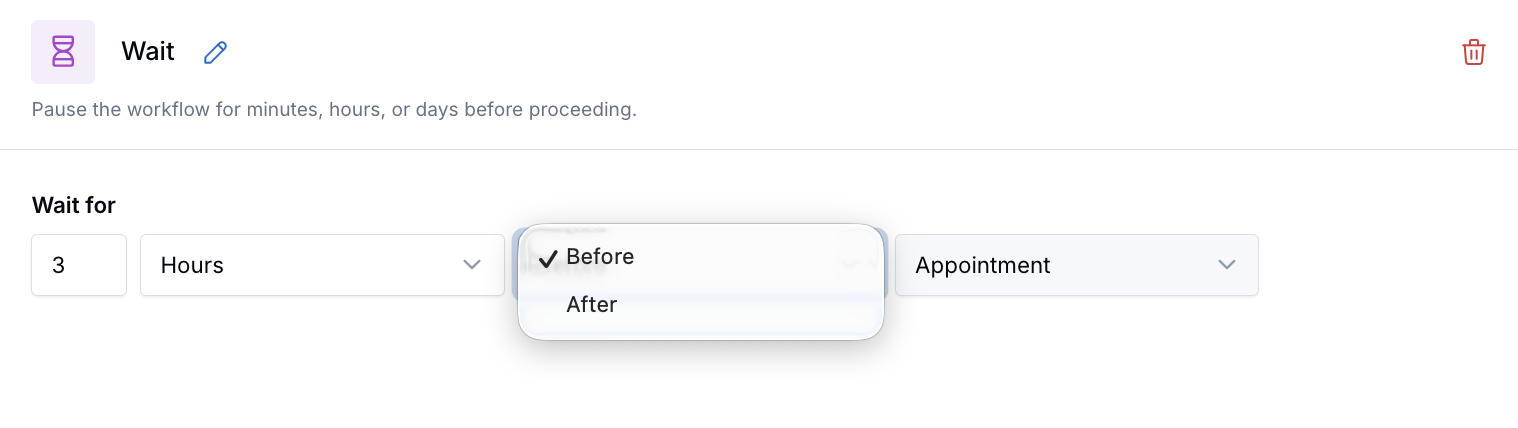
Configure the Wait node to run actions before or after the appointment time when using the Appointment Created trigger.
Key Difference: Appointment-based waits are tied to the appointment’s time. Regular waits (used with other triggers) are based on the current time when the workflow reaches the Wait node.
Smart Handling of Rescheduling and Cancellations
- If the appointment is rescheduled: Any active appointment-based Wait nodes are automatically recalculated based on the new appointment time.
- If the appointment is canceled: Workflows that are waiting on an appointment-based Wait node will stop, and subsequent actions will not run.
This ensures your contacts never receive reminders or follow-ups for appointments that no longer exist.
Why It Matters
- Build fully automated appointment journeys — including reminders, preparation emails, and follow-up sequences.
- Ensure communication happens at the right time, even when appointments are rescheduled.
- Reduce missed appointments and manual follow-up work.
- Automatically update stages, create tasks, and initiate next steps for your contacts after key meetings.
Questions or feedback? Reach out anytime at support@leadcenter.ai.

Need more help?
If you can't find the answers you're looking for, our support specialists are available to answer your questions and troubleshoot if necessary.
-
Phone Call (888) 291-7116. Our main hours are Monday to Friday 7 am-5 pm Central Time.
-
Support Send your questions and inquiries via email to support@leadcenter.ai. A support ticket will be created and one of our team members will get back to you as quickly as possible.