 Help Center
What's New
New: View Multiple Calendars in the Mobile App
01/04/2026
You can now view multiple calendars at once in the LeadCenter mobile app. This makes it easier to see your schedule alongside your team’s availability — all in one place.
What’s New
- Multiple calendar view — See appointments from multiple team members at the same time.
- Quick calendar selector — Easily add or remove calendars directly from the calendar screen.
- Search & bulk selection — Find calendars by name or select/deselect all with one tap.
- Clear visual cues — Appointments are color-coded by source so you can quickly understand where they’re coming from.
How to Access
- Open the LeadCenter mobile app.
- Tap the Calendar tab from the bottom navigation.
- Tap the Select chip at the top of the calendar to choose additional calendars.
How It Works
- Your own calendar is always selected and cannot be removed.
- You can add or remove other team calendars at any time.
- Selected calendars appear as chips at the top of the calendar view.
- You can remove a calendar instantly by tapping the X on its chip.
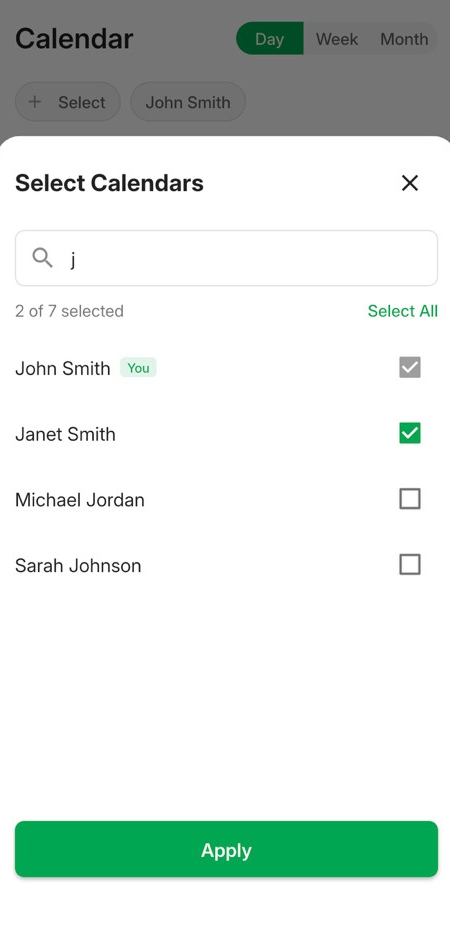
Quickly search, select, or deselect team calendars from the selector.
Calendar Views
Switch between different views to match how you plan your day:
- Day — Focus on a single day with hourly detail.
- Week — View your work week (Monday–Friday).
- Month — See a high-level monthly overview.
Appointment Colors
Appointments are color-coded by source or type:
- Blue — LeadCenter appointments
- Green — Google Calendar
- Orange — Microsoft / Outlook
- Red — Redtail
- Purple — Tasks
- Pink — Events
- Gray — Private appointments (details hidden)
Good to Know
- Private appointments appear as blocked time only.
- External appointments (Google, Microsoft, Redtail) are shown in read-only mode.
- You can pull down to refresh the calendar at any time.
Get the Mobile App
If you haven’t installed the LeadCenter mobile app yet, you can download it here:


Questions or feedback? Contact us at support@leadcenter.ai.

Need more help?
If you can't find the answers you're looking for, our support specialists are available to answer your questions and troubleshoot if necessary.
-
Phone Call (888) 291-7116. Our main hours are Monday to Friday 7 am-5 pm Central Time.
-
Support Send your questions and inquiries via email to support@leadcenter.ai. A support ticket will be created and one of our team members will get back to you as quickly as possible.