 Help Center
What's New
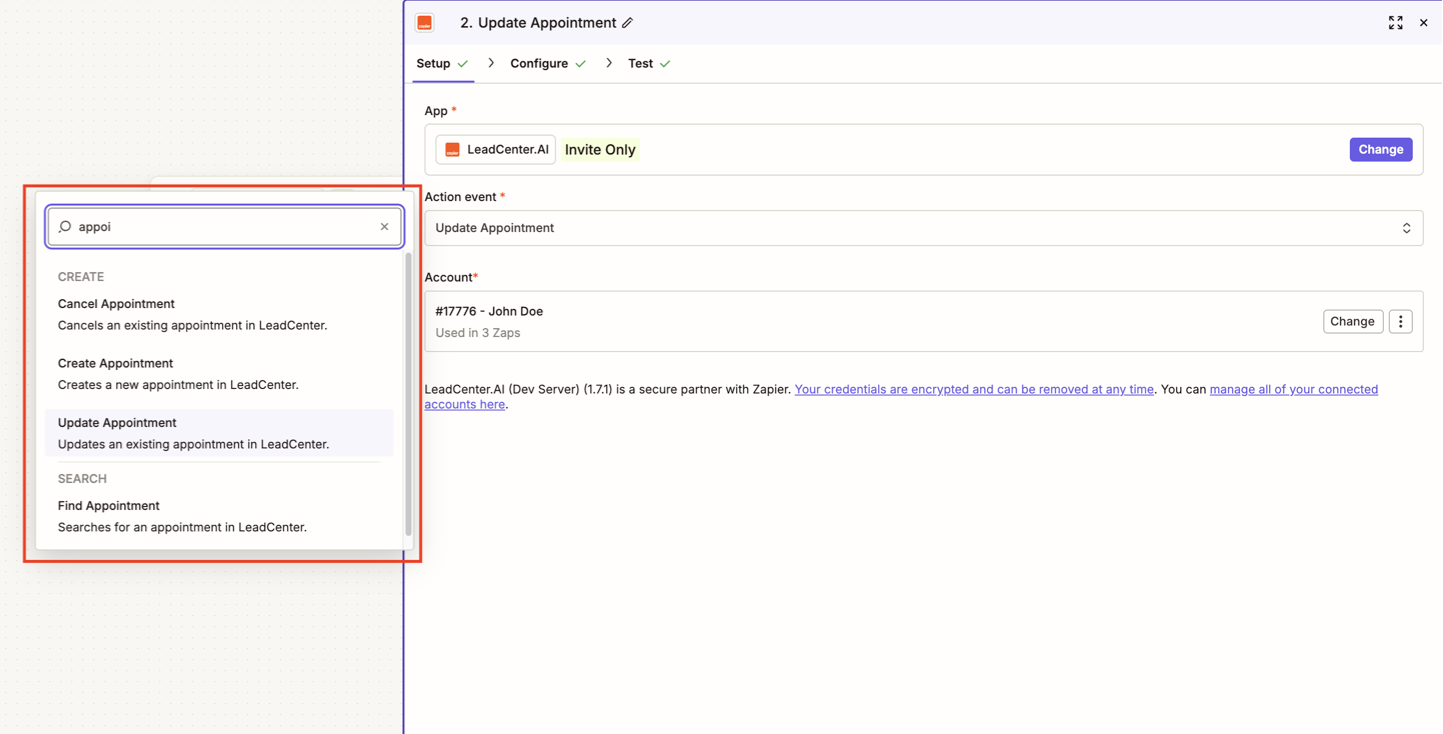
New: Connect LeadCenter Appointments with Zapier
07/21/2026
LeadCenter appointments now work with Zapier, giving your team a practical way to connect appointment activity with the other tools you use every day.
What’s New
- Start Zaps from appointment activity — Use New Appointment or Updated Appointment to trigger workflows when regular appointments are created, changed, or cancelled in LeadCenter.
- Create appointments from other apps — Use Create Appointment to book meetings in LeadCenter from a Zap.
- Update or cancel appointments — Use Update Appointment or Cancel Appointment to change meeting details or cancel a meeting with an optional reason.
- Find the right appointment first — Use Find Appointment before an update or cancellation when you do not already have the Appointment ID.
How It Works
Connect LeadCenter in Zapier using your credentials from Integrations → Zapier. Then choose a LeadCenter appointment trigger or action, map the appointment fields you need, and turn on the Zap.
Appointments created, updated, or cancelled from Zapier are saved in LeadCenter and can sync to connected calendars, including Google Calendar, Microsoft Outlook, and Redtail when those calendars are linked for your firm.
Why It Matters
- Connect appointment data across tools — Keep calendars, spreadsheets, and follow-up tools aligned with appointment activity in LeadCenter.
- Reduce duplicate entry — Create, update, cancel, and find LeadCenter appointments from the other apps your team already uses.
- Keep connected calendars in sync — LeadCenter can push Zapier-created appointment changes to connected calendars.
Questions? support@leadcenter.ai

Need more help?
If you can't find the answers you're looking for, our support specialists are available to answer your questions and troubleshoot if necessary.
-
Phone Call (888) 291-7116. Our main hours are Monday to Friday 7 am-5 pm Central Time.
-
Support Send your questions and inquiries via email to support@leadcenter.ai. A support ticket will be created and one of our team members will get back to you as quickly as possible.