 Help Center
What's New
What's New
Upload Images and PDFs in Troy AI
07/03/2026
Troy AI now supports image and PDF attachments. Add files to your conversation so Troy can analyze them alongside your CRM data and provide more accurate, context-aware responses.
What's New
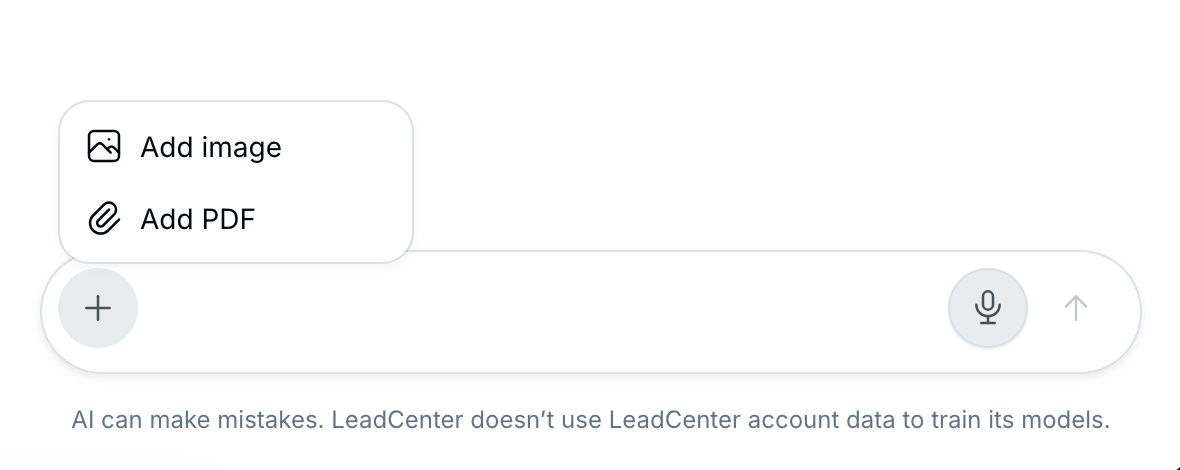
- Attach images and PDFs: Upload screenshots, statements, reports, and other documents directly from the chat composer.
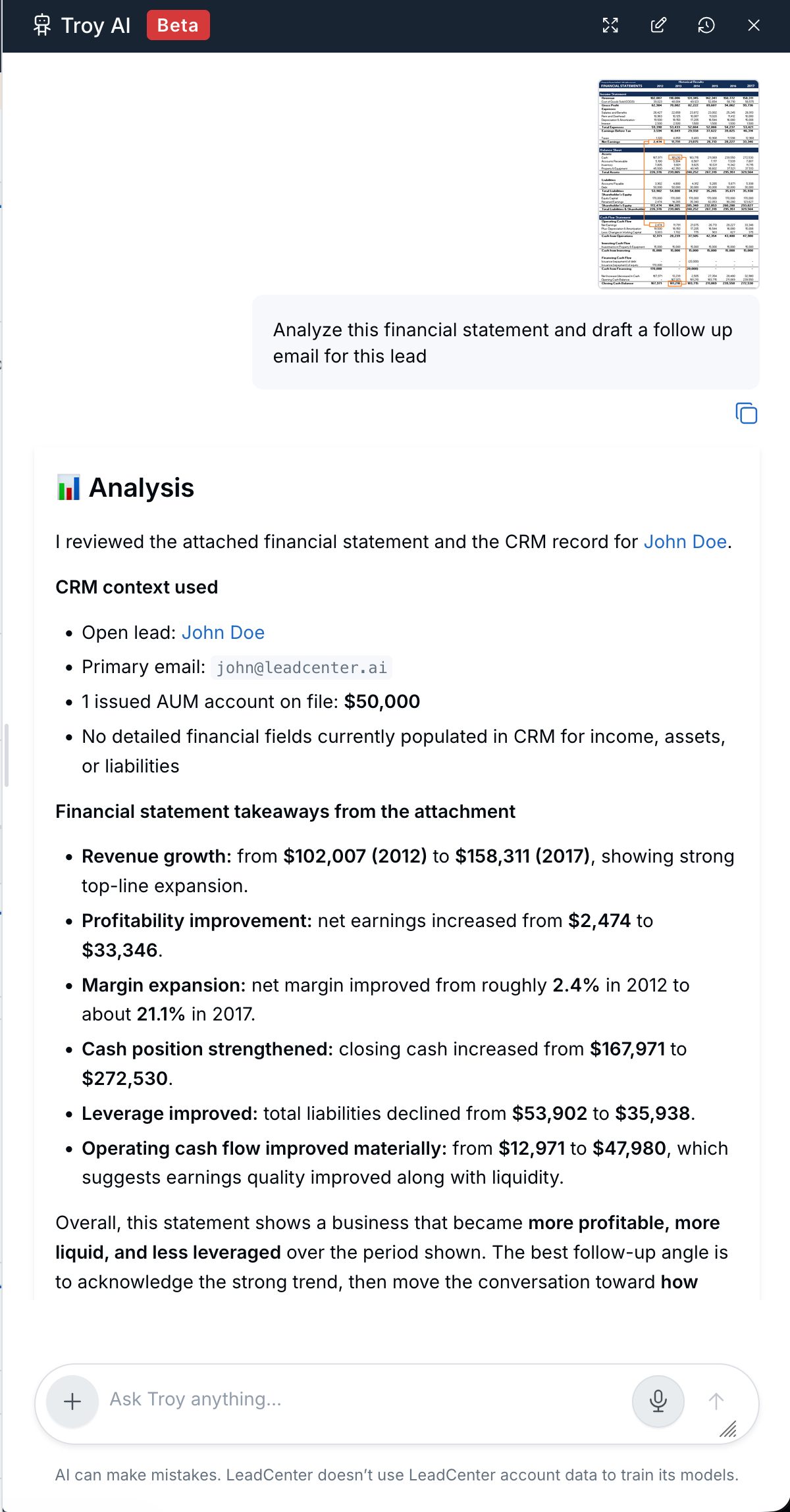
- Analyze attached content: Troy uses your uploaded file together with CRM data to generate more relevant responses.
- Simple attachment workflow: Add a file, ask your question, and receive insights without leaving the conversation.
How It Works
Open Troy AI and click the + button beside the message box. Select Add image or Add PDF, choose your file, then send your prompt.
After the file is attached, ask Troy your question as usual. Troy analyzes the uploaded document together with available CRM information to deliver a more informed response.
Why It Matters
- Provide richer context: Let Troy review documents and screenshots instead of describing them manually.
- Receive better recommendations: Responses combine the uploaded file with relevant CRM information.
- Work faster: Analyze documents, summarize reports, draft follow-up emails, and answer questions without switching tools.
Questions? support@leadcenter.ai

Need more help?
If you can't find the answers you're looking for, our support specialists are available to answer your questions and troubleshoot if necessary.
-
Phone Call (888) 291-7116. Our main hours are Monday to Friday 7 am-5 pm Central Time.
-
Support Send your questions and inquiries via email to support@leadcenter.ai. A support ticket will be created and one of our team members will get back to you as quickly as possible.