 Help Center
What's New
Appointments, Tasks, and Texting Now Available on Mobile
09/08/2026
The LeadCenter mobile app now handles the work you used to save for your desk. Create appointments, create and manage tasks with your team's own stages and lists, and text contacts from an account number — all from your phone.
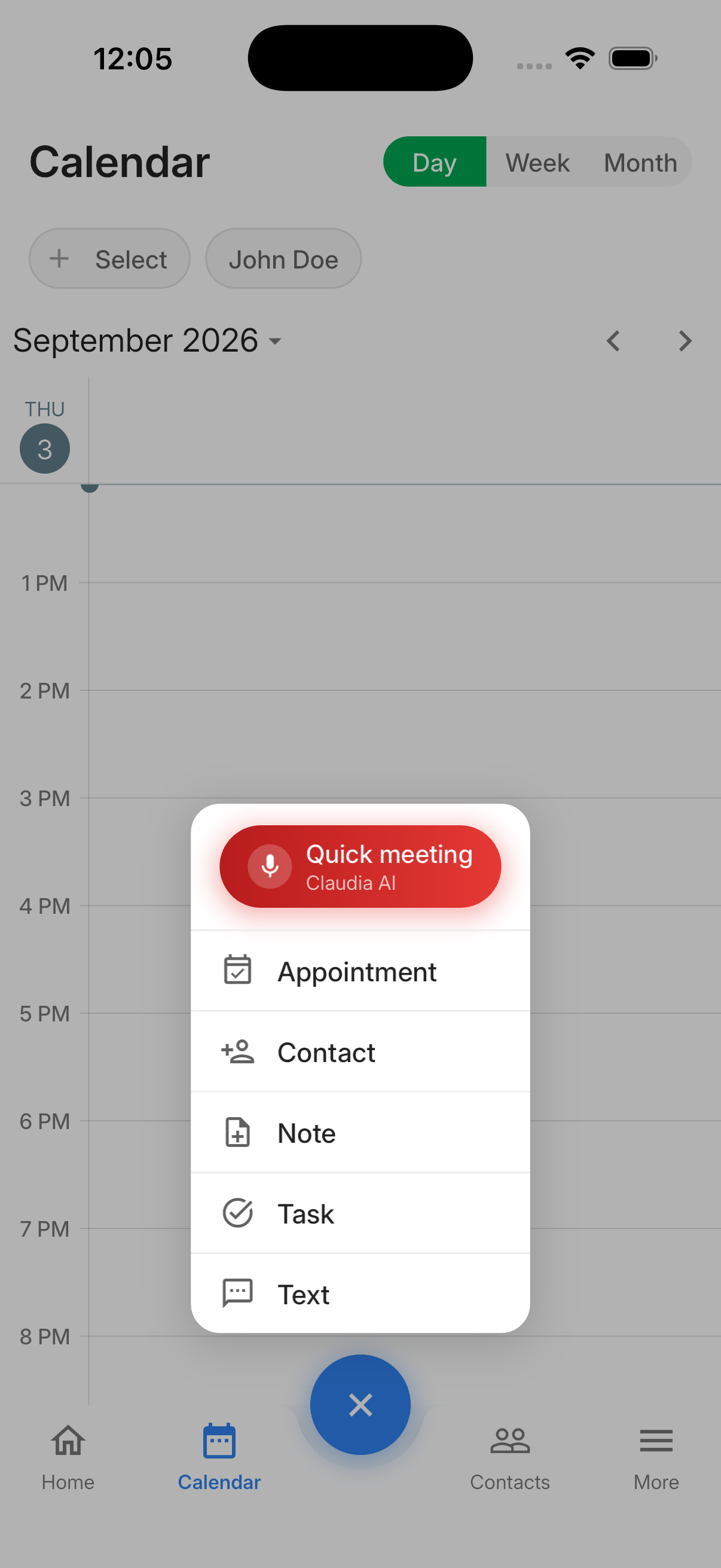
Create Appointments
- Two ways in — Open Appointment from the + menu, or choose Add Appointment from a contact's menu to start with that contact already selected.
- Invite the right participants — Add external guests by email and choose which colleagues' calendars should receive the appointment.
- Sensible defaults — New appointments start at the next half-hour with a one-hour duration, and moving the start preserves the duration.
Add a description with Speak AI, choose visibility, and turn on Notify all? when attendees should receive an email. Saved appointments appear on the Calendar tab and, when linked to a contact, in that contact's Upcoming Activities.
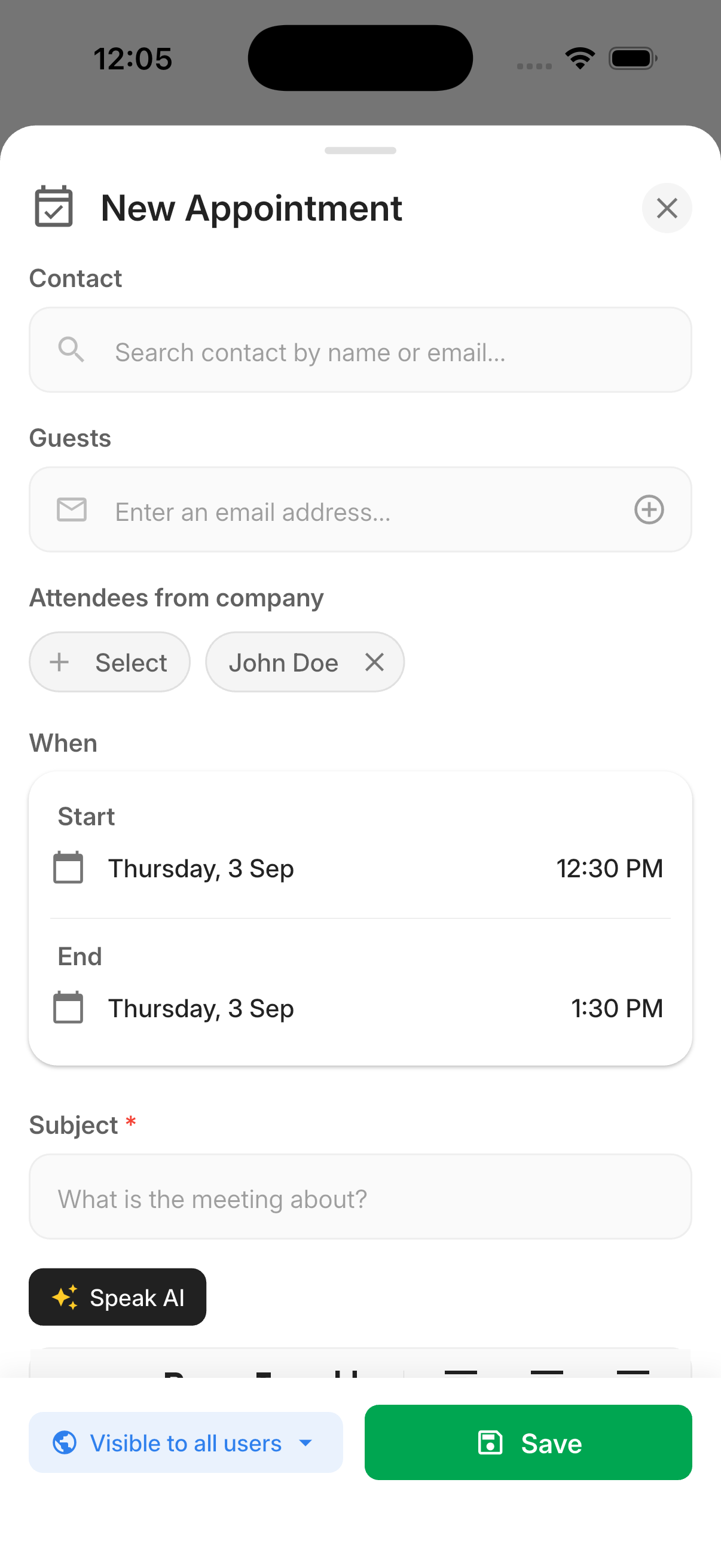
Please note: Appointment creation is available to every user. Notify all? is off by default, and only the subject and a valid start and end are required.
Create and Manage Tasks
- Three ways in — Start from the + menu, the Tasks screen, or a contact's Add Task action.
- Your team's task structure — Choose from your account's configured stages and task lists instead of the previous fixed task states.
- Find the right work faster — Filter by Inbox, Overdue, Today, or Upcoming, then narrow by list or stage.
- Consistent completion — Marking a task complete moves it to the stage your account has configured as completed.
Enter a title and owner, then optionally attach a contact, set a due date, choose a stage or list, set visibility, dictate a description with Speak AI, or use an @ mention to notify a colleague.
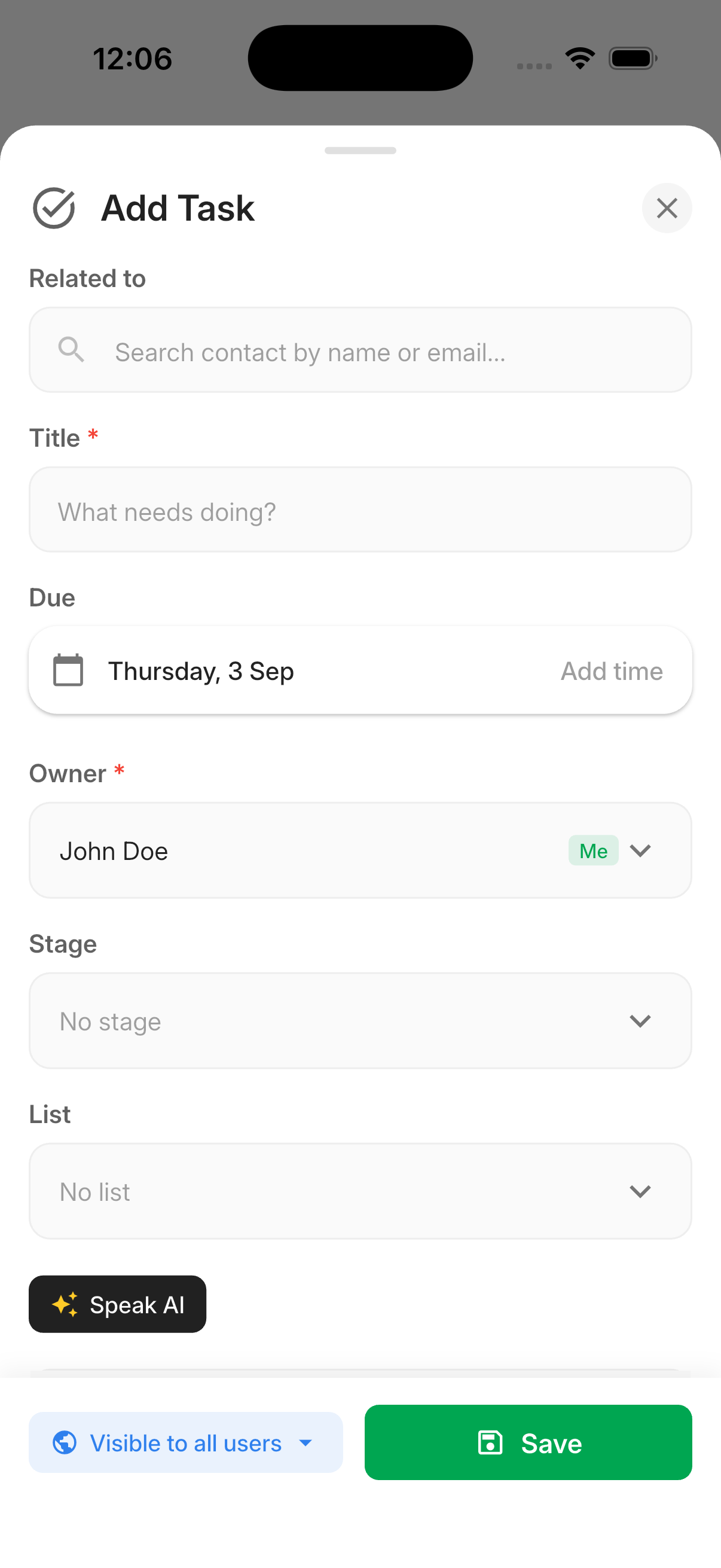
Please note: Task creation requires the task-create permission. Stage and List are optional. If you choose a due date without a time, the task is saved for 9:00 AM that day in the company timezone.
Send and Receive Texts
- A mobile Texts inbox — Review conversations in most-recent order, search them, and see unread counts on threads and on the Texts entry.
- Full conversation history — Read sent and received messages in a chat-style thread, load older messages, and see whether a message is in flight, delivered, or unsuccessful.
- Send from an account number — Choose one of your account's virtual numbers in the From row. Your personal number is never used.
- Live updates — New messages appear in an open conversation automatically, or arrive as a notification with an Open action elsewhere in the app.
Open More → Texts and choose a conversation, tap + to start a new one, or open a contact and tap Text. Opening a conversation marks it read; an unsuccessful send leaves your text in the box so you can retry.
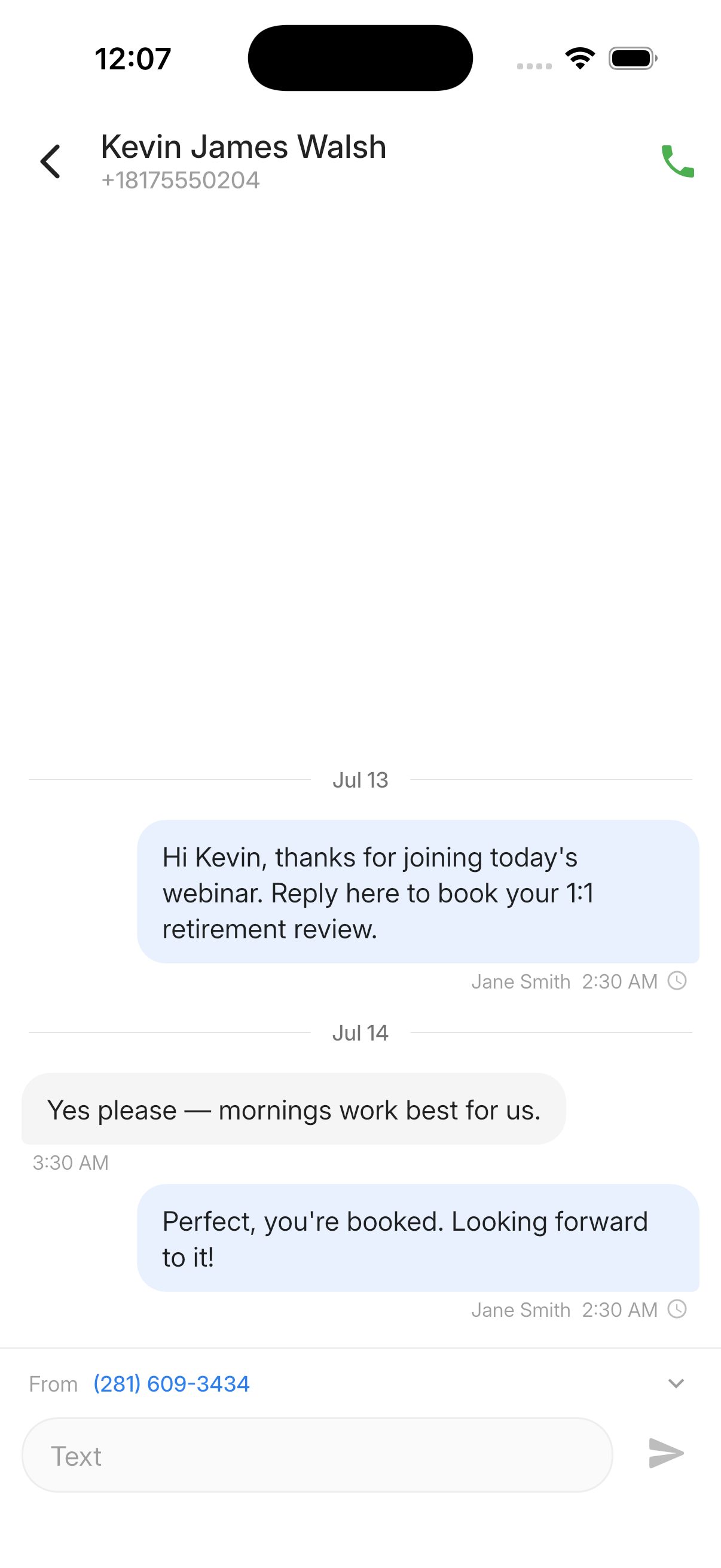
Please note: Texting follows your existing contact record access rules and must be available on your plan. Attachments cannot be sent from the mobile app in this release, and incoming picture messages must be opened in the web app.
Why It Matters
- Act while the conversation is fresh — Book the follow-up, capture the task, or reply to a client from the contact's record on your phone.
- Keep mobile and web aligned — The same stages, lists, owners, visibility settings, and phone numbers apply wherever you work.
- Keep the record together — Appointments, tasks, and text exchanges stay on the contact instead of scattered across personal apps.
Questions? support@leadcenter.ai

Need more help?
If you can't find the answers you're looking for, our support specialists are available to answer your questions and troubleshoot if necessary.
-
Phone Call (888) 291-7116. Our main hours are Monday to Friday 7 am-5 pm Central Time.
-
Support Send your questions and inquiries via email to support@leadcenter.ai. A support ticket will be created and one of our team members will get back to you as quickly as possible.