 Help Center
What's New
What's New
Improved Task Details Side Panel
06/03/2026
The Task details side panel has been redesigned to surface the most important information first and make documents easier to work with. When you open a task from the task list, Kanban board, contact profile, company page, or a shared task link, the updated panel keeps task details, documents, and comments in one place.
What’s Improved
- Clearer task header — The panel title is now the task name, with a recurring icon when applicable.
- Quick copy options — Use the copy icon to copy either a task link that opens the task on the Tasks page or the task title.
- Compact task information — Details now appear in a cleaner grid, with rows shown only when that data applies.
- Better document handling — The Documents (N) section now includes image thumbnails, a file table, Hide / Show controls, upload, and row actions.
- Smoother comments — Comments remain available below documents, with rich text formatting, links, and @mentions.
How It Works
Open a task from the task list, Kanban board, contact profile, company page, or a shared task link. LeadCenter opens the Task details side panel on the right.
The header shows the task title, copy options, and task actions such as edit task, change stage, and delete. The task information grid shows available details such as contact name, additional contacts, pipeline stage, task stage, priority, category, due date/time, owners, visibility, created by/at, account, appointment, and workflow.
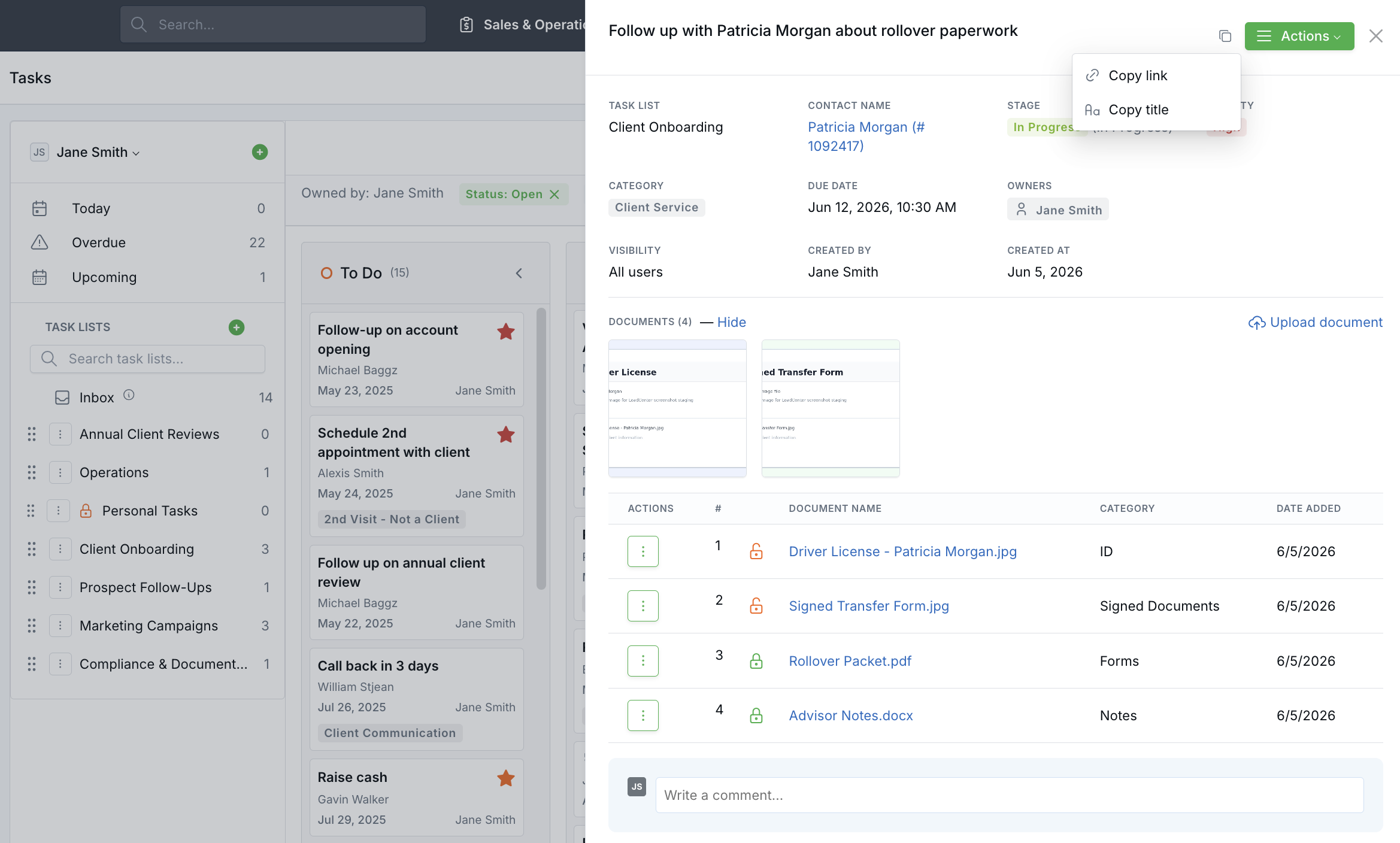
The Documents (N) section shows image thumbnails above the file table when image files are attached. You can preview images, upload documents, collapse or expand the section with Hide or Show, and use row actions for Preview, Download, Edit, and Delete.
Copied task links open the Tasks page and automatically load the details panel for that task.
Why It Matters
- Faster task review — Key details are easier to scan without leaving the side panel.
- Easier sharing — Copy a task link or title directly from the panel header.
- Cleaner document management — Thumbnails, file details, and row actions make attachments easier to review and update.
- More context in one place — Task information, documents, and comments stay together in the same view.
Questions? support@leadcenter.ai

Need more help?
If you can't find the answers you're looking for, our support specialists are available to answer your questions and troubleshoot if necessary.
-
Phone Call (888) 291-7116. Our main hours are Monday to Friday 7 am-5 pm Central Time.
-
Support Send your questions and inquiries via email to support@leadcenter.ai. A support ticket will be created and one of our team members will get back to you as quickly as possible.