 Help Center
What's New
What's New
Use Troy AI in Calendars
07/28/2026
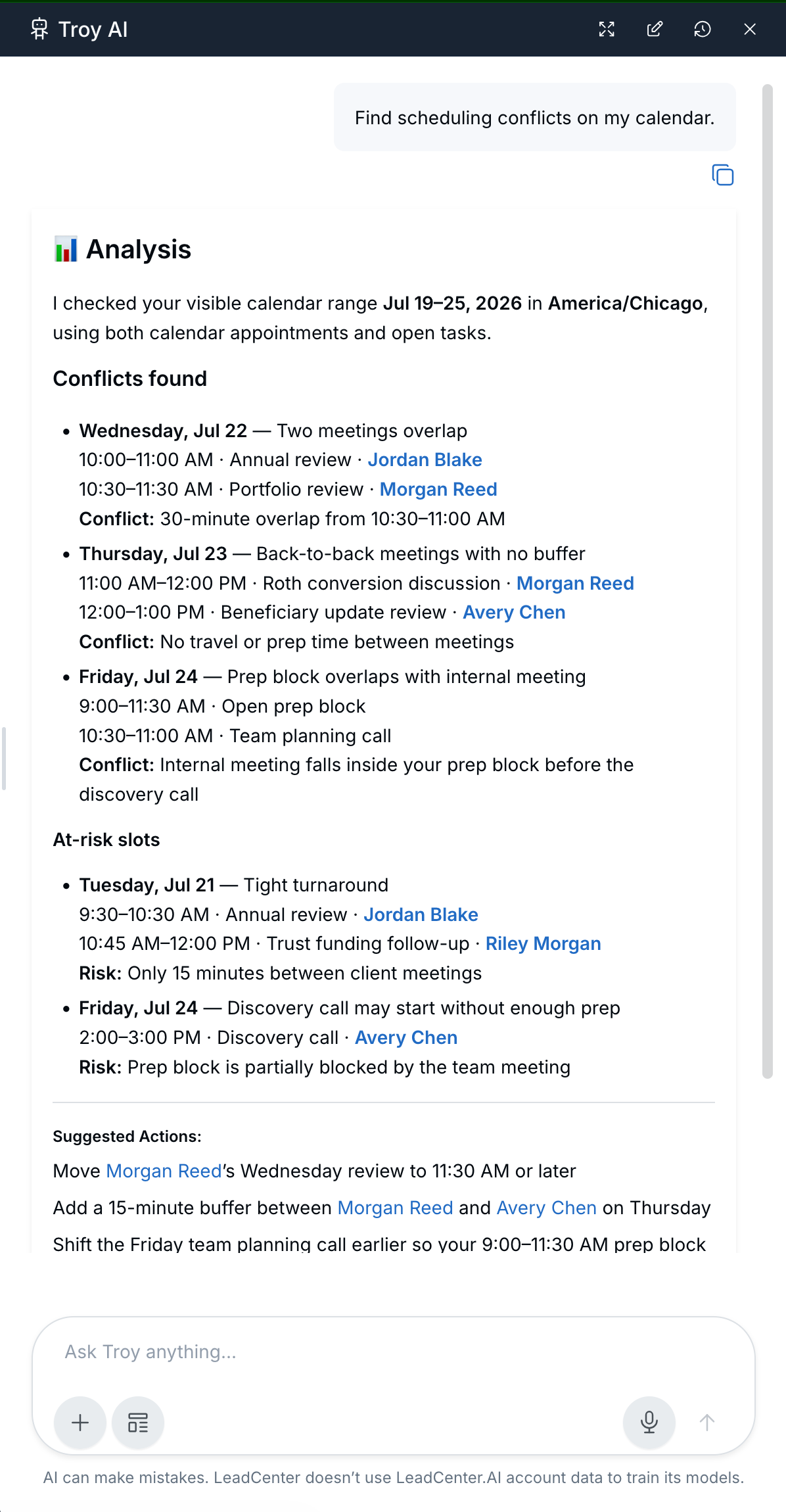
Troy AI is now available in Calendars, helping advisors review schedule patterns, busy days, and conflicts across the selected calendars they are already viewing in LeadCenter.
What’s New
- Calendar-wide AI assistance — Ask Troy about upcoming appointments, client-meeting volume, busy days, and scheduling conflicts.
- Answers based on your current view — Troy works from the selected calendars, date range, and filters currently on screen.
- Schedule triage — Use Troy to spot overloaded days, review workload patterns, and decide where your team may need to adjust coverage or timing.
How It Works
Go to Calendars, select the calendars you want to review, then click Troy AI in the toolbar near Type, Category, Source, and Create.
Troy answers from the calendar view you are using. If you narrow the page with filters, Troy uses that same filtered view to help summarize patterns, identify busy days, and review possible conflicts.
Why It Matters
- See the week more clearly — Ask what is coming up, which days are busiest, or where client meetings are clustered.
- Spot conflicts faster — Review possible scheduling conflicts or overloaded days from the same calendar view.
- Plan team capacity — Use calendar patterns to decide where coverage or schedule adjustments may be needed.
- Stay in context — Troy opens from Calendars, so you can move from the answer back to the schedule quickly.
Questions? support@leadcenter.ai

Need more help?
If you can't find the answers you're looking for, our support specialists are available to answer your questions and troubleshoot if necessary.
-
Phone Call (888) 291-7116. Our main hours are Monday to Friday 7 am-5 pm Central Time.
-
Support Send your questions and inquiries via email to support@leadcenter.ai. A support ticket will be created and one of our team members will get back to you as quickly as possible.