 Help Center
What's New
What's New
Choose How Far Ahead Your Calendar Syncs
07/07/2026
You can now choose how far into the future LeadCenter fetches events from connected Google and Microsoft calendars during the scheduled sync. This gives your team more control over how much upcoming calendar activity is pulled into LeadCenter.
What’s New
- Calendar sync window control — Choose whether LeadCenter syncs events 1 month, 3 months, 6 months, or 1 year ahead.
- Per-calendar settings — Each connected Google or Microsoft calendar can have its own sync window.
- Recommended default — The default setting is 3 months ahead.
How It Works
Go to Calendar settings → Calendar connections. On a connected Google or Microsoft calendar row, use the calendar icon to open the future sync window setting.
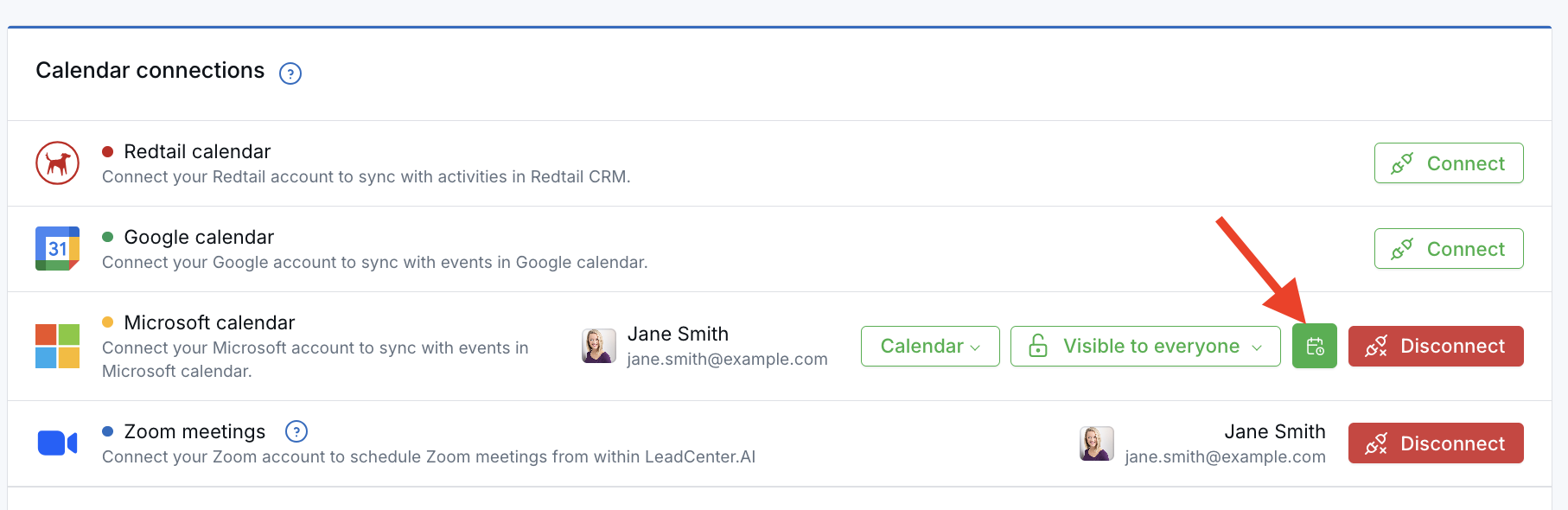
From there, choose how far ahead LeadCenter should fetch future events during the scheduled sync.
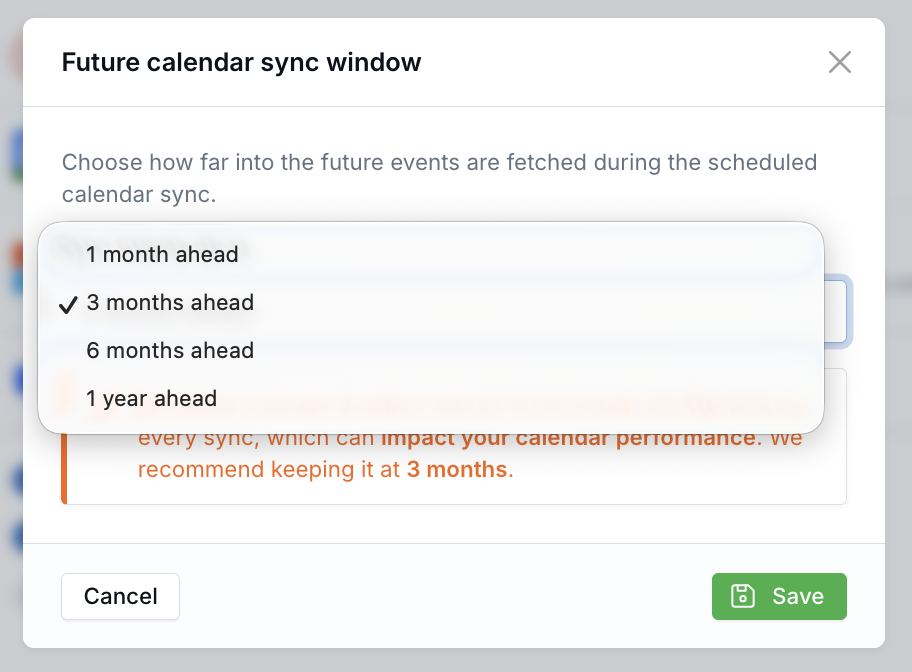
Changing this setting does not start an immediate sync. The new window takes effect on the next scheduled calendar sync. Past events and real-time updates are not affected.
Why It Matters
- Control how much calendar data is pulled in — Choose a shorter or longer future window based on how your team plans ahead.
- Balance visibility and performance — Keep the recommended 3-month window for everyday use, or extend it when you need a longer view.
- Manage calendars individually — Set different windows for different connected Google or Microsoft calendars.
Questions? support@leadcenter.ai

Need more help?
If you can't find the answers you're looking for, our support specialists are available to answer your questions and troubleshoot if necessary.
-
Phone Call (888) 291-7116. Our main hours are Monday to Friday 7 am-5 pm Central Time.
-
Support Send your questions and inquiries via email to support@leadcenter.ai. A support ticket will be created and one of our team members will get back to you as quickly as possible.