 Help Center
What's New
What's New
New Appointments Now Start as Scheduled
11/16/2026
Your calendar now shows which meetings the client has actually confirmed. New appointments start as Scheduled, and you mark them Confirmed once the client agrees to the time.
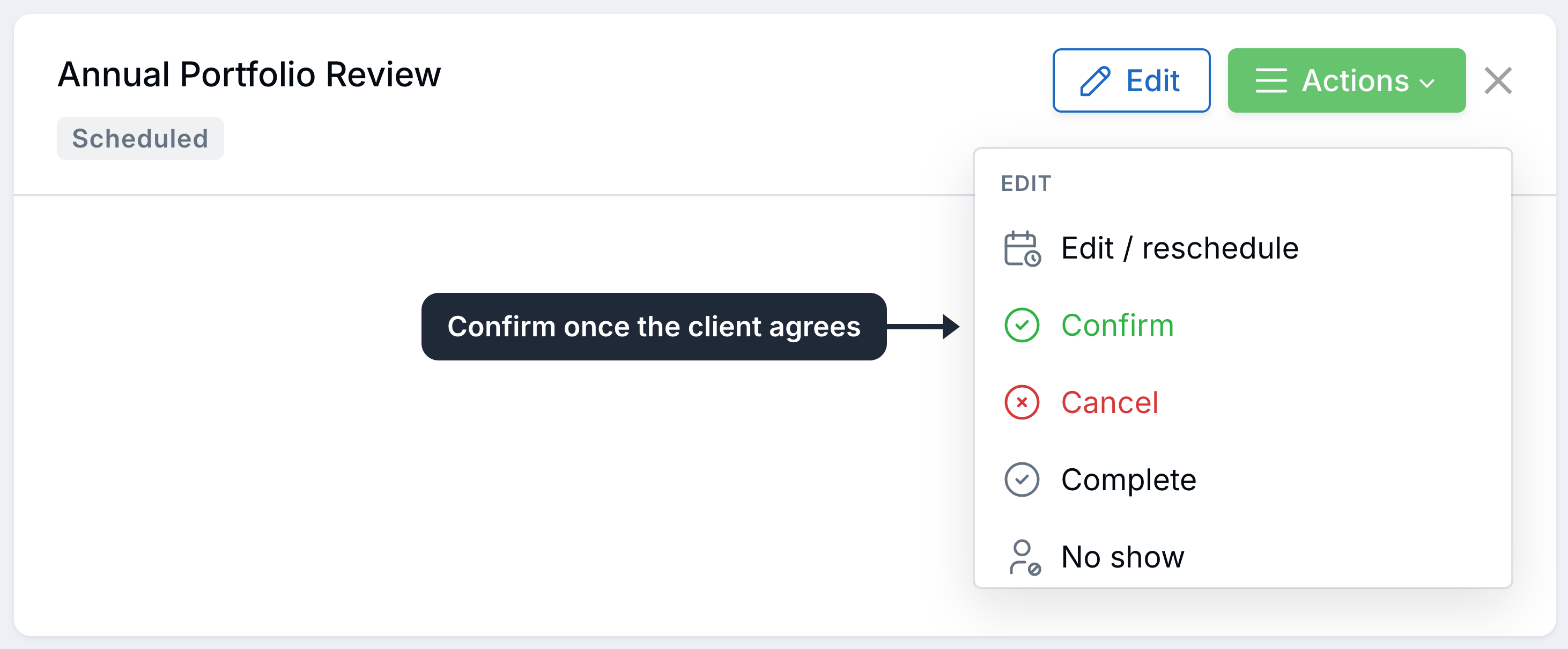
Open a Scheduled appointment and click Actions, then Confirm.
What's New
- Scheduled replaces Tentative: It’s the same status with a clearer name, and it’s now the default for new appointments. Existing appointments weren’t changed.
- Confirm in one click: Open the appointment and click Actions, then Confirm.
- Status icons on the calendar: Client appointments show a check (Confirmed), an X (Cancelled), a double check (Completed), or a person with an X (No show).
- Client requests stand out: When a client clicks a confirm or cancel link, or replies to a reminder text, the appointment shows a bell, clock, or calendar-with-an-X icon until your team acts on it.
- Synced appointments: Appointments from Outlook, Google Calendar, and Redtail come in as Confirmed.
- New filter: Use Appointment client request in Advanced filters or a workflow to find contacts with an open request.

A check means Confirmed. A bell means the client asked to confirm, and you still need to click Confirm.
How It Works
- Book the appointment as usual. It’s saved as Scheduled.
- When the client agrees to the time, open the appointment and click Actions > Confirm.
- Or choose Confirmed in the Appointment status field when you create or edit the appointment.
Why It Matters
You can tell at a glance which meetings are locked in and which still need a nudge, so fewer clients slip through as no-shows. For all the details, see Managing Your Calendar and Appointments and Using Appointment-Based Workflow Triggers & Waits.
Questions? support@leadcenter.ai

Need more help?
If you can't find the answers you're looking for, our support specialists are available to answer your questions and troubleshoot if necessary.
-
Phone Call (888) 291-7116. Our main hours are Monday to Friday 7 am-5 pm Central Time.
-
Support Send your questions and inquiries via email to support@leadcenter.ai. A support ticket will be created and one of our team members will get back to you as quickly as possible.