 Help Center
What's New
What's New
Claudia AI Meeting Reminders
08/21/2026
When a meeting is about to begin, you can now start Claudia AI without searching for the appointment. A reminder at the top of LeadCenter lets you send Claudia to a video call or begin an in-person recording, and the new Meeting assistant launcher gathers upcoming meetings and unscheduled meeting tools in one place.

The reminder appears as the meeting approaches, with the action that fits its location type.
What's New
- Act from a timely reminder — A green strip appears when an eligible meeting starts within 15 minutes or is already in progress. It shows the meeting, contact, start time, location type, and Claudia status, along with a countdown that becomes an In progress badge once the meeting begins.
- Start the right type of capture — Select Send Claudia to meeting to send Claudia to a scheduled Zoom, Microsoft Teams, or Google Meet call, which you then join as usual, or Record in-person to begin recording a face-to-face meeting straight away. These buttons appear while capture has not yet been scheduled.
- See upcoming meetings in one launcher — Open Inbox → Meeting assistant, or More on the reminder, to open the Claudia AI launcher and review meetings beginning within about the next hour.
- Handle unscheduled meetings — Under Meeting not scheduled? in the launcher, choose Record in-person now, Join live meeting, or Upload recording.
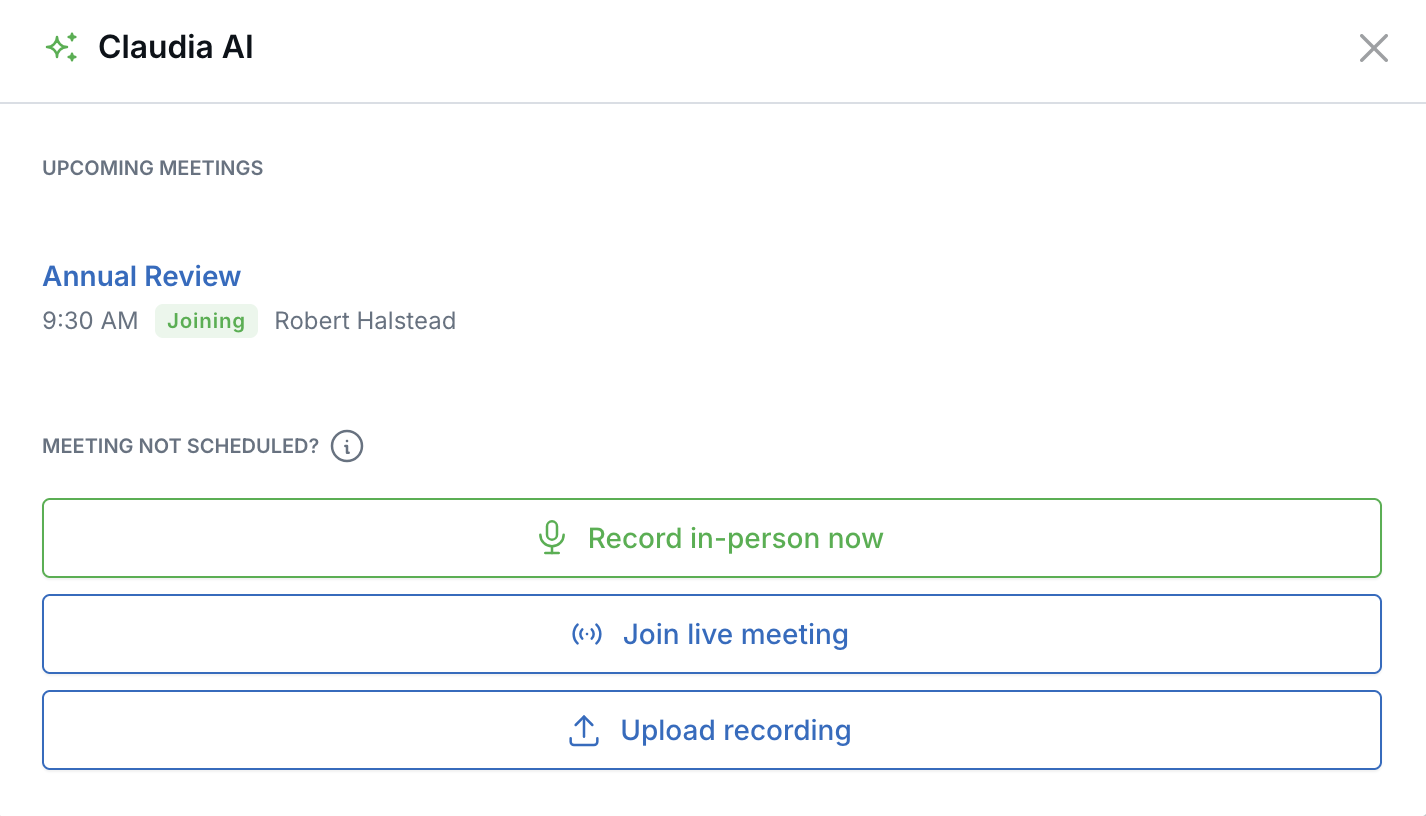
Upcoming meetings and the unscheduled-meeting tools sit in one place.
How It Works
The reminder tracks Claudia's progress. An in-person meeting starts at Ready to record. A scheduled video meeting shows Claudia will join, then Joining, then Recording. Both finish at Completed. Once capture is scheduled or underway, the start buttons are hidden to help prevent a second recording. If an attempt fails, you can correct the meeting link or calendar setting and try again. You can also dismiss the reminder; the meeting remains available from the launcher.

Once Claudia is scheduled, the strip reports status instead of offering a start button.
Why It Matters
- Capture the whole conversation — Start recording an in-person meeting the moment it begins, or send Claudia to a video call before it starts, so nothing is missed at the front of the meeting.
- Stay in your current workflow — Send Claudia to a scheduled video meeting without leaving the page you are working on.
- Keep meeting options together — Review upcoming meetings, record in person, join an unscheduled video call, or upload an existing recording from one launcher.
Questions? support@leadcenter.ai

Need more help?
If you can't find the answers you're looking for, our support specialists are available to answer your questions and troubleshoot if necessary.
-
Phone Call (888) 291-7116. Our main hours are Monday to Friday 7 am-5 pm Central Time.
-
Support Send your questions and inquiries via email to support@leadcenter.ai. A support ticket will be created and one of our team members will get back to you as quickly as possible.