 Help Center
What's New
New: Add Claudia AI to Live Meetings or Upload Recordings You Already Have
04/16/2026
Claudia AI now gives your team two more ways to capture and process meetings in LeadCenter. You can send Claudia to a live online meeting using the meeting link, or upload a recording you already captured elsewhere for processing.
What’s New
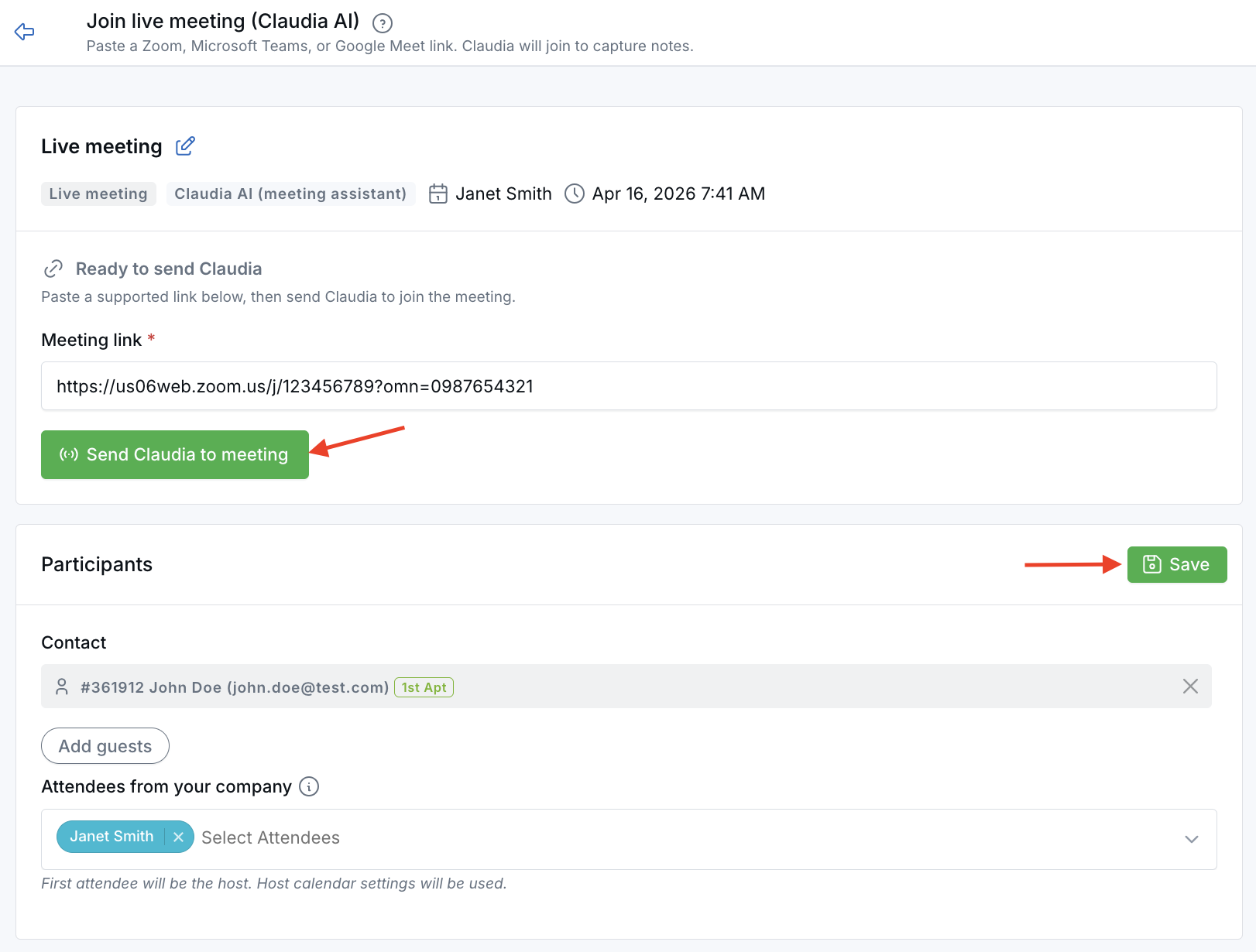
- Add Claudia AI to live online meetings — Send Claudia to a Zoom, Microsoft Teams, or Google Meet link from a dedicated live-meeting workflow.
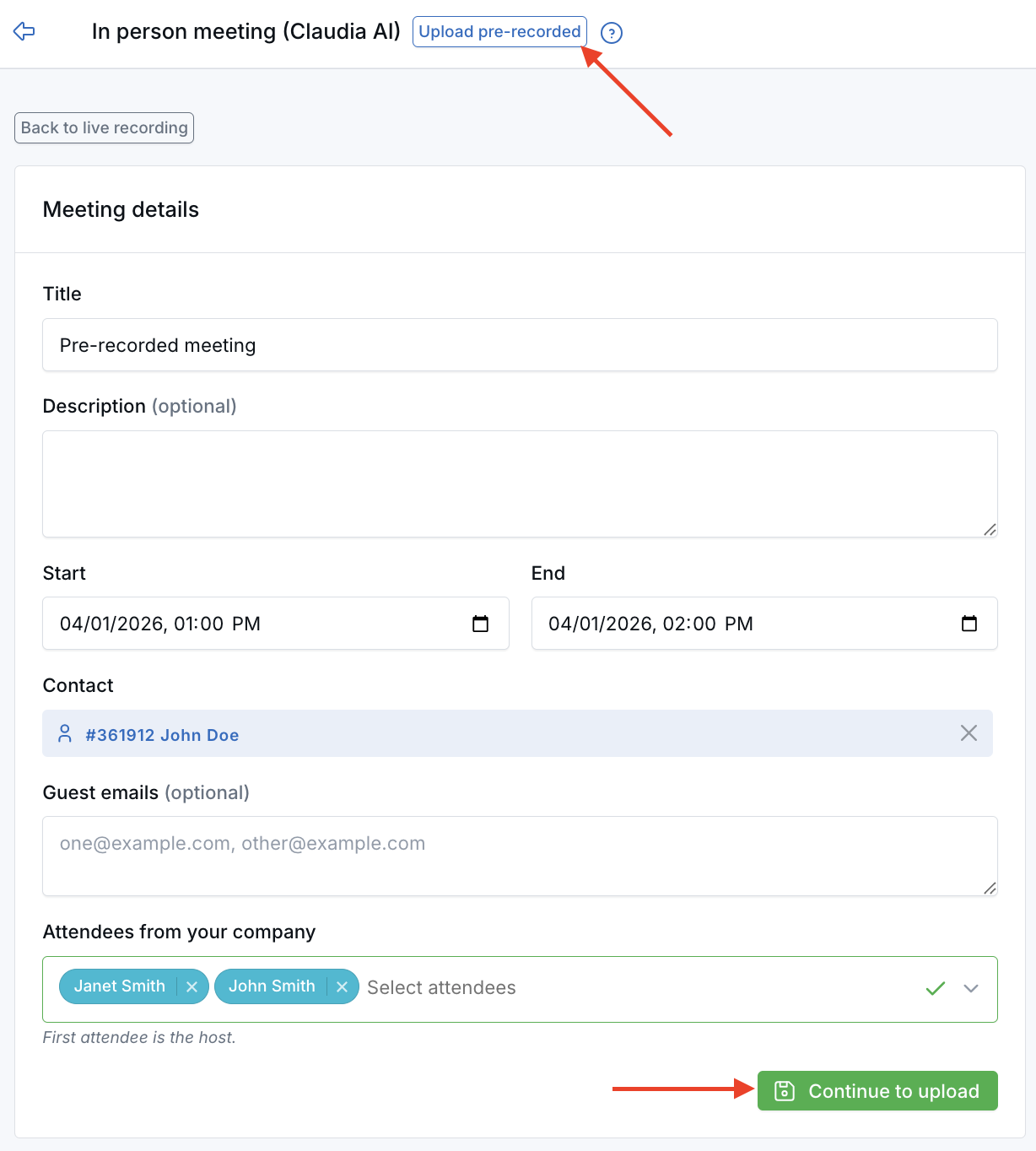
- Upload recordings you already have — Bring in a pre-recorded meeting file from another source instead of needing to capture it live inside LeadCenter.
- Use Claudia across more meeting situations — Whether the meeting is live online or already recorded, LeadCenter can process it using the Claudia AI features your team has enabled.
How It Works
For live online meetings, go to Join live meeting (Claudia AI), paste the meeting link, and click Send Claudia to meeting. This workflow is designed for supported meeting links such as Zoom, Microsoft Teams, and Google Meet.
For recordings you already have, go to Upload pre-recorded. You can also reach this from In person meeting (Claudia AI) by clicking the Upload pre-recorded button at the top of the page. Then enter the meeting details, choose the contact and attendees if needed, and click Continue to upload.
After the meeting is processed, LeadCenter can provide the same types of Claudia outputs your team already uses for supported meetings, such as transcripts and other enabled meeting results.
Why It Matters
- Handle more meeting types with Claudia AI — Use Claudia whether the meeting is happening live on a meeting link or was already recorded outside the app.
- Reduce workflow gaps — Keep important meetings in LeadCenter even when they were not captured through the usual path.
- Make meeting review more flexible — Give your team more ways to generate transcripts and other Claudia outputs from important conversations.
Questions? support@leadcenter.ai

Need more help?
If you can't find the answers you're looking for, our support specialists are available to answer your questions and troubleshoot if necessary.
-
Phone Call (888) 291-7116. Our main hours are Monday to Friday 7 am-5 pm Central Time.
-
Support Send your questions and inquiries via email to support@leadcenter.ai. A support ticket will be created and one of our team members will get back to you as quickly as possible.