 Help Center
What's New
What's New
Document Permissions
09/24/2026
Account owners and administrators can now control document access more precisely. Four separate permissions let you decide which roles can view, add, update, or delete documents, while existing roles keep their current access by default.
What's New
- View documents — Allow users to open the Documents page and preview or download documents.
- Add documents — Allow uploads from Documents, contacts, households, notes, tasks, and financial accounts.
- Update documents — Allow changes to names, categories, descriptions, and Secure Document Portal visibility.
- Delete documents — Allow users to archive or remove uploaded documents.
How It Works
Open Settings, go to User & teams, then Roles & Permissions, and create or edit a role. Expand Documents, select the actions that role should be allowed to perform, and save.
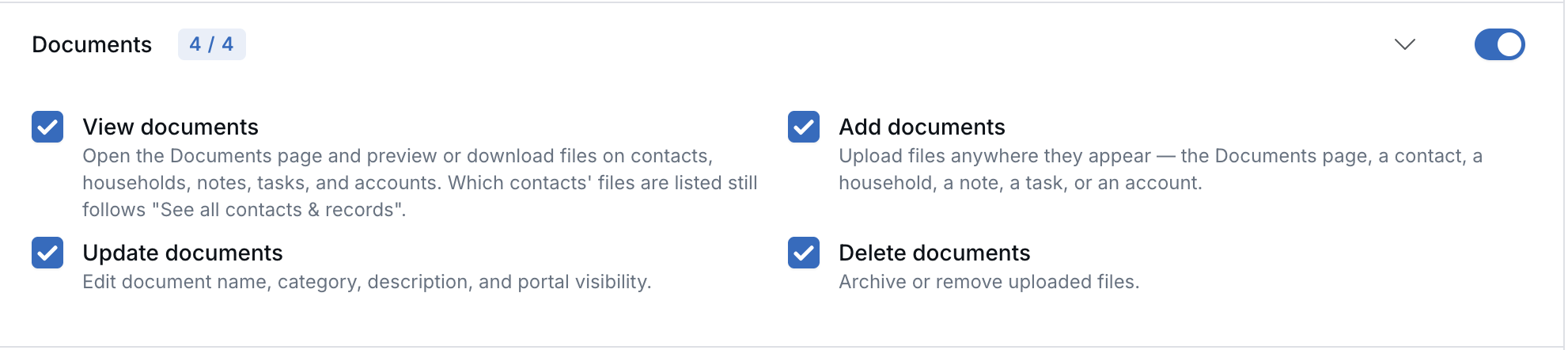
See exactly which document actions a role allows.
Access Still Follows Record Visibility
Document permissions control what a user can do. The separate See all contacts & records permission determines which contacts' documents the user can access. Without that permission, users remain limited to documents connected to contacts they own or are assigned to.
Event attachments continue to follow Events permissions, and managing document categories remains part of Settings → Database lists → Document categories. LeadCenter AI document tools also follow the View documents permission.
See Roles & Permissions for the full walkthrough of roles, custom roles, and other permission areas.
Why It Matters
- Match access to responsibilities — Give team members only the document actions required for their work.
- Protect sensitive information — Removing a permission also blocks direct links and related document actions.
- Refine access gradually — Existing roles retain their access until you are ready to make changes.
Questions? support@leadcenter.ai

Need more help?
If you can't find the answers you're looking for, our support specialists are available to answer your questions and troubleshoot if necessary.
-
Phone Call (888) 291-7116. Our main hours are Monday to Friday 7 am-5 pm Central Time.
-
Support Send your questions and inquiries via email to support@leadcenter.ai. A support ticket will be created and one of our team members will get back to you as quickly as possible.