 Help Center
What's New
Customize How Claudia AI Creates Follow-Up Tasks
08/18/2026
Claudia AI can now create follow-up tasks from meeting and call transcripts independently of the meeting summary. Your firm can use customizable templates to control which internal action items become tasks, who should own them, and where they should be organized.
What's New
- Create tasks without generating a summary — Tasks, meeting summaries, and follow-up emails can run independently based on your calendar or phone number settings.
- Set task rules for different conversations — Manage templates under Marketing → AI Templates → Meeting tasks, starting with Default meeting tasks or creating templates for workflows such as client meetings and plan reviews.
- Assign work based on the conversation — Claudia can assign tasks to the appropriate team member by name, including someone mentioned who did not attend the meeting or call.
- Organize tasks where your team works — Claudia can use a client-named shared task list when one exists. Otherwise, tasks go to the inbox.
- Use different templates by appointment category — Set a default template on a calendar and override it for specific appointment categories.
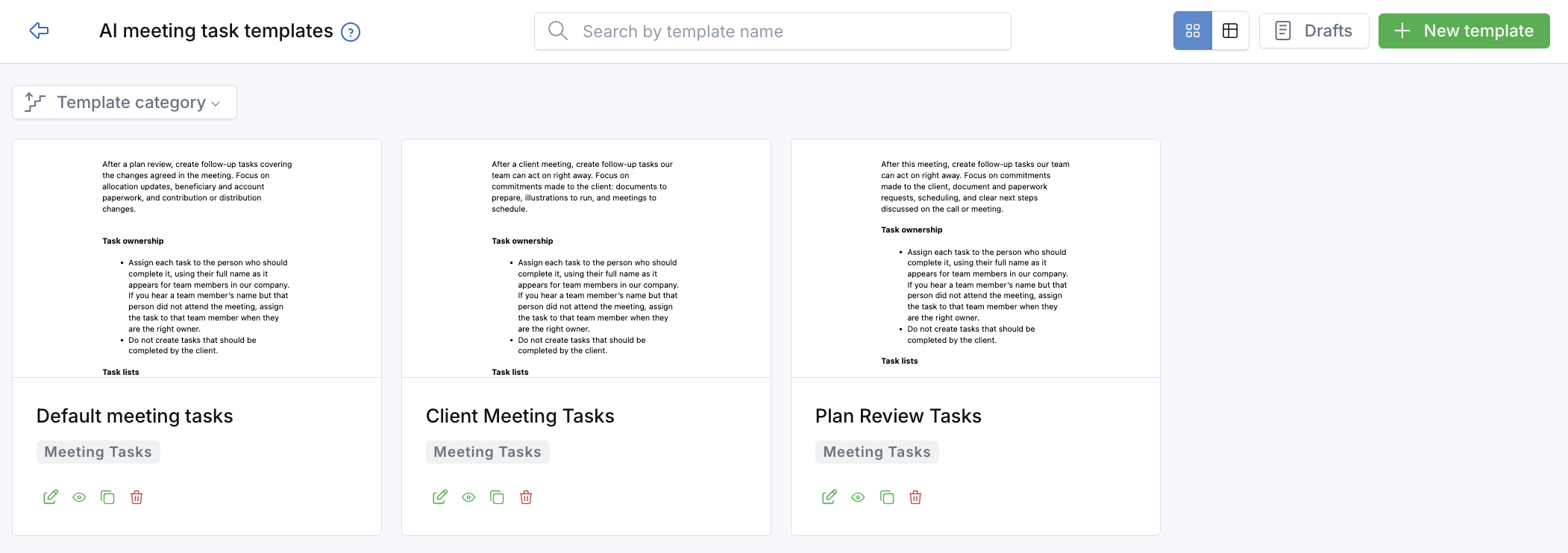
Build a template per conversation type, or start from Default meeting tasks.
How It Works
For meetings, enable Generate tasks on the host calendar's Claudia AI (meeting assistant) screen and select a required task template. For phone calls, open Claudia AI settings from the phone numbers page, turn on Transcribe calls, then enable Create tasks and select a meeting task template. Tasks can run automatically after transcription or be generated manually for an individual meeting or call.
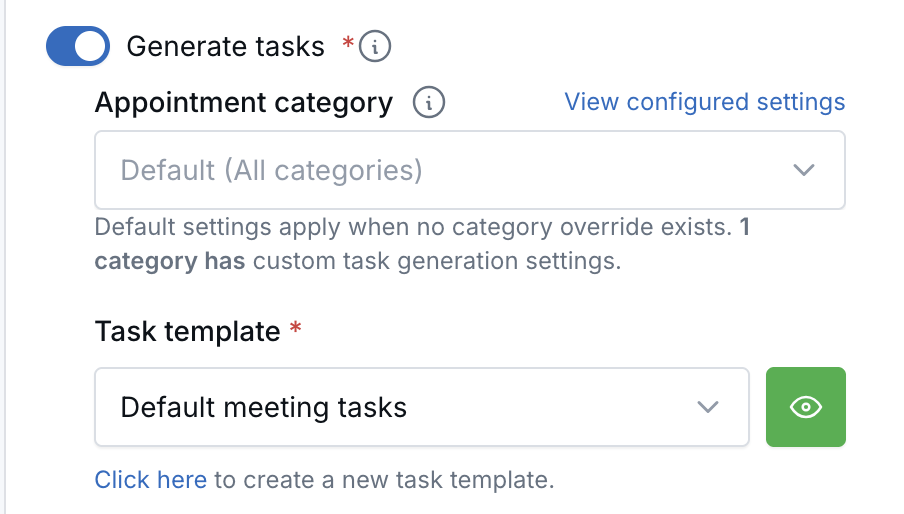
Set a default template for the calendar, then override it for specific appointment categories.
Generated tasks appear on the contact and the meeting or call they came from. Each includes a note identifying it as generated by Claudia AI, along with a title, detailed notes, an owner, and a due date when the conversation included timing.
Why It Matters
- Capture follow-up work consistently — Turn commitments such as preparing documents, sending emails, scheduling meetings, and coordinating internally into trackable CRM tasks.
- Match each meeting type to your process — Use different instructions and ownership rules for different calendars or appointment categories.
- Keep internal work focused — The default template skips vague or duplicate reminders and keeps client homework out of your team's task list.
- Make ownership clearer — Tasks stay connected to their source conversation and identify the team member responsible for the next step.
Questions? support@leadcenter.ai

Need more help?
If you can't find the answers you're looking for, our support specialists are available to answer your questions and troubleshoot if necessary.
-
Phone Call (888) 291-7116. Our main hours are Monday to Friday 7 am-5 pm Central Time.
-
Support Send your questions and inquiries via email to support@leadcenter.ai. A support ticket will be created and one of our team members will get back to you as quickly as possible.