 Help Center
What's New
Find Client Documents Faster with Folders and Previews
Show Different Events on Different Websites
See Your RingCentral Texts Right in LeadCenter
Let Troy AI Write Your Task, Text, and Appointment Templates
Paste Screenshots Right into Your Task Notes
Download Large Note Histories as a PDF by Email
See a Household's Combined Accounts and Totals from Any Contact
See Your Box Files Right on the Contact Record
Let Troy AI Connect and Fix Your Website Forms
The Accounts Count on a Contact Now Shows Main Accounts Only
See the Whole Household's Events, Meetings, and Notes from Any Contact
Upload WebP Images Without Converting Them First
Get Claudia AI Notes Without Recordings or Transcripts
Keep Your Full Email in View While Troy AI Helps You Write
Turn PDF Questionnaires into Online Forms with Linus AI
Add Your Phone Number to Emails with a Shortcode
Write and Improve Note Templates with Troy AI
Document Permissions
Export Workflow Runs to CSV
Filter Your Workflow and Campaign Lists by User
Event Internal Names Now Show on Staff and Advisor Calendars
Contact Addresses Now Autofill City and State from ZIP Code
Upload and Use GIFs on Landing Pages and Websites
Client Review Reminders Skip Inactive Contacts
Workflow Run Names on Tasks
See Last Updated Dates and Set Your Page Size on Template Lists
Inactive Accounts Now Stand Out in Gray
Contacts and Workflows Shortcuts in the Marketing Menu
A Clearer Layout for Claudia AI Settings
See Household Tasks From Any Family Member's Contact Record
Steep "Appointment Set" Registrants Now Sync to "Appointment Scheduled"
A More Compact Layout for Embedded BookMyTime Calendars
Set a Default Meeting Duration for Each Calendar
Fill Contact Fields from Documents with Troy AI
Spot Possible Double Bookings Before You Save
Start Claudia AI from Internal Appointment Reminders
Hide Time Blocks or Focus on External Events
Manage Personal Email Signatures from Shared Email Account
Control When Unknown Numbers Create Contacts
Appointments, Tasks, and Texting Now Available on Mobile
Switch to Annual Billing from Your Subscription Page
Sort Event Attendees from Column Headers
Manage Claudia Settings for Other Users
Phoenix Now Understands Your Current Screen
Join Your Next Meeting in One Click
Choose Which Verification Checks Run on Each CSV Import
Use Shortcodes in Appointment Templates
Event Cancel and Confirm Links Now Require Confirmation
Remove Promocodes from Event Attendees
Reach Up to 500 Contacts with Manual Email and SMS Workflows
Find Pages and Settings Faster with Phoenix AI
Claudia AI Meeting Reminders
Add Booking Questions to Calendar Invites
Control Amounts When Converting Transactions in Bulk
Customize How Claudia AI Creates Follow-Up Tasks
Find the Right Tasks with Flexible Filters
Tasks Now Remember Your Filters
See Time Block Settings at a Glance
Claudia Meeting Capture Just Got Easier
Route Workflows by Appointment Status
Restore an Earlier Version of a Workflow
New: Review, Search, Filter, and Export Appointments in List View
Warn or Block Bookings Over Reserved Time
Review Financial Questionnaires with Troy AI
Review Account Details with Troy AI
Understand Household Relationships and Activity with Troy AI
New: Duplicate Appointment Templates
Analyze Your Accounts List with Troy AI
More complete history for synced calendar meetings
Claudia Transcriptions and Videos Are Easier to Find
Introducing Troy AI for Emails, Calls, and Texts
Manually Restart Workflows for Contacts Who Reached an Exit Step
Troy AI Now Helps You Work Through Tasks
Use Troy AI in Calendars
Use Troy AI on Notes
More Precise Age Filtering
Greenboard Archive Is Now Available
Intulse and Dialpad Activity Now Matches Existing Contacts Automatically
Improved Cc Suggestions for Contact Emails
New: Connect LeadCenter Appointments with Zapier
New Appointment Email Preferences
Move Financial Accounts to Another Contact
New: Archive Task Lists and Review Tasks Faster
More Control over Claudia AI Meeting Tools
Improved: Settings Menus Are Easier to Navigate
New: Review Assets Across Financial Accounts
Notes now open in a side panel
Choose How Far Ahead Your Calendar Syncs
Bulk update advisors and office locations for contacts
Improved Orion syncing and Auto Link matching
Upload Images and PDFs in Troy AI
Choose the Next Workflow Step When Completing a Task
Improved Event Capacity and FSS Registration Handling
Change note visibility in bulk
Archive Call and Meeting Transcriptions
Copy Linus AI Marketing Pages
Production Tracking Only for AUM Accounts
Transfer Money Between AUM and Insurance Accounts
Connect Blueleaf to LeadCenter
View and Manage Transactions Across All Accounts
Ask Troy AI Questions About Your Pipeline and Contacts
New: Negative Issued Amounts and Smarter Orion Transaction Conversion
Claudia AI Improvements for Meetings, Transcriptions, and Follow-Up Tasks
New ways to create, organize, and update tasks
Answer Inbound Calls in LeadCenter
New: Ask Troy AI About Any Contact
Incoming SMS Replies Now Notify the Most Recent Sender
Improved Task Details Side Panel
New: Related accounts can now fill in AUM products and writing advisors automatically
Improved: Insurance company commission now recalculates when issued accounts are saved
New: Connect Steep Marketing to Sync Event Registrations
New: Create Personalized Letters and Labels with Mail Merge
New: Pull New Redtail Notes into LeadCenter
New: Organize Tasks with Custom Stages and Kanban View
Update: Improved Financial Account Layout and Orion Transactions
New: Orion Transactions Now Sync Automatically to Account Details
Update: Claudia AI Meeting Content Is Now Private by Default
New: Control Meeting Location Options on Each Shared Calendar Link
Update: Form Submissions Can Now Fill Missing Contact Details
New: Appointment Update Emails Now Show What Changed
New: Reply All from Inbox
New: Choose Which Email Sends Event Confirmations and Reminders
Update: Improved Financial Account Layout and Management
New: Link Notes and Tasks to Multiple Contacts
New: Connect Intulse to Sync Calls and Text Messages into LeadCenter
New: Assign Workflow Tasks by Role with Workflow Service Teams
New: Claudia AI Can Now Join Supported Meetings from Synced Outlook and Google Calendars
Update: Automatic Contact Matching Now Helps Reduce Duplicate Contacts in Redtail
New: Convert Notes into Tasks in One Click
New: Bulk Actions on Recurring Tasks Now Give You More Control
New: Stage and Closed Date Now Stay Visible on Contacts After They Leave the Pipeline
New: Download a Printable Financial Questionnaire for Offline Completion
New: Add Claudia AI to Live Meetings or Upload Recordings You Already Have
New: Event Confirmation Emails Now Include Calendar Invites
New: Bulk Delete Accounts from the Accounts Listing Page
New: Apply Claudia AI Settings to All Users
New: Prevent Duplicate Contacts When Pushing Contacts to Wealthbox
New: Play and Download Claudia AI Meeting Recordings
New: Primary and Professional Contacts Are Now Excluded from Duplicate Detection
New: Marketing Opt-Outs Are Now Preserved When Merging Contacts
New: Choose Event Confirmation Templates When Updating Attendees
New: Clear Contact Fields in Update Contact Workflows
New: Use Age in Filters, Segments, and Workflows
New: Download Call and Meeting Transcripts as PDF
New: External Calendar Events Are Now Read-Only in LeadCenter
New: Set Team Member Priority for Round-Robin Shared Calendars
New: Better Filtering and Account-Type Management for Financial Accounts
New: Use Catchlight Data in Filters, Segments, Workflows, and Zapier
New: Pushed Records Now Reflect the Right Team Member in Wealthbox
New: Event Confirmations Now Support Text Messaging
New: Create Custom Export Templates for Contact Downloads
Pre-Fill Public Calendar Booking Forms with Contact Details
Control the Closed Stage Note Prompt
Preview and Merge Duplicate Contacts Without Leaving Your Current View
Phone Call Transcription Pricing Update: Now $0.064/Minute
Prevent a Workflow from Running on the Same Contact Twice
Auto-Fill Estimated Investable Assets from Catchlight
Redtail Contact and Task Updates Can Now Sync to LeadCenter
New Option: Exclude Production Split from Commission Calculation
Direct Integration with Gmail and Google Workspace
Replace Linked Custodian Account
Pause Event Registration Without Unpublishing the Event
Link Multiple Unlinked Accounts at Once
Download Notes as PDF Reports
New: Notes & Mobile UX Enhancements
New: SMS Quick Reply in Text Conversations
New: Sync Seminars & Attendees with Zapier
New: Claudia AI — Your AI Meeting Assistant Inside LeadCenter
New: Dialpad Integration for Calls, Recordings, and Transcriptions
New: Amount-Based Commissions for Writing Advisors
New: View Multiple Calendars in the Mobile App
Appointments with Contacts Without Email
New: Google Meet Integration for Appointments
New: Associate Contacts with Time Blocks (No Client Notifications)
New: Work Week View & Calendar Display Settings
New: Household-Level View for Families
New: Additional Pipelines for Deals, Projects, and Custom Workflows
New: Companies + Deals for B2B Teams
New: Sync Orion Insurance Accounts into LeadCenter
New: Add Conditional Paths to Your Workflows
Add New Contacts with Additional Fields and Copy Records to Spouse
New: Internal Subject for Appointments
Update Existing Contacts Using CSV
New: Capture Calls and Leads from RingCentral and GoTo Connect
Automate Follow-Up from Website Forms with Form Submission–Triggered Workflows
New: Automate Appointment Workflows with a New Trigger and Wait Node
Event Attendee Export Now Includes Address and Tags
Build High-Converting Landing Pages with AI — No Coding Required (Beta)
Schedule Microsoft Teams Meetings from LeadCenter
Cleaner UI with New Peek Icon, Click-to-Call/Email, and Faster Page Loads
Redesigned LeadCenter Interface — Simpler, Faster, and Built on Advisors’ Feedback
Customize Your Home Page Layout with Widgets
Trigger Workflows When Contact Tags Change
New Shortcodes Format in Email and Text Templates
Manage Your Sales Pipeline with the New Kanban View
Record Notes and Messages with AI Speech-to-Text
Expected Production Field Added to Sales Pipeline Contacts
Push Account Updates to Redtail
New: Push Tags & Keywords to Redtail and Tasks & Notes to Wealthbox
Set Appointment Reminders by Category
Automatic Family Creation & Head of Household Assignment
Email Redirects Now Saved to Notes (and No More Duplicate Contacts)
Weekly Executive Report by Email
New: Enhanced Email Sync Privacy Options
New: AI Tools in LeadCenter
Sender Signature Shortcode
Email Open & Click Notifications
Enhanced Calendar View: Smarter Grouping for Synced Appointments
Introducing the Servicing Advisor View
Send Test Emails with Shortcodes Populated
Introducing AI-Powered Follow-Up Emails After Every Zoom Meeting
Redirect to a Custom Confirmation Page for Calendars & Events
Smarter Workflows, Automated Catchlight Enrichment & More
Enhanced Monthly Calendar View: Smarter Grouping and Improved Performance
Introducing the "Days in Stage" Filter Across LeadCenter
Custom Consent Message for LeadCenter Public Forms
Introducing Main and Sleeve Financial Accounts
New Notification System in LeadCenter Web & Mobile Apps
Introducing LeadCenter University: Your Path to Mastering LeadCenter
Upcoming Major Updates to LeadCenter — Coming in the Next Two Weeks!
Daily Digest Emails: Your Day, at a Glance
Edit Workflows Without Interruptions
Important Update: New Business Verification Required for SMS & Voice Services
Improved Side Menu Control
LeadCenter Mobile App v1.1: View Schedules for Your Team Members on the Go
New Feature: TCPA Compliance Message for Text Messaging
Personal Notification Preferences: Get the Right Alerts, Only When You Need Them
LeadCenter Mobile App v1.0.9: Manage More on the Go
Send Event Invitations in Just a Few Clicks
View Catchlight Data Instantly in Sales Pipeline
Appointment report to track scheduler performance
LeadCenter Mobile App Version 1 Released
New: Download Financial Accounts from the Accounts Page
Ability to Sort by Name in Contacts and Pipeline Dashboards
Custom Fields Now in the Overview Section
New: Productivity Report
Uploading AUM/Insurance Accounts via CSV
Assign Scheduler to Leads
Assigning Tasks to Teams
Q2 2025: Upcoming Features
Your Emails, Calls, and Texts—Now Easier to Manage Than Ever
Introducing Marketing Opt-In Filters for Text Messages
Introducing "Know Your Client" & New Financial Tracking Fields
Effortless Task Management with Recurring Tasks
Introducing the New Template Icon
Introducing Privacy Controls for Tasks, Notes, Calls, Emails, and Text Messages
March 2025: Upcoming Features
Introducing Private Appointments in LeadCenter
Change Host Calendar for Client Review Reminders
Simplify Event Management with BigMarker + LeadCenter Integration
Streamlined Team Collaboration with Comments & Mentions
Three new reports released
Capturing Emails from Secondary Email Addresses
Group Calendar Enhancements: Pre-bookable Days & Buffer Time
New Tasks Page Design: A Better, More Intuitive Experience
Direct Wealthbox Integration – No Zapier Needed!
Automate RMD Tracking & Stay Compliant Effortlessly
Upcoming Features in February 2025
Smarter Lead Insights—Catchlight Now in LeadCenter!
Your Seminars, Your Way—Now with Custom Registration Questions!
Automate AUM Production Calculations with LeadCenter
LeadCenter Now Seamlessly Integrates with Smarsh
Jan 6th 2025 Feature Update
Organize Campaigns Directly Under Sources
Ready for 2025? Simplify Year-End Planning with Executive Reports
Introducing Event Roster & Name Tags for Seamless Event Management
LeadCenter.AI Achieves SOC 2 Type 2 Certification!
Most Americans Don’t Answer Calls From Unknown Numbers. How to solve this issue!
Simplify Client Data Collection with LeadCenter’s Secure Financial Questionnaire
Reports migration to Google BigQuery
Bulk Update Across All Contacts is Now Available!
Extra Security to Protect Your LeadCenter Account
Rapid Lead Response
New Workflow Enhancement: Introducing Delay Step
Take Your Event Management to the Next Level
Increase Productivity and Save Time with LeadCenter Peek
Unlock Your Advisory Firm's Full Automation with Workflows
New Subject Lines for Appointment System Email Notifications
Click-to-Call and Measuring Scheduler Performance
Email Marketing Campaigns Announcement
Click-To-Call Solution Announcement
Multiple writing Advisors Per Account
Integrated Email Marketing with SendGrid
Stay Compliant with Automated Client Review Reminders by Email and SMS
AI Meeting Prep That Gets You Ready Before Every Appointment
See Your RingCentral Texts Right in LeadCenter
10/09/2026
If your team texts clients from RingCentral, those conversations now show up in LeadCenter too, right next to each client's calls, emails, and notes.
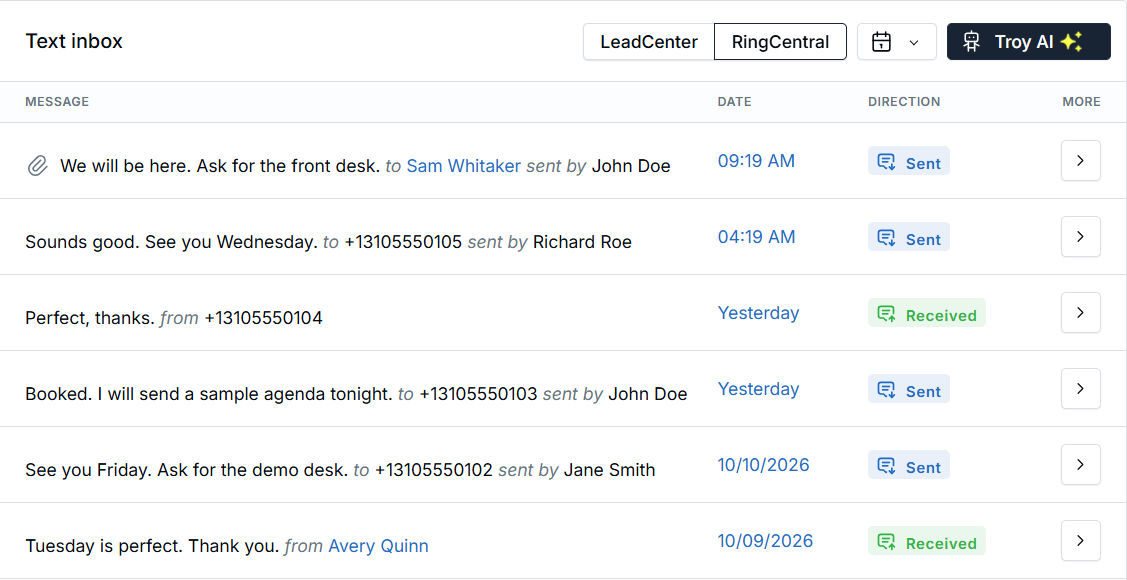
RingCentral conversations in the LeadCenter Text inbox.
Already using RingCentral with LeadCenter? Go to Integrations → Telephony and text, click Disconnect on the RingCentral card, then click Connect and sign in with a RingCentral Admin account. Your texts will start syncing.
What's New
- All RingCentral texts in one place — Open Texts and click RingCentral to see conversations across your account.
- On every client record — RingCentral texts also appear on a contact's or household's Texts tab.
- Easy to scan — See the latest message, date, whether it was sent or received, any attachments, and the matching contact.
- Always up to date — New texts sync as they're sent and received, with a daily check as a backup.
How It Works
- Go to Integrations, open Telephony and text, and connect RingCentral with an Admin account.
- LeadCenter matches each outside number to your contacts.
- Open Texts, or a contact's Texts tab, and click RingCentral.
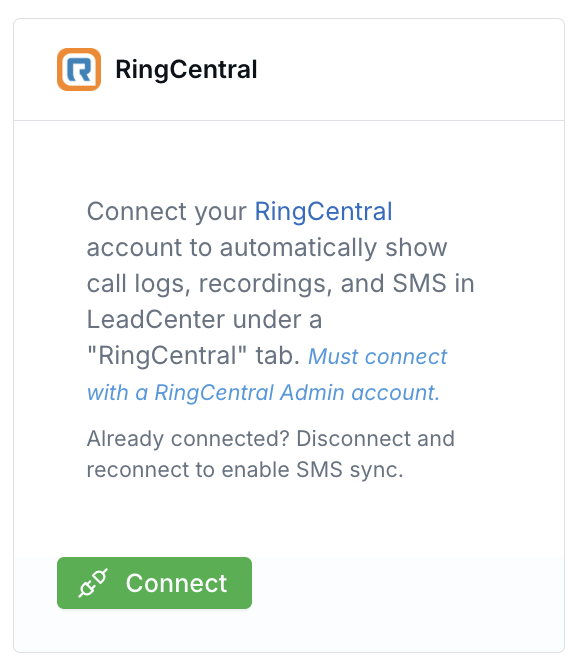
Connect, or reconnect, from the RingCentral card.
Please note: RingCentral texts are read-only in LeadCenter, so keep replying from RingCentral. Texts from unknown numbers are saved without a contact unless you turn on Create leads automatically from calls and SMS in the RingCentral settings. Turn it on only after your existing contacts are in LeadCenter, to avoid duplicates.
Why It Matters
- The full client story — Texts sit alongside calls, emails, and notes, so nothing gets missed before a review.
- Less switching between systems — Find a conversation from the Texts page or the client's record.
- Better records for your team — Everyone with access sees the same conversation history.
Learn how it works: RingCentral Integration: Calls and Text Messages

Need more help?
If you can't find the answers you're looking for, our support specialists are available to answer your questions and troubleshoot if necessary.
-
Phone Call (888) 291-7116. Our main hours are Monday to Friday 7 am-5 pm Central Time.
-
Support Send your questions and inquiries via email to support@leadcenter.ai. A support ticket will be created and one of our team members will get back to you as quickly as possible.