 Help Center
What's New
New: Create Custom Export Templates for Contact Downloads
03/25/2026
You can now customize CSV downloads in LeadCenter by choosing only the contact fields you want to export. Save those selections as reusable export templates, control column order, and use them whenever you download contact data.
What’s New
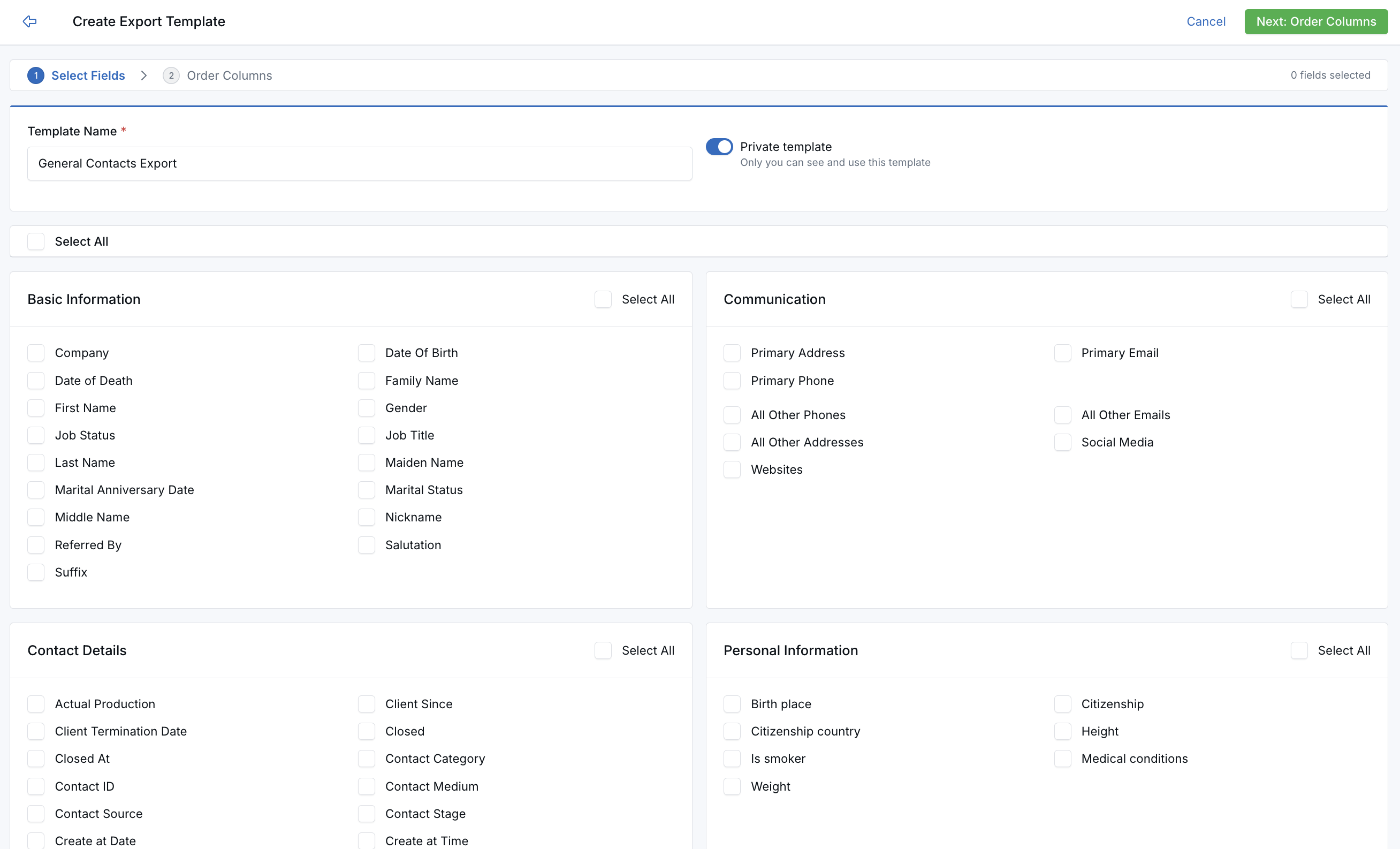
- Customize CSV downloads — Choose exactly which contact fields to include instead of exporting the full default set every time.
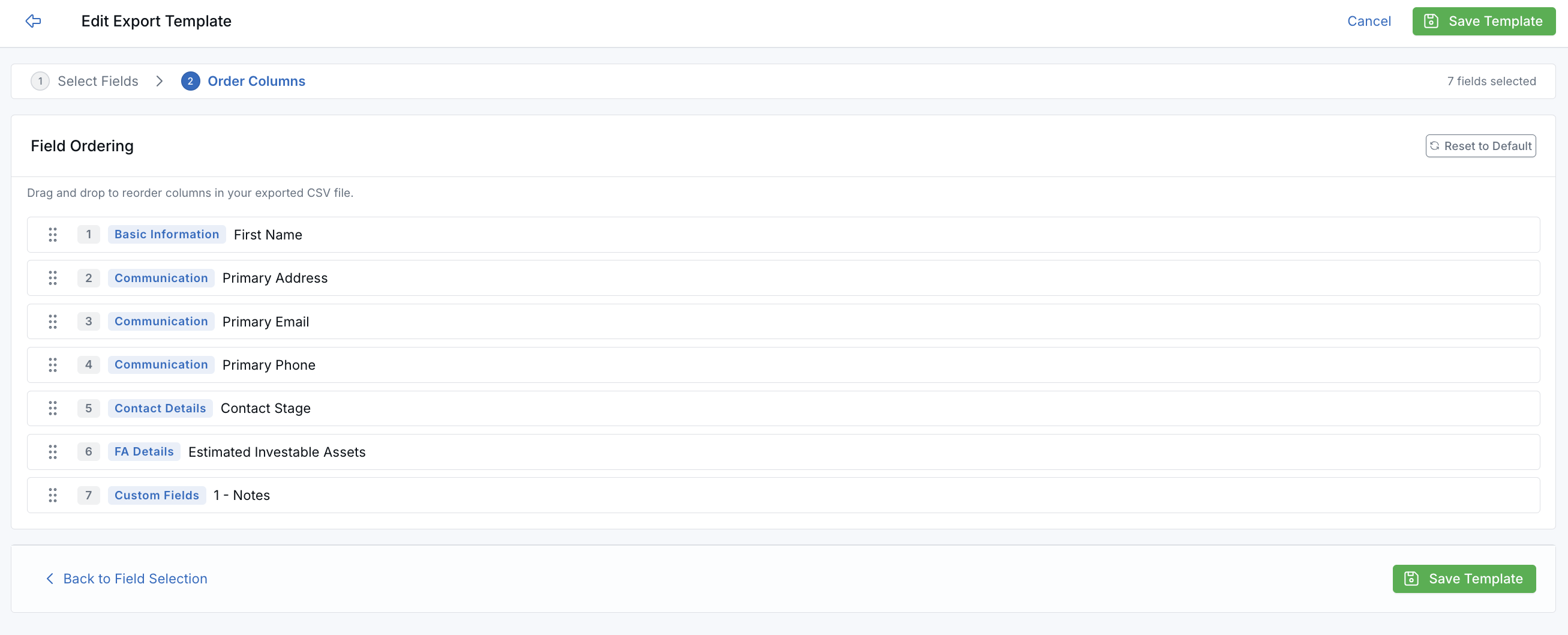
- Control column order — Drag and drop fields into the order your team, spreadsheets, and downstream workflows expect.
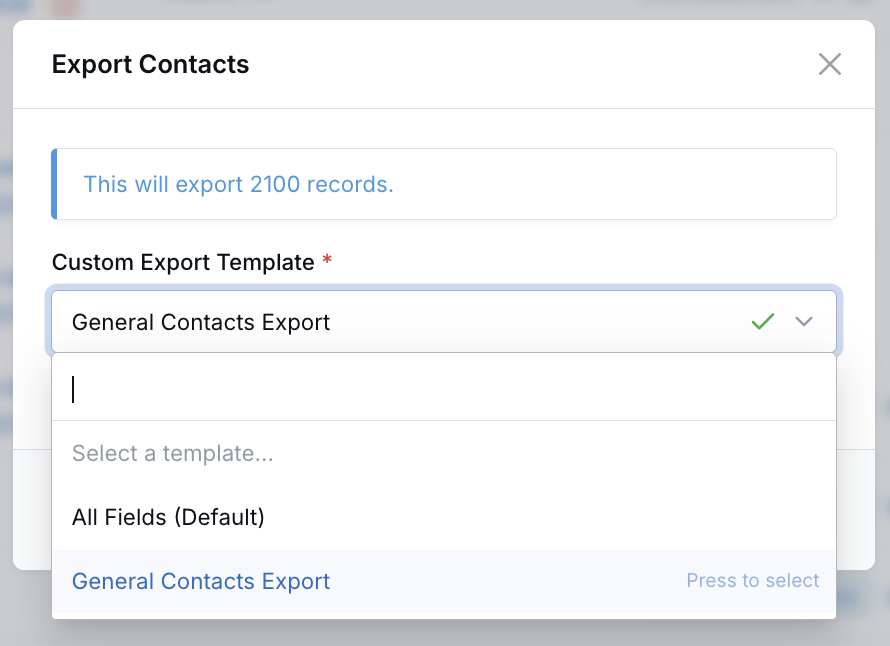
- Use templates directly from Download — Once saved, templates appear in the download pop-up on the Contacts and Pipeline pages.
- Keep the default option available — All Fields (Default) remains available even if you do not create a custom template.
Where to Find It
You can create and manage export templates from Settings > Database lists > Export Templates, or go directly to Create Export Template.
When you run a download from the Actions dropdown on the Contacts or Sales Pipeline page, you can select a saved template from the export pop-up before running the CSV download.
How It Works
When creating a template, you first choose the fields you want included in the export. Then you move to the next step to arrange those fields in the column order you want. After saving the template, it becomes available in the download pop-up so you can reuse the same export format anytime.
Templates are Private by default. You can also create Shared templates for your organization. The built-in All Fields (Default) option is always available, but it is not treated as a custom template that users edit or delete.
For full setup steps, field behavior details, and access information, read the Custom Export Templates help article.
Why It Matters
- Cleaner exports — Download only the columns you actually need instead of sorting through every available field.
- Faster repeat workflows — Save time by reusing the same export format across recurring reports, handoffs, and operations tasks.
- More consistent team processes — Standardize CSV downloads for contacts and pipeline records across your organization.
Questions? support@leadcenter.ai

Need more help?
If you can't find the answers you're looking for, our support specialists are available to answer your questions and troubleshoot if necessary.
-
Phone Call (888) 291-7116. Our main hours are Monday to Friday 7 am-5 pm Central Time.
-
Support Send your questions and inquiries via email to support@leadcenter.ai. A support ticket will be created and one of our team members will get back to you as quickly as possible.