 Help Center
What's New
What's New
Use Shortcodes in Appointment Templates
08/31/2026
Appointment templates can now insert contact details automatically when you create an appointment. This makes calendar titles easier to identify without typing the contact's name each time.
What's New
- Personalized appointment titles — Add shortcodes such as
[[full_name]],[[first_name]], or[[company]]to a template's Subject, Internal subject, or Description. - Consistent naming — Use formats such as
[[full_name]]: Strategic Planningto keep appointment titles clear and standardized. - Control what clients see — Anything placed in Subject also appears on the client calendar invite. Use Internal subject when the personalized title should remain visible only to your team.
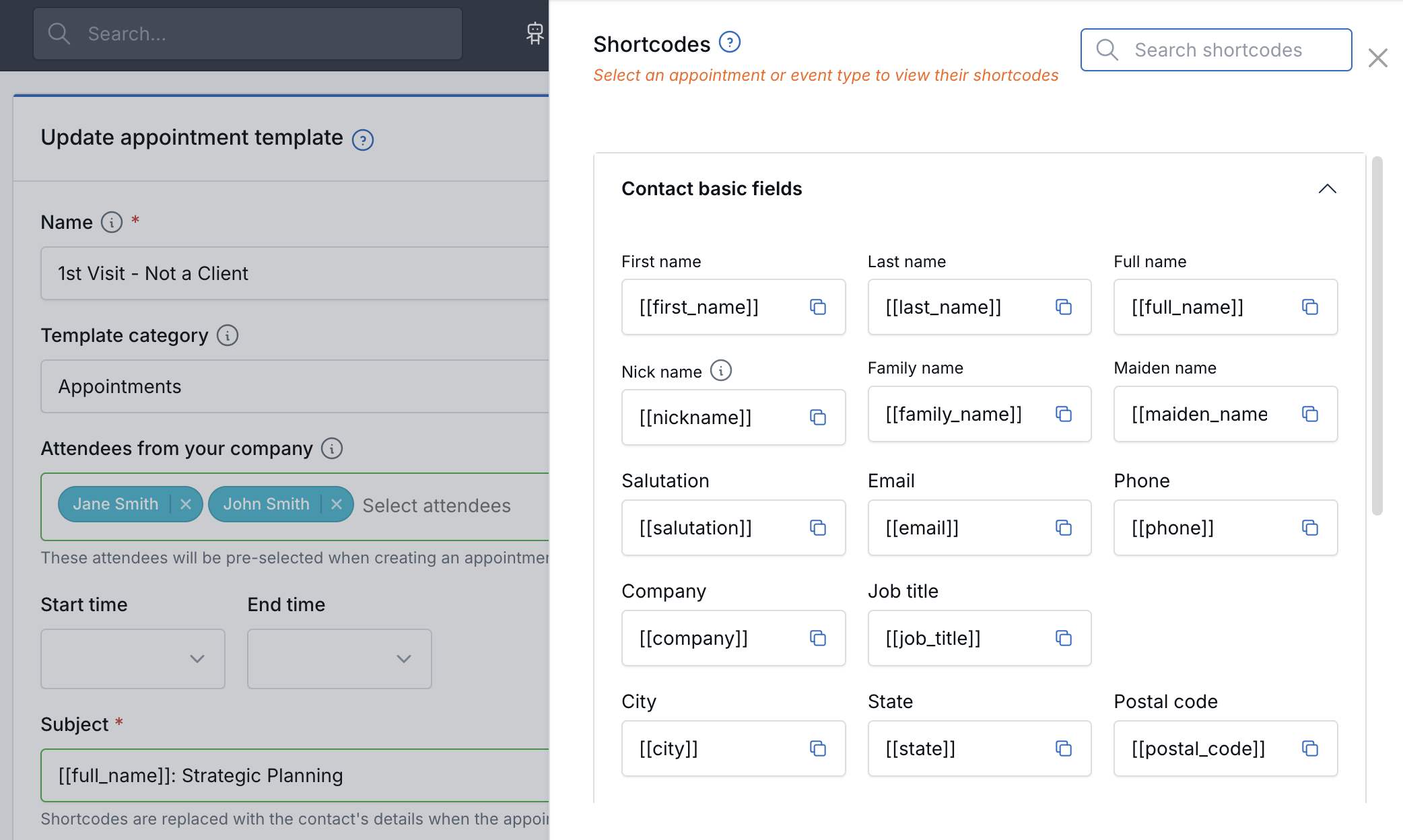
Copy a shortcode from the Shortcodes panel and paste it into Subject, Internal subject, or Description.
How It Works
Open an appointment template, select Shortcodes, and copy the field you need. The panel groups shortcodes by contact fields, calendar fields, and more; some groups appear only after you select an appointment or event type. When you create a new appointment from the template and choose a contact, LeadCenter fills in the shortcodes with that contact's details.
Take care with contact details in Subject. Fields such as [[email]], [[phone]], and [[address]] will appear on the client-facing calendar invitation, which may be visible to guests and other attendees. Use Internal subject for anything that should stay with your team.
Questions? support@leadcenter.ai

Need more help?
If you can't find the answers you're looking for, our support specialists are available to answer your questions and troubleshoot if necessary.
-
Phone Call (888) 291-7116. Our main hours are Monday to Friday 7 am-5 pm Central Time.
-
Support Send your questions and inquiries via email to support@leadcenter.ai. A support ticket will be created and one of our team members will get back to you as quickly as possible.