 Help Center
What's New
What's New
Claudia Meeting Capture Just Got Easier
08/11/2026
Claudia meeting capture just got easier. Start from today’s calendar, review the meeting details and existing notes, then send Claudia into a video call or start recording an in-person conversation.
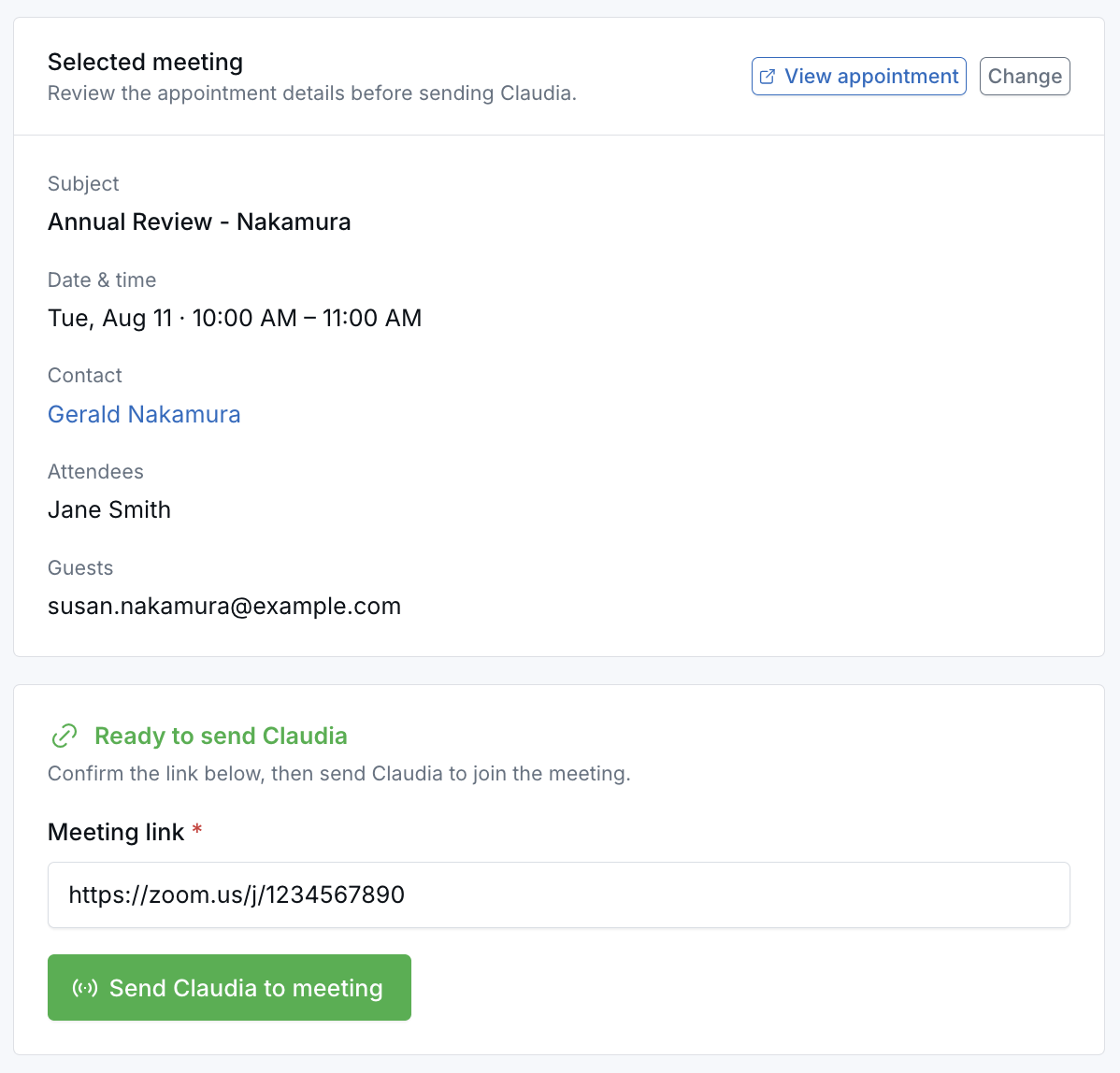
Review the meeting, then send Claudia into the call.
What’s Improved
- Start from today’s calendar — See today’s meetings and choose the one you are joining instead of starting from a blank screen.
- Create a meeting on the spot — Add the subject, contact, guests, and teammates without leaving the capture page.
- Keep prep notes visible — Review notes already linked to the appointment while preparing or capturing the meeting.
- Use one familiar workflow — Video and in-person capture now follow the same steps: choose the meeting, review the details, and take action.
Choose the Right Capture Experience
Online meetings
For Zoom, Microsoft Teams, or Google Meet appointments, open Join live meeting (Claudia AI). Select or create the appointment, review who is involved, paste the meeting link, and send Claudia.
The page shows what is happening on your calendar today, whether an appointment already has a video link, and whether Claudia is already scheduled. When timing allows, Send Claudia now gives you another way to get Claudia into the call if automatic scheduling did not line up.
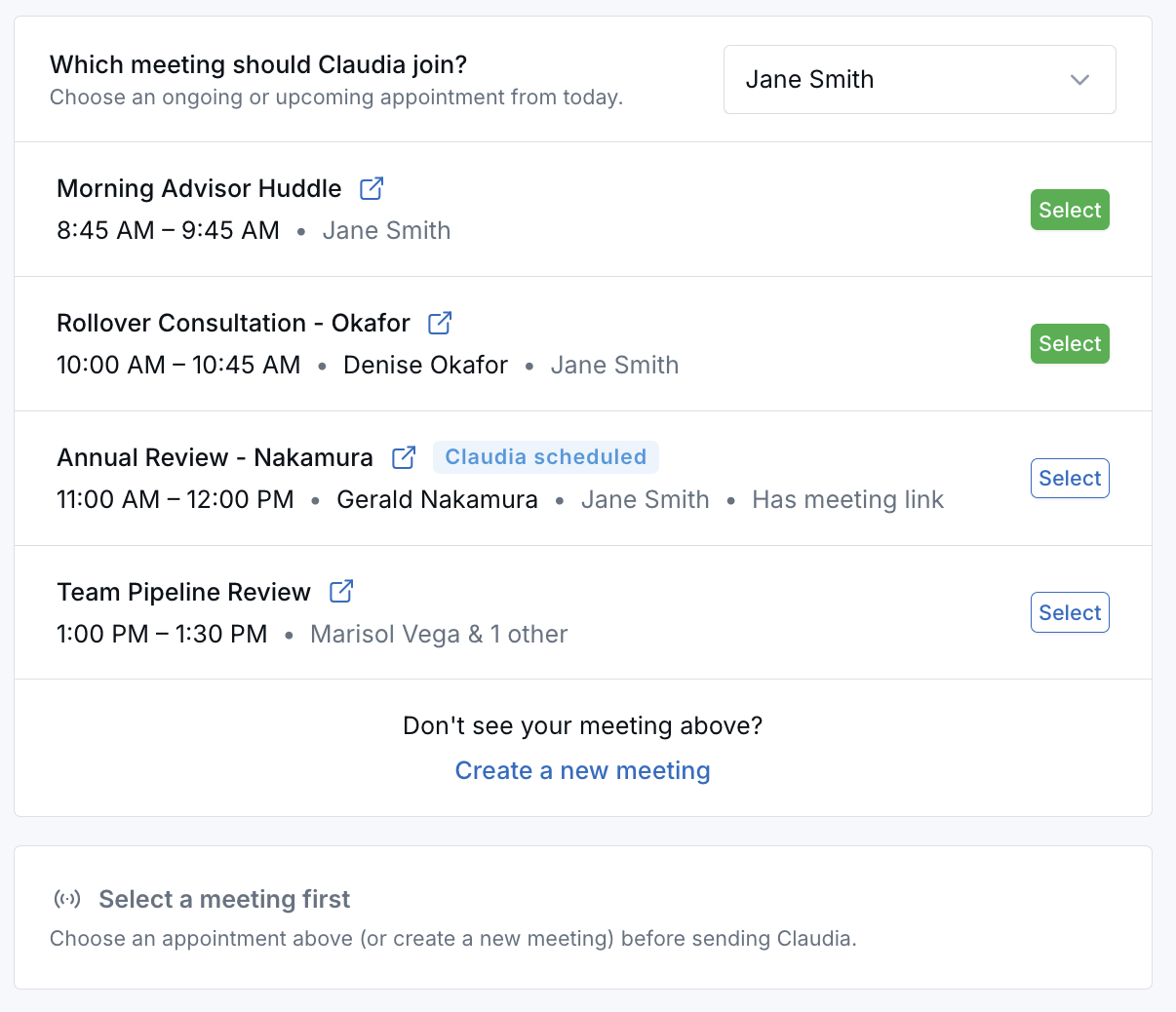
Today’s meetings, with video link and Claudia status shown.
In-person meetings
For face-to-face meetings, open In person meeting (Claudia AI). Select or create the appointment, review the meeting details, and select Start to record from your computer.
Appointment notes remain visible beside the recorder, while status messages and reminders help you monitor the recording and connection through processing.
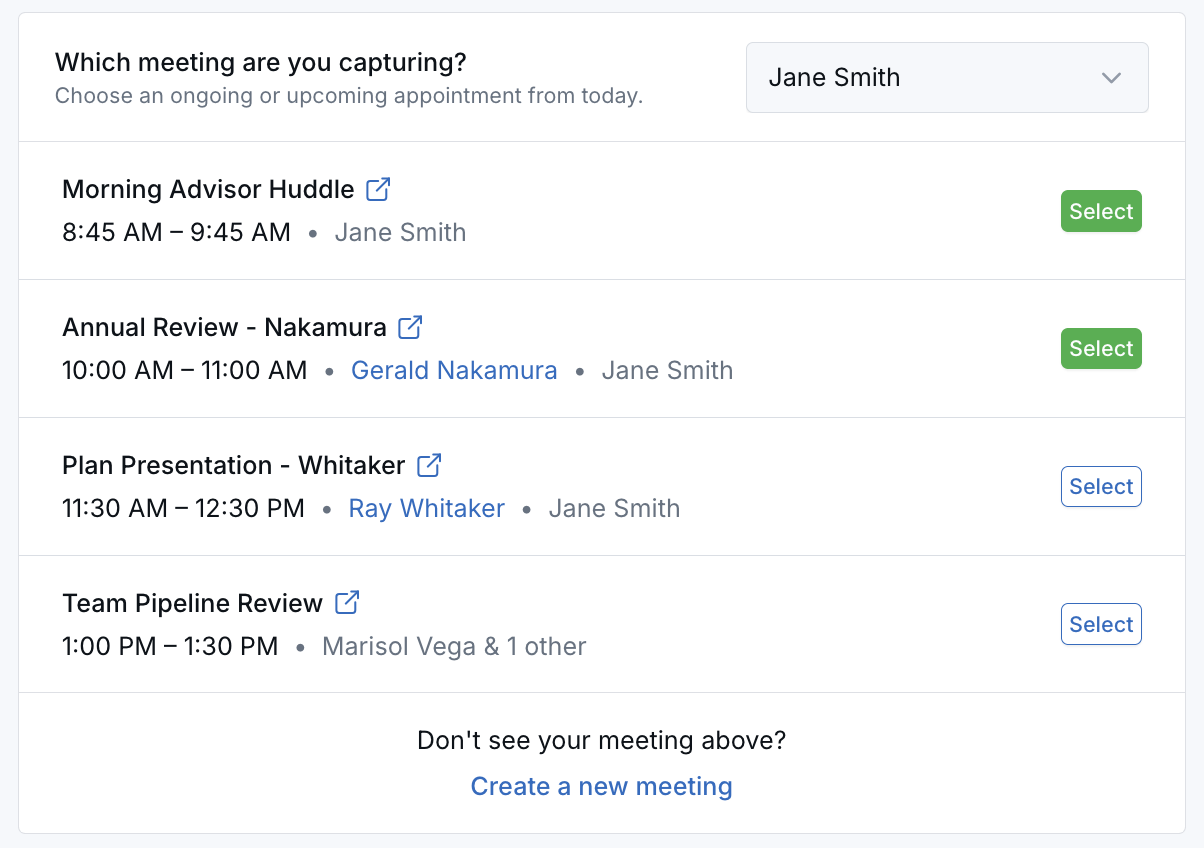
Pick today’s meeting, then record the conversation.
What Stayed the Same
- Open Claudia meeting capture from the + menu in the top navigation, the shortcuts on your Home dashboard, or Start Claudia AI on an appointment.
- The meeting assistant must be enabled in calendar settings.
- Online meetings require a valid video meeting link.
- In-person capture requires microphone permission and an open browser tab.
- Transcripts and summaries continue to appear on the appointment and contact after processing.
Why It Matters
- Spend less time moving between screens — Calendar details, meeting context, and notes stay together.
- Capture unplanned meetings faster — Create the appointment without leaving the page.
- Make training easier — Advisors follow the same familiar steps for online and in-person meetings.
Questions? support@leadcenter.ai

Need more help?
If you can't find the answers you're looking for, our support specialists are available to answer your questions and troubleshoot if necessary.
-
Phone Call (888) 291-7116. Our main hours are Monday to Friday 7 am-5 pm Central Time.
-
Support Send your questions and inquiries via email to support@leadcenter.ai. A support ticket will be created and one of our team members will get back to you as quickly as possible.