 Help Center
What's New
Open and Save Email Attachments in LeadCenter
11/10/2026
Files attached to your emails now show right in LeadCenter. Preview a PDF, download a spreadsheet, or save a file to the client's record, without digging through your mailbox.
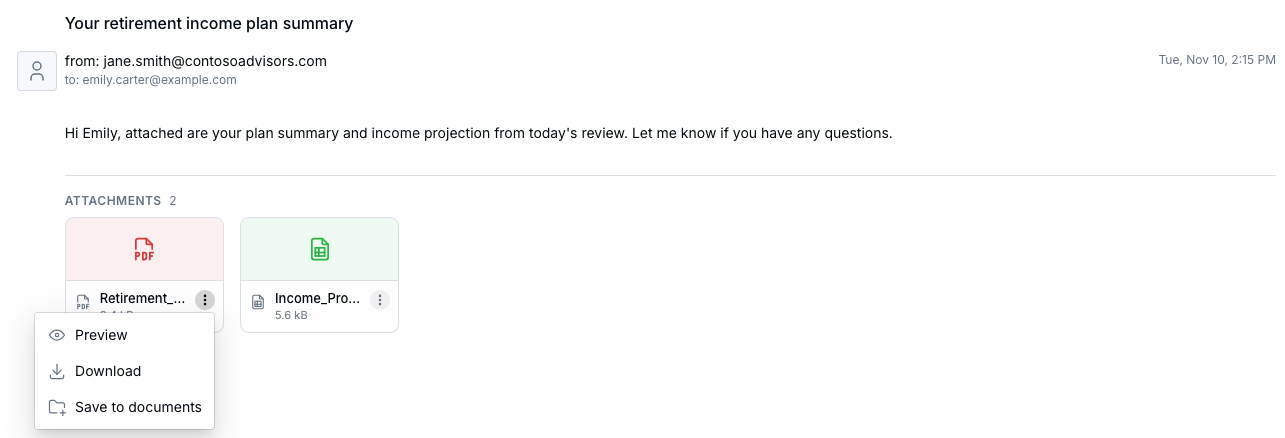
Each file shows as a card under the email, with Preview, Download, and Save to documents.
What's New
- See every file: Attachments show as cards under the email, with each file's name and size.
- Preview in one click: Photos and PDFs open right in LeadCenter. Use the arrows to move between files.
- Save to the client's record: Add a file to the contact's Documents tab in two clicks.
- Works with your mailbox: Emails from Gmail, Outlook, or another connected mailbox, and emails sent from LeadCenter.
How It Works
- Open an email from Inbox → Emails or a contact's Emails tab. A paperclip in the list shows which emails have files.
- Click a file to preview it.
- To keep a file, open its three-dot menu and choose Download or Save to documents.
Why It Matters
Statements, signed forms, and client documents arrive by email every day. Now they're one click from the client's record. For all the details, see View, Download, and Save Email Attachments.
Questions? support@leadcenter.ai

Need more help?
If you can't find the answers you're looking for, our support specialists are available to answer your questions and troubleshoot if necessary.
-
Phone Call (888) 291-7116. Our main hours are Monday to Friday 7 am-5 pm Central Time.
-
Support Send your questions and inquiries via email to support@leadcenter.ai. A support ticket will be created and one of our team members will get back to you as quickly as possible.