 Help Center
What's New
New: Event Confirmations Now Support Text Messaging
03/26/2026
Event confirmations in LeadCenter now support text messaging in addition to email, giving you more flexibility in how you communicate with attendees. This update also includes a new way to customize the Event Attendees table so you can focus on the columns that matter most to your workflow.
What’s New
- Send event confirmations by text message — In addition to email confirmations, you can now send confirmation messages by text.
- Choose email, text, or both by attendee status — Configure the right communication method for statuses like Registered, Confirmed, or Cancelled.
- Support attendee move confirmations — Optionally send a confirmation when an attendee is moved from one event to another.
- Customize the Event Attendees table — Choose which columns appear on the Attendees page and arrange them in the order you prefer.
How It Works
Go to Events, open your event, and click Confirmations in the left sidebar. For each attendee status, you can enable Email, Text, or both, then select the template you want to use for that status.
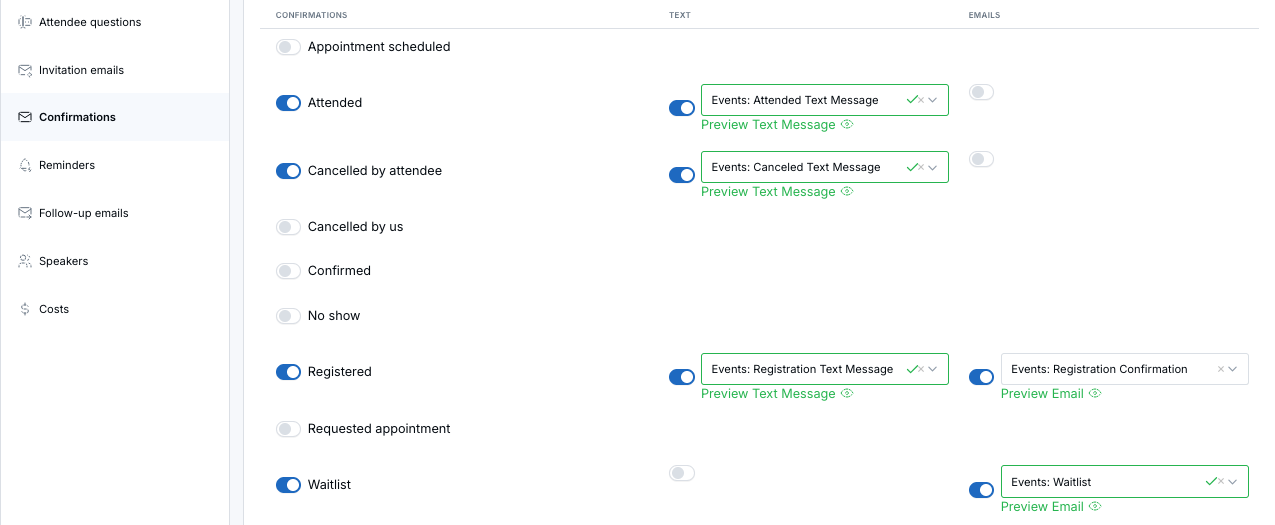
To send text confirmations, select a phone number under Select number for text confirmations. This number is separate from reminder settings, so you can use a different number for confirmations if needed.
If you use attendee move actions, you can also configure a separate confirmation for the Attendee move row.
Customize the Event Attendees Page
Go to Events, then click the registered attendee count on the right side of an event row to open that event’s Attendees page. From there, click the Columns button to choose which columns are displayed and drag them into the order you want.
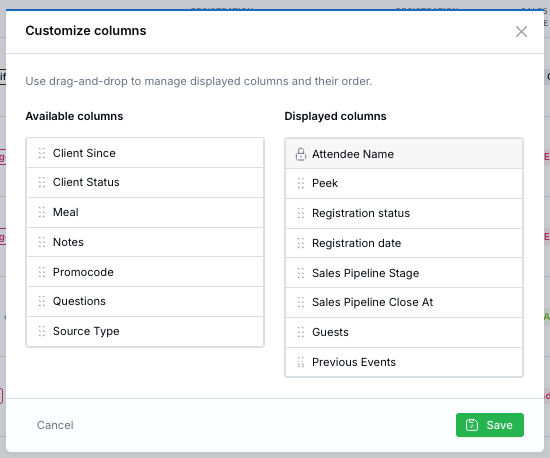
If any columns are hidden, they remain available in the More section for each attendee row. Your column preferences are saved per user, so each team member can personalize their own attendee view without affecting anyone else.
Why It Matters
- Reach attendees more effectively — Add text messaging to confirmation workflows so communications are more likely to be seen quickly.
- Match communications to attendee status — Send the right message through the right channel as attendees move through your event workflow.
- Work more efficiently inside Events — Personalize the Attendees table so your team can focus on the fields that matter most during follow-up and event management.
Questions? support@leadcenter.ai

Need more help?
If you can't find the answers you're looking for, our support specialists are available to answer your questions and troubleshoot if necessary.
-
Phone Call (888) 291-7116. Our main hours are Monday to Friday 7 am-5 pm Central Time.
-
Support Send your questions and inquiries via email to support@leadcenter.ai. A support ticket will be created and one of our team members will get back to you as quickly as possible.