 Help Center
What's New
New: Play and Download Claudia AI Meeting Recordings
04/09/2026
You can now save, play, and download meeting recordings in LeadCenter when video and audio recording is enabled for your calendar. This gives your team another way to revisit important meetings, beyond written transcripts alone.
What’s New
- Keep playable meeting recordings in LeadCenter — Supported meetings can now retain video and audio for later playback when recording is enabled on the calendar.
- Play recordings directly in the browser — When a saved recording is available, you can open it in LeadCenter and replay the meeting without leaving the app.
- Download a copy when needed — Meeting recordings can also be downloaded for internal use, based on your firm’s policies.
How It Works
This feature is controlled by the Video/audio recording setting in Claudia AI (meeting assistant) on each calendar. When that setting is turned on, supported meetings can keep a saved recording for later playback. When it is turned off, LeadCenter can still keep a transcript without saving the playable recording.
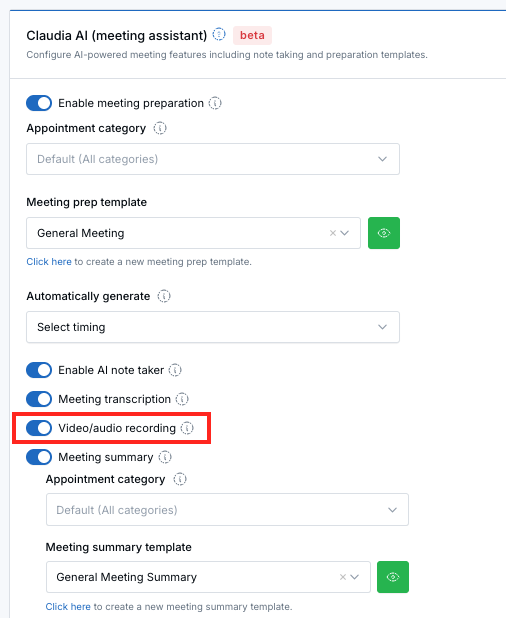
When a recording is available for an appointment, look for Play meeting recording. You may see this from a contact’s appointment list, from the calendar appointment details, or from other places where appointments appear in LeadCenter.
Open the recording to play it back in your browser. If you need a copy, click Download from the player window.
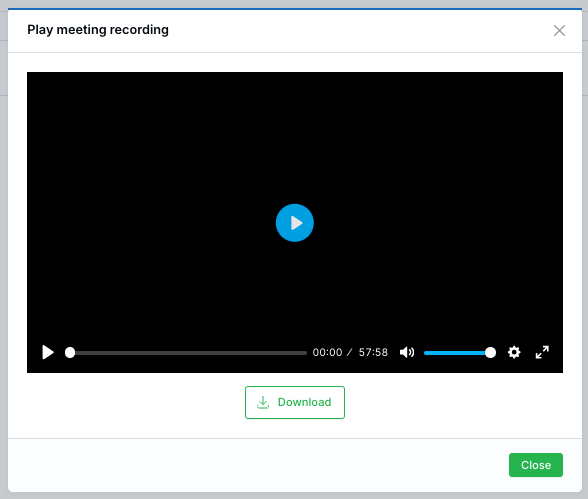
If a recording is not available yet, LeadCenter may still be processing it, or the calendar may not have had Video/audio recording enabled when the meeting was completed.
Why It Matters
- Review meetings more easily — Revisit important conversations without relying only on notes or transcripts.
- Keep more complete meeting records — Save both the written conversation and, when allowed, the original recording.
- Give teams more flexibility — Let advisors and support staff replay or download recordings when their workflow requires it.
Questions? support@leadcenter.ai

Need more help?
If you can't find the answers you're looking for, our support specialists are available to answer your questions and troubleshoot if necessary.
-
Phone Call (888) 291-7116. Our main hours are Monday to Friday 7 am-5 pm Central Time.
-
Support Send your questions and inquiries via email to support@leadcenter.ai. A support ticket will be created and one of our team members will get back to you as quickly as possible.