 Help Center
What's New
New: Control Meeting Location Options on Each Shared Calendar Link
05/14/2026
You can now control meeting location options on each shared calendar link, so every group or round-robin booking page can offer the right meeting choices for that specific scheduling workflow.
This makes shared links more flexible. You no longer have to rely on one host's general calendar settings to decide what appears across every shared booking page.
What’s New
- Set meeting options per shared link — Choose which meeting types appear on each shared booking page, including Zoom meeting, Teams meeting, Google Meet, In person meeting, Phone call, and Other.
- Manage it where shared links are built — These visibility settings now live directly on the shared link instead of on each user's calendar settings.
- Keep host setup separate — Hosts still manage their connected accounts and meeting details at the calendar level. This update changes where you choose what each shared link should offer.
How It Works
Go to Setup > Calendar > Shared Calendars, then create a new shared link or open an existing one. In the Meeting location section, check the meeting types you want to offer on that link's public booking page and click Save.
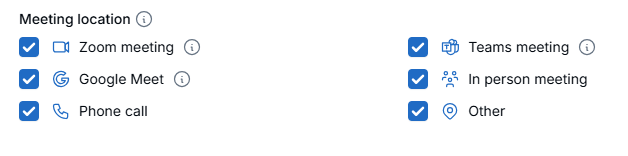
At booking time, visitors only see meeting types that are enabled on the shared link and available for the host selected for that booking. For example, if Zoom meeting is enabled on the link but the selected host does not have Zoom connected, that option will not appear.
Why It Matters
- More control for each booking flow — Different shared links can now offer different meeting experiences without affecting one another.
- Cleaner setup for teams — Admins can manage shared-link visibility in one place instead of piecing it together from host-level settings.
- Better booking experience — Visitors only see meeting options that make sense for the link and the host handling the appointment.
Questions? support@leadcenter.ai

Need more help?
If you can't find the answers you're looking for, our support specialists are available to answer your questions and troubleshoot if necessary.
-
Phone Call (888) 291-7116. Our main hours are Monday to Friday 7 am-5 pm Central Time.
-
Support Send your questions and inquiries via email to support@leadcenter.ai. A support ticket will be created and one of our team members will get back to you as quickly as possible.