 Help Center
What's New
Bring Your Google Drive Files Into LeadCenter
11/18/2026
If your firm keeps client files in Google Drive, you can now see them right next to your LeadCenter files. Link a file so it stays in Google Drive, import a copy into LeadCenter, or send a LeadCenter file to Google Drive.
What's New
- Link Google Drive files: Show a file or folder on the Documents page or a contact without copying it. It always opens the latest version in Google Drive.
- Import a copy: Bring Google Drive files into LeadCenter as regular LeadCenter files. Imports run in the background, and a notification lets you know when they finish.
- Copy to Google Drive: Send one or several LeadCenter files to Google Drive. They stay in LeadCenter too.
- Preview without leaving LeadCenter: Open PDFs, images, and Google Docs, Sheets, Slides, and Drawings right in LeadCenter.
- Ask Troy AI: On a contact, ask Troy AI about a Google Doc or Sheet you linked, by name.
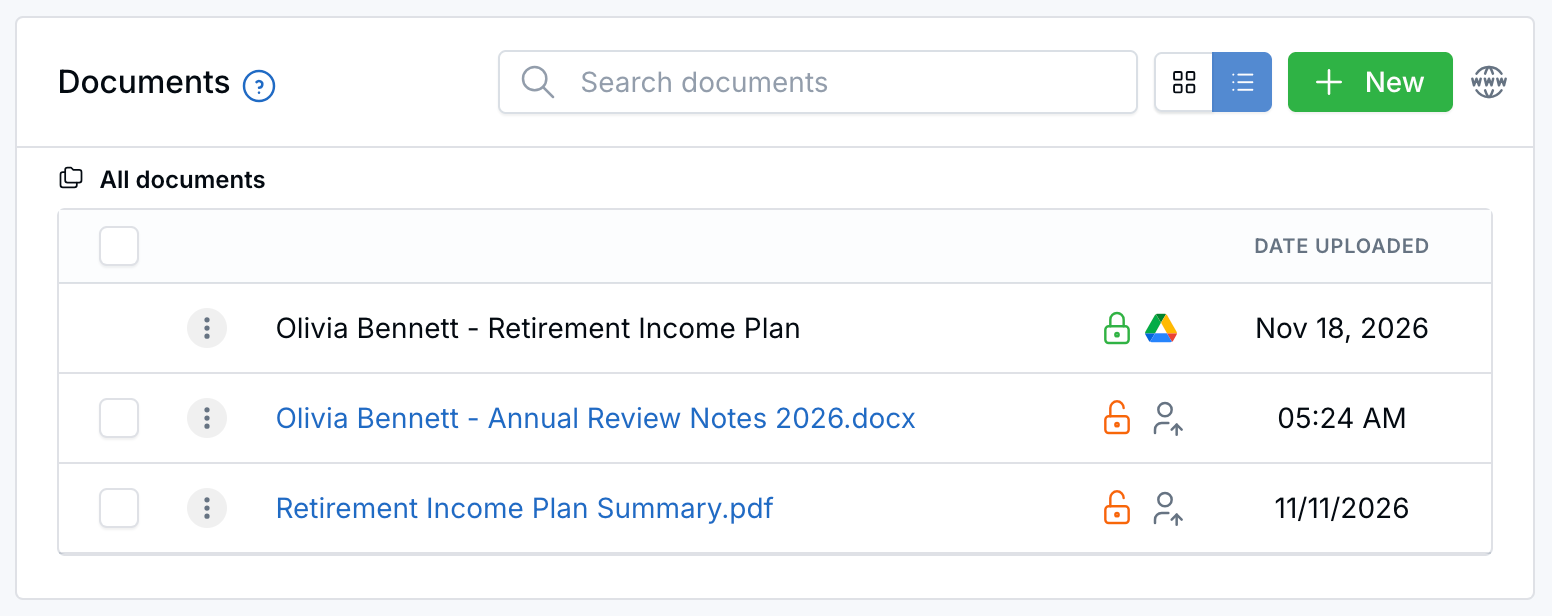
Linked Google Drive files sit right next to your LeadCenter files.
How It Works
- Open Documents, or the Documents tab on a contact.
- Click + New, then choose Link to/from Google Drive or Import from Google Drive.
- Sign in to Google the first time, then pick your files.
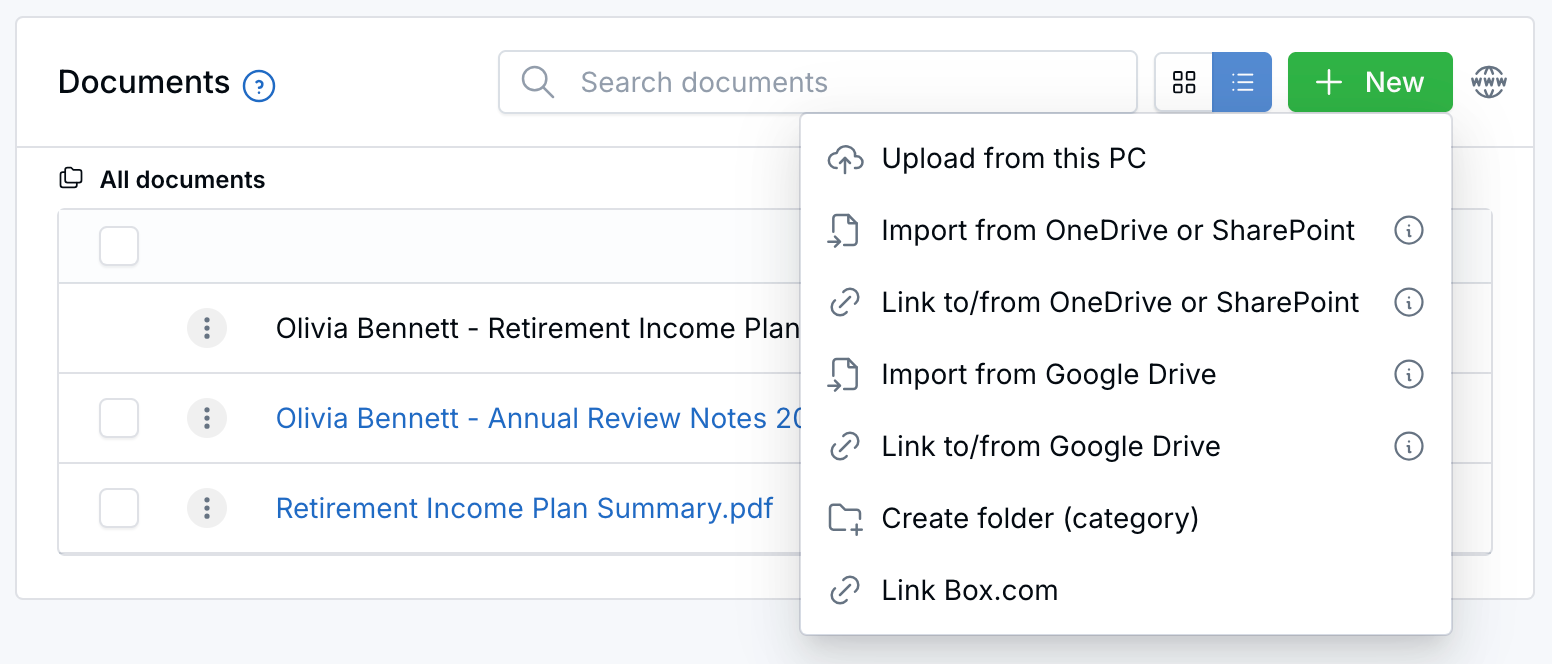
Click + New, then choose a Google Drive option.
To send a LeadCenter file to Google Drive, open its menu (⋮) and choose Copy to Google Drive. You can also connect Google Drive from Integrations, under File storage.
Learn more in Link and Import Files from Google Drive.

Need more help?
If you can't find the answers you're looking for, our support specialists are available to answer your questions and troubleshoot if necessary.
-
Phone Call (888) 291-7116. Our main hours are Monday to Friday 7 am-5 pm Central Time.
-
Support Send your questions and inquiries via email to support@leadcenter.ai. A support ticket will be created and one of our team members will get back to you as quickly as possible.