 Help Center
What's New
New: Create Personalized Letters and Labels with Mail Merge
05/22/2026
You can now use mail merge in LeadCenter to quickly create personalized letters and labels for contacts using Word .docx templates. Add shortcodes like [[first_name]] to your template, then generate editable documents for one contact or up to 100 contacts at a time.
What’s New
- Create personalized letters and labels — Use Word templates with merge fields so contact details are filled in automatically.
- Upload reusable Word templates — Add
.docxtemplates with LeadCenter shortcodes for contact details, mailing information, and other supported fields. - Run mail merge for one contact — Generate a personalized Word document directly from a contact’s action menu.
- Run bulk mail merge for up to 100 contacts — Select contacts from the Contacts table or Pipeline view and generate one combined
.docxfile. - Add optional timeline notes — Record that a mail merge document was created and add a note to each merged contact’s timeline.
How It Works
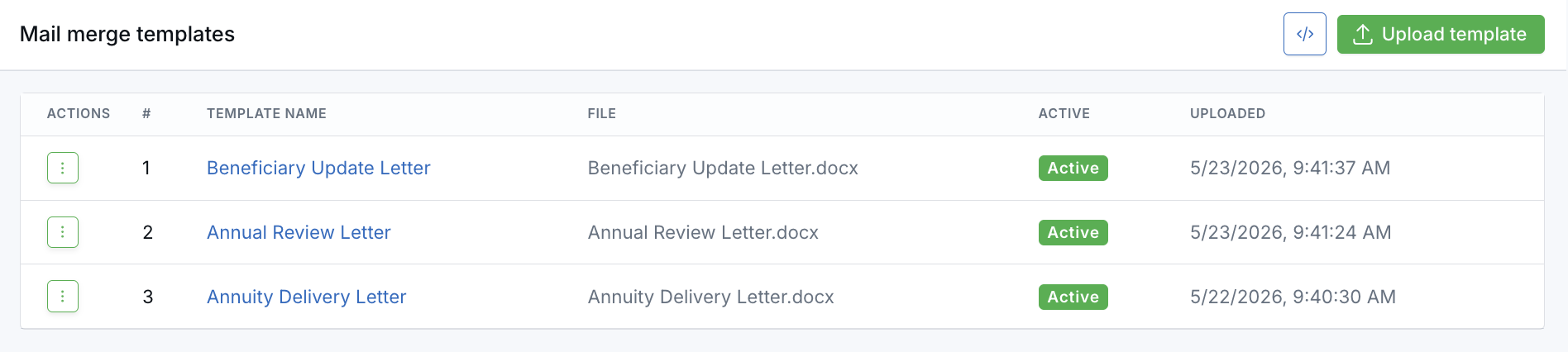
Start by going to Marketing Dashboard → Templates → Mail Merge. From there, upload a Word .docx template and give it a recognizable name. Use the shortcode reference panel to copy fields like [[first_name]] into your Word document before uploading.
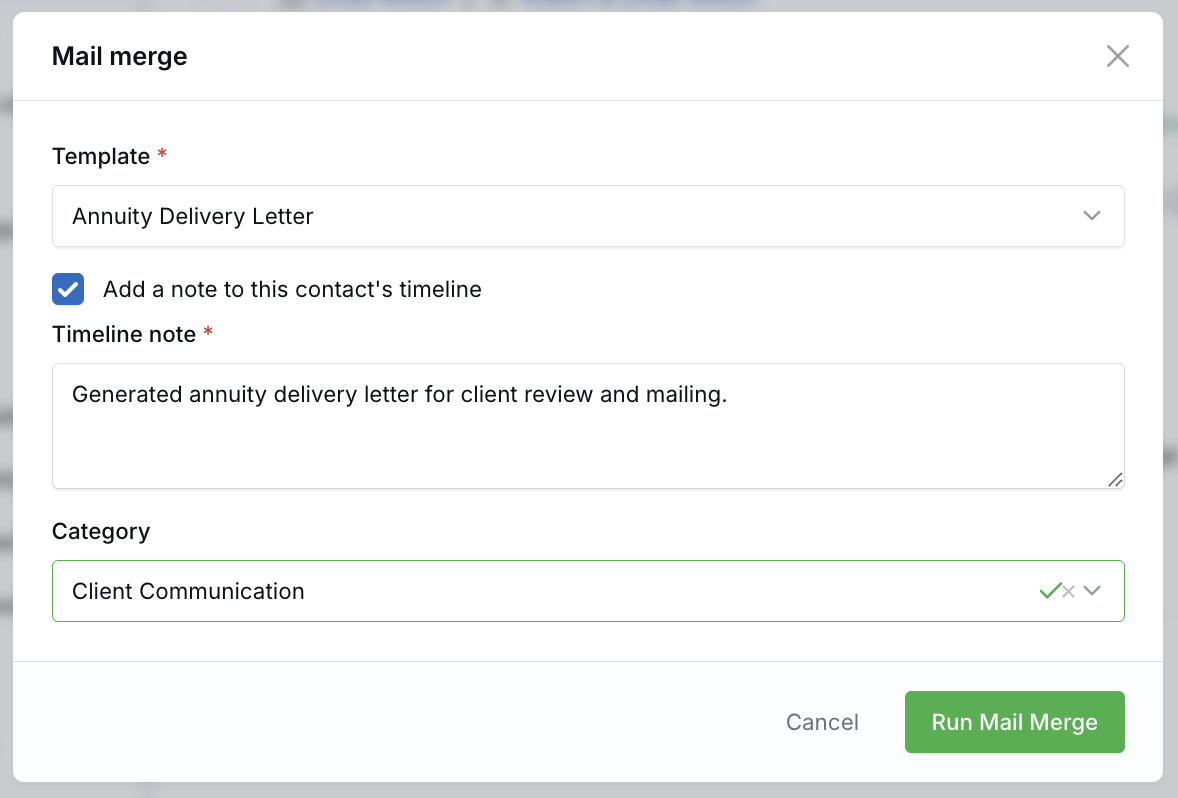
For a single contact, open the contact’s action menu and choose Mail merge. Select an active template, optionally add a timeline note, then click Run Mail Merge. The personalized .docx file downloads in your browser.
For bulk mail merge, select contacts from the Contacts table or Pipeline view, then choose Mail merge from the bulk action bar. LeadCenter can process up to 100 contacts per run and creates one combined Word document with a page break between each contact.
.doc files, PDFs, and renamed non-Word files are rejected.
Timeline Notes
When the timeline note option is enabled, LeadCenter adds a structured note to the merged contact’s timeline. The note includes the template name, who created the mail merge, and any additional note text you entered.
Mail merge notes are marked with a Mail merge badge and appear on the contact timeline, family timeline, and global Notes page.
Tips for Best Results
- Use Word
.docxtemplates — Save older Word files as Word Document (.docx) before uploading. - Keep shortcodes intact — Type each shortcode in one continuous run, such as
[[first_name]], so Word does not split the code across formatting. - Test with one contact first — Run a single-contact merge before generating a bulk document.
- Keep bulk runs manageable — Bulk mail merge supports up to 100 contacts per run.
Why It Matters
- Create personalized letters and labels faster — Use merge fields to fill in contact details automatically instead of manually editing each document.
- Support both one-off and bulk workflows — Use the same template for a single contact or a filtered contact list.
- Keep a record of document activity — Optional timeline notes help your team see when a mail merge document was created.
- Stay flexible after the merge — Because the output is a real Word document, your team can edit, print, or send it through your mail program.
Questions? support@leadcenter.ai

Need more help?
If you can't find the answers you're looking for, our support specialists are available to answer your questions and troubleshoot if necessary.
-
Phone Call (888) 291-7116. Our main hours are Monday to Friday 7 am-5 pm Central Time.
-
Support Send your questions and inquiries via email to support@leadcenter.ai. A support ticket will be created and one of our team members will get back to you as quickly as possible.