 Help Center
What's New
See Your Zoom Phone Calls and Texts in LeadCenter
10/23/2026
If your team uses Zoom Phone, its calls and texts now show up in LeadCenter, right next to each client's emails, notes, and appointments. Once you connect, LeadCenter matches each outside number to your contacts and brings in new activity automatically.
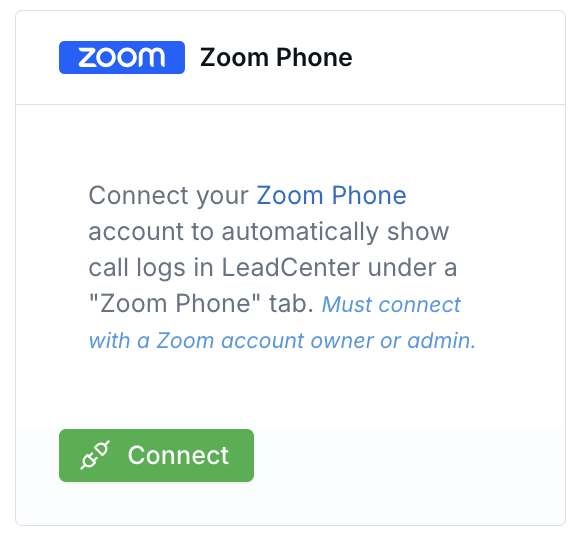
Connect from the Zoom Phone card under Integrations, Telephony and text.
What's New
- Calls in context — See inbound and outbound calls, their result, how long they lasted, and who on your team took them. Find them on the Calls page and on contact and household records.
- Recordings and summaries — Play or download recorded calls in LeadCenter. With a Call Transcription subscription, recorded calls are transcribed automatically, with AI summaries alongside.
- Texts with each client — See sent and received Zoom Phone texts on the Texts page and on contact and household records.
How It Works
- Go to Integrations, open Telephony and text, and click Connect on the Zoom Phone card.
- Sign in with a Zoom account owner or admin and approve the access.
- Open Calls or Texts and click the Zoom Phone tab.
LeadCenter imports the last day of calls and texts right away, then syncs new activity in near real time, with a daily check as a backup.
Why It Matters
- The full client story — Calls and texts sit next to emails, notes, and appointments, so nothing gets missed before a review.
- Less manual logging — Conversations are matched to contacts for you.
- Better records for your team — Everyone with access sees the same call and text history.
Learn how it works: Zoom Phone Integration: Calls and Text Messages

Need more help?
If you can't find the answers you're looking for, our support specialists are available to answer your questions and troubleshoot if necessary.
-
Phone Call (888) 291-7116. Our main hours are Monday to Friday 7 am-5 pm Central Time.
-
Support Send your questions and inquiries via email to support@leadcenter.ai. A support ticket will be created and one of our team members will get back to you as quickly as possible.