 Help Center
What's New
Start Appointments as Confirmed and Let Client Replies Update Them
11/27/2026
Want new appointments to count as kept without confirming each one by hand? Or have client replies update the appointment for you? You can now choose how appointment statuses behave for your whole account.
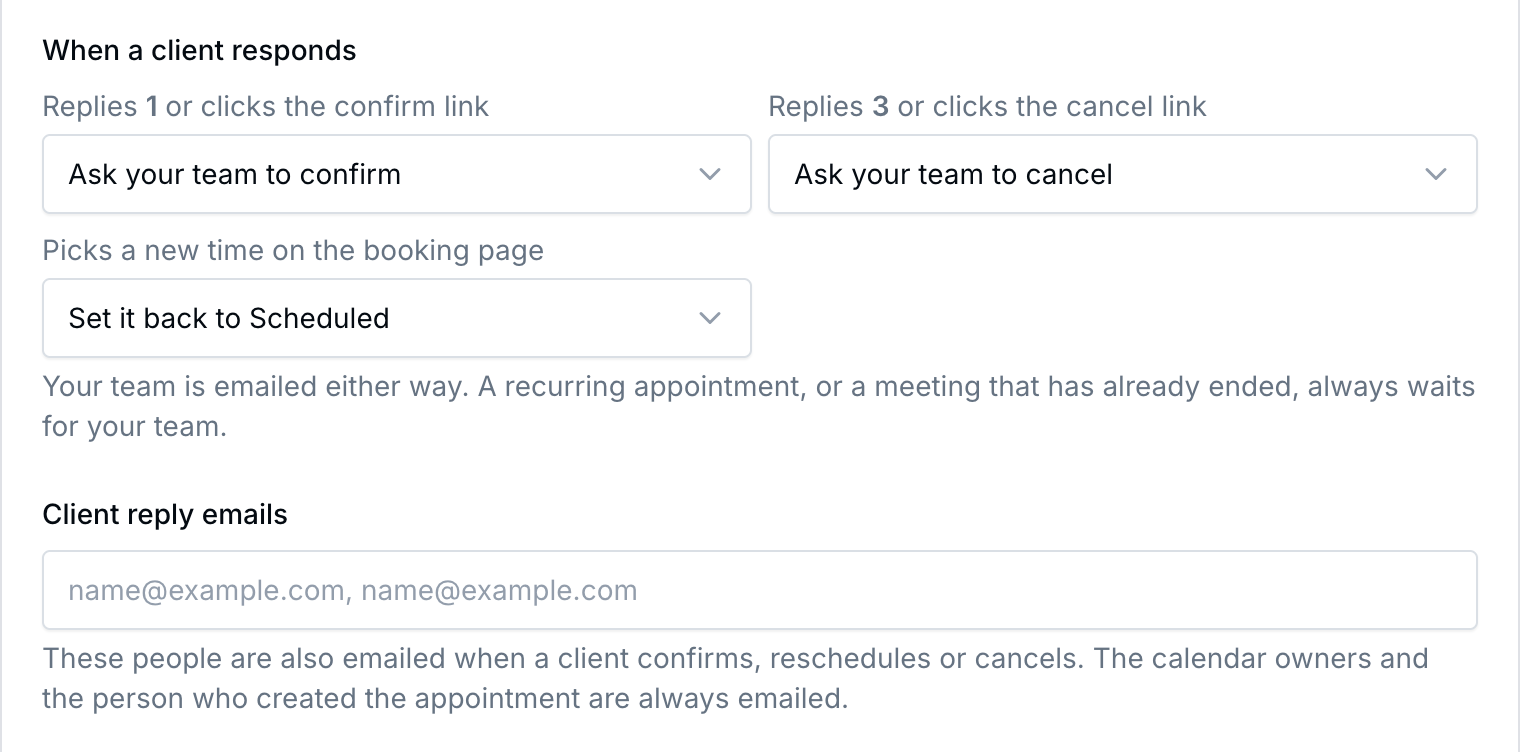
Choose what happens when a client confirms, cancels or picks a new time.
What's New
- Choose how new appointments start: Pick Scheduled or Confirmed for appointments created by your team, booked online by a client, created through the API or Zapier, or booked by the AI assistant.
- Let client replies do the work: When a client replies 1 or clicks the confirm link, you can confirm the appointment right away instead of waiting for your team. The same goes for a reply of 3 or the cancel link, which can cancel the appointment and free the time slot.
- Decide what happens on a new time: When a client picks a new time on the booking page, set the appointment back to Scheduled or keep its status.
- Keep your team in the loop: Your team is still emailed about every client response. Add up to 10 more email addresses under Client reply emails.
Nothing changes until you change a rule. Each rule starts on the way LeadCenter works today, and existing appointments keep their current status.
How to Set Your Rules
- Go to Manage calendars and open any calendar.
- Click Appointment status rules in the left menu.
- Choose the options you want and click Save. The rules apply to every calendar in your account.
A recurring appointment, or a meeting that has already ended, always waits for your team, even when an automatic option is on. Reports count an appointment as kept once it is Confirmed or Completed.
Learn more: Choose How Appointment Statuses Behave

Need more help?
If you can't find the answers you're looking for, our support specialists are available to answer your questions and troubleshoot if necessary.
-
Phone Call (888) 291-7116. Our main hours are Monday to Friday 7 am-5 pm Central Time.
-
Support Send your questions and inquiries via email to support@leadcenter.ai. A support ticket will be created and one of our team members will get back to you as quickly as possible.