 Help Center
What's New
What's New
Stronger Sign-In Protection for Your Account
11/24/2026
Your LeadCenter account holds your clients' personal and financial information, so we've made signing in safer. Nothing changes in how you sign in day to day.
What's New
- Protection against password guessing: After 5 wrong passwords, sign-in to that account pauses for 1 minute, and longer if the attempts continue. Wrong two-factor codes are limited the same way.
- Security alert emails: If your account is locked, we email you when it happened and from which internet address.
- A quick "verifying you are human" check on the sign-in page stops automated attacks. It usually completes on its own.
- Two-factor authentication where your firm requires it: If you belong to several LeadCenter accounts, you're asked to set up 2FA when you work in any account that requires it, and you can't turn 2FA off while one does.
- Password resets don't skip 2FA: If you use 2FA, you'll still enter your code after resetting your password.
Turn On Two-Factor Authentication
- Install a free authenticator app on your phone, such as Google Authenticator, Microsoft Authenticator or Authy.
- Go to Personal profile and open the Two-factor authentication tab.
- Click Enable 2FA, scan the QR code with the app, and enter the 6-digit code.
Tip: turn on backup in your authenticator app so you don't lose your codes if you change phones.
Require 2FA for Everyone in Your Firm
Account owners and admins can turn on 2FA for every user at once:
- Go to Settings, then Security Management, and click Account security (2FA and session timeout).
- Turn on Enable 2FA for all users and click Save.
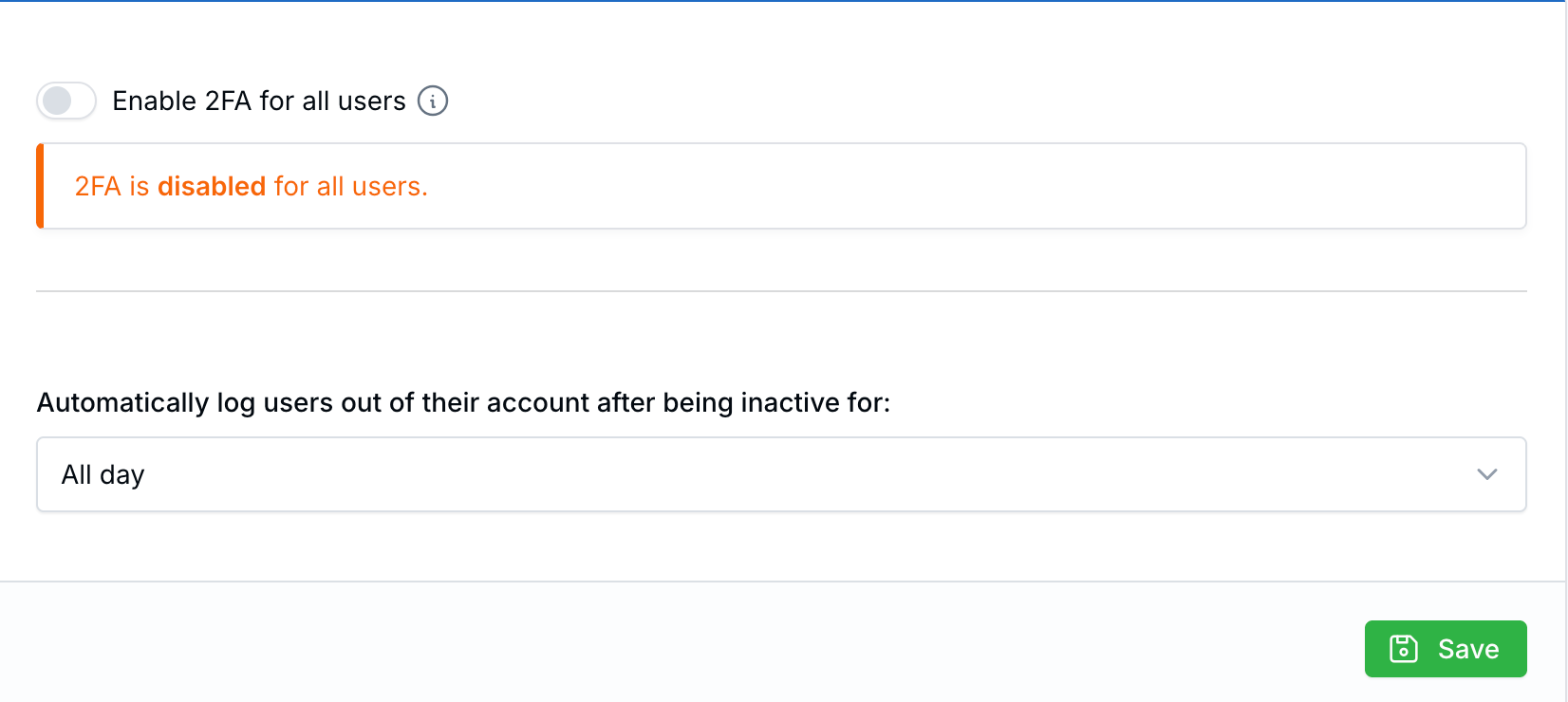
Owners and admins can require 2FA for everyone.
Each user who hasn't set up 2FA is taken to the setup page the next time they use LeadCenter.
Learn more: Two-Factor Authentication (2FA)

Need more help?
If you can't find the answers you're looking for, our support specialists are available to answer your questions and troubleshoot if necessary.
-
Phone Call (888) 291-7116. Our main hours are Monday to Friday 7 am-5 pm Central Time.
-
Support Send your questions and inquiries via email to support@leadcenter.ai. A support ticket will be created and one of our team members will get back to you as quickly as possible.