 Help Center
What's New
What's New
Start a Workflow When an Appointment Changes
11/24/2026
Follow up on every cancellation and no-show without lifting a finger. The new Appointment updated workflow trigger starts a workflow when a client appointment's status, start time, category or meeting location changes.
What's New
- Act on cancellations and no-shows: Send a "let's find a new time" email or create a call task for the advisor.
- Confirm reschedules: Let the client know the new time as soon as the meeting moves.
- Location changes: Send the Zoom link or phone details when a meeting switches to virtual.
- Reminders follow the new time: Workflow reminders timed before an appointment now follow the meeting when a client reschedules from their booking link, so no reminder goes out for the old time.
How to Set It Up
- Go to Workflows and create a workflow or open one.
- Choose Appointment updated as the trigger.
- Under Fields to watch, pick one or more of Status, Start time (rescheduled), Category and Meeting location.
- Add an Appointment filter to narrow it down, for example Status is Cancelled or No show.
- Add your steps, such as Send email, Send text or Create task, and publish.
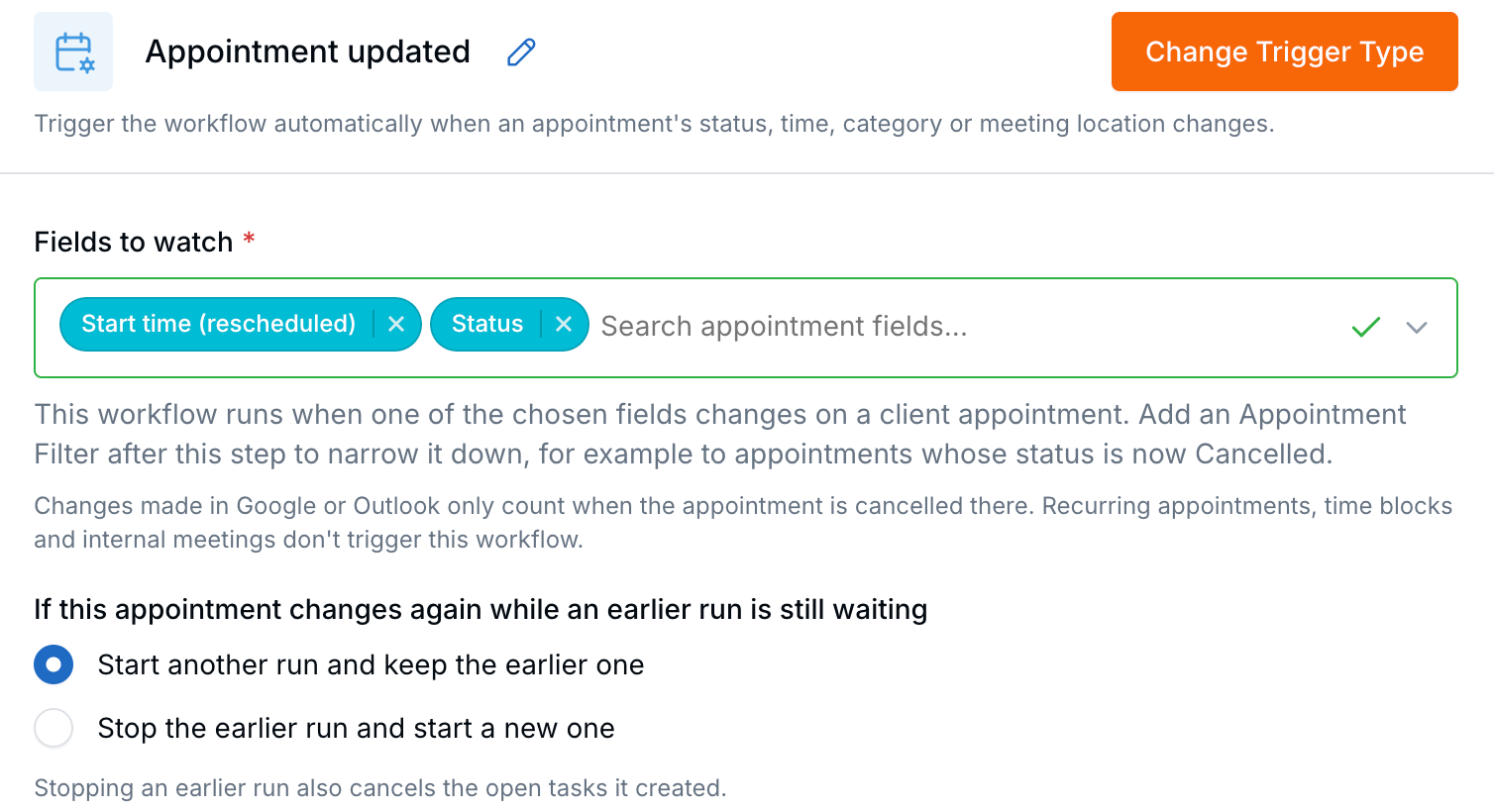
Pick the changes that start the workflow.
It works for client appointments that have a contact. Recurring appointments, time blocks and internal meetings don't start this workflow. Changes made in Google Calendar or Outlook count only when the appointment is cancelled there.
Learn more: Using Appointment-Based Workflow Triggers & Waits

Need more help?
If you can't find the answers you're looking for, our support specialists are available to answer your questions and troubleshoot if necessary.
-
Phone Call (888) 291-7116. Our main hours are Monday to Friday 7 am-5 pm Central Time.
-
Support Send your questions and inquiries via email to support@leadcenter.ai. A support ticket will be created and one of our team members will get back to you as quickly as possible.